# Installation
In this guide, you'll find all the steps needed to correctly install a Blogger template. From backing up your existing theme to replacing the code with your new template, we'll walk you through each stage to ensure a smooth installation process.
### Installation Steps
After you have downloaded the new template in `.zip` format, extract the file so that you can install it.
#### 1. Back up your old template
**A** – Access your blog **Theme** > and click on the **Expand** button > then click **Backup**.
**Example:**
#### 2. Copying the new template code
**A** – After you have downloaded and extracted the new template, open the folder and find the template file with the extension `.xml`.
**B** – Open the file with notepad, or other code editor of your choice.
**C** – Click inside the code, select all code `(Ctrl + A)`, and copy the code `(Ctrl + C)`.
**Example:**
#### 3. Replacing the old code
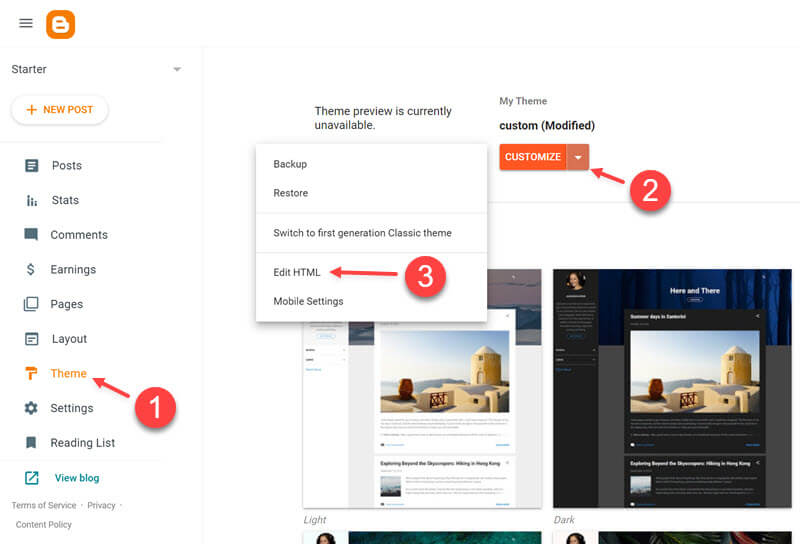
**A** – Access your blog **Theme** > and click on the **Expand** button > then click **Edit HTML**.
**Example:**
**B** – Click inside the code, select all code `(Ctrl + A)`, `DELETE` and paste the new code `(Ctrl + V)`.
**C** – After you have replaced the code click on **Save Button**.
**Example:**
**D** – Go back to the previous page to make sure the template has been installed correctly.
**Example:**
### Video Tutorial
{% embed url="" %}
{% hint style="success" %}
SUCCESS: Your new theme is already installed and ready to be configured.
{% endhint %}
---
# Agent Instructions: Querying This Documentation
If you need additional information that is not directly available in this page, you can query the documentation dynamically by asking a question.
Perform an HTTP GET request on the current page URL with the `ask` query parameter:
```
GET https://docs.probloggertemplates.com/guides/basic/installation.md?ask=
```
The question should be specific, self-contained, and written in natural language.
The response will contain a direct answer to the question and relevant excerpts and sources from the documentation.
Use this mechanism when the answer is not explicitly present in the current page, you need clarification or additional context, or you want to retrieve related documentation sections.