> This is part 1 of 4 of the full documentation (pages 1–100 of 341).
> The content is paginated: fetch every part to see all of it.
> Next part: https://docs.probloggertemplates.com/guides/llms-full.txt/1
> Page index: https://docs.probloggertemplates.com/guides/llms.txt

# Welcome

Welcome to the Guides section of our documentation! Here, you'll find a comprehensive collection of resources to help you make the most of our templates. Explore detailed guides for each template, learn how to install and set up your Blogger template, and discover powerful features like post shortcodes for adding buttons, alerts, forms, and more. Whether you’re just starting or looking to enhance your site, our guides have you covered.

### Basic Guides

<table data-card-size="large" data-view="cards"><thead><tr><th></th><th></th><th data-hidden data-card-cover data-type="files"></th><th data-hidden></th><th data-hidden data-card-target data-type="content-ref"></th></tr></thead><tbody><tr><td><strong>Installation</strong></td><td>How to Install a Blogger Template</td><td></td><td></td><td><a href="/guides/basic/installation">Installation</a></td></tr><tr><td><strong>Post Shortcodes</strong></td><td>Setup Buttons, Alerts, Forms and More</td><td></td><td></td><td><a href="/guides/basic/shortcodes">Shortcodes</a></td></tr></tbody></table>

### Help Docs

<table data-view="cards"><thead><tr><th></th><th data-hidden data-card-target data-type="content-ref"></th></tr></thead><tbody><tr><td><strong>Spotlight</strong></td><td><a href="https://docs.probloggertemplates.com/guides/spotlight/">Spotlight</a></td></tr><tr><td><strong>HyperMag</strong></td><td><a href="https://docs.probloggertemplates.com/guides/hypermag/">HyperMag</a></td></tr><tr><td><strong>SeoFlex</strong></td><td><a href="https://docs.probloggertemplates.com/guides/seoflex/">SeoFlex</a></td></tr><tr><td><strong>SmartMag</strong></td><td><a href="/guides/basic/shortcodes">Shortcodes</a></td></tr><tr><td><strong>Casper</strong></td><td><a href="https://docs.probloggertemplates.com/guides/casper/">Casper</a></td></tr><tr><td><strong>La–Beauty</strong></td><td><a href="https://docs.probloggertemplates.com/guides/labeauty/">La–Beauty</a></td></tr><tr><td><strong>TechSpot</strong></td><td><a href="https://docs.probloggertemplates.com/guides/techspot/">TechSpot</a></td></tr><tr><td><strong>BuzzSpot</strong></td><td><a href="https://docs.probloggertemplates.com/guides/buzzspot/">BuzzSpot</a></td></tr><tr><td><strong>Amazen</strong></td><td><a href="https://docs.probloggertemplates.com/guides/amazen/">Amazen</a></td></tr><tr><td><strong>Magspot</strong></td><td><a href="https://docs.probloggertemplates.com/guides/magspot/">Magspot</a></td></tr><tr><td><strong>Newspot</strong></td><td><a href="https://docs.probloggertemplates.com/guides/newspot/">Newspot</a></td></tr><tr><td><strong>Starter</strong></td><td><a href="https://docs.probloggertemplates.com/guides/starter/">Starter</a></td></tr></tbody></table>

If you have any questions or suggestions, feel free to reach out to us through our [Contact Page](https://probloggertemplates.com/contact/). We're here to help!

***


# Installation

In this guide, you'll find all the steps needed to correctly install a Blogger template. From backing up your existing theme to replacing the code with your new template, we'll walk you through each stage to ensure a smooth installation process.

### Installation Steps

After you have downloaded the new template in `.zip` format, extract the file so that you can install it.

#### 1. Back up your old template

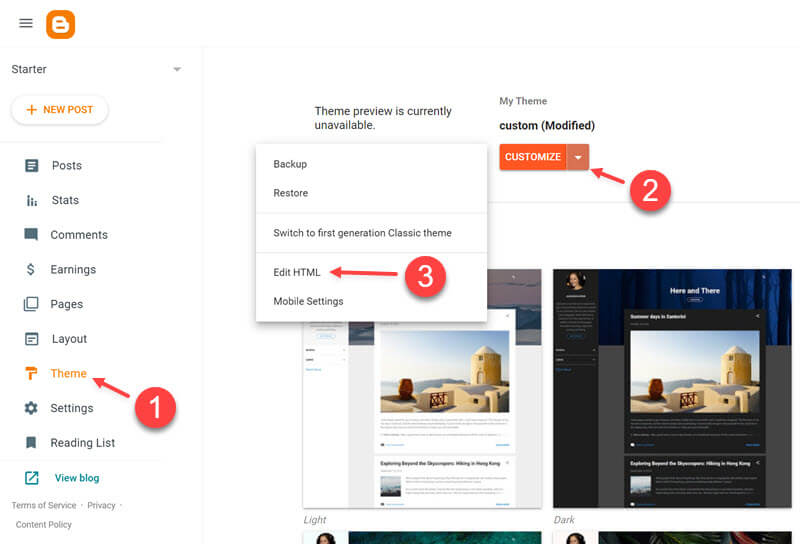
**A** – Access your blog **Theme** > and click on the **Expand** button > then click **Backup**.

**Example:**

<div data-full-width="false"><figure><img src="https://4117760356-files.gitbook.io/~/files/v0/b/gitbook-x-prod.appspot.com/o/spaces%2FiWPL7C3XC6Rq82dHvmDX%2Fuploads%2F9UoPlJyKKASb7M7OKRwa%2Fimage.png?alt=media&amp;token=273cec42-c4d7-414c-b700-3956bc2506db" alt="Backup theme"><figcaption></figcaption></figure></div>

#### 2. Copying the new template code&#x20;

**A** – After you have downloaded and extracted the new template, open the folder and find the template file with the extension `.xml`.

**B** – Open the file with notepad, or other code editor of your choice.

**C** – Click inside the code, select all code `(Ctrl + A)`, and copy the code `(Ctrl + C)`.

**Example:**

<figure><img src="https://4117760356-files.gitbook.io/~/files/v0/b/gitbook-x-prod.appspot.com/o/spaces%2FiWPL7C3XC6Rq82dHvmDX%2Fuploads%2F7sBy3c9yDAKP5uhyLquW%2Fimage.png?alt=media&amp;token=8b470061-4d67-4570-bb2c-847f8420ba25" alt="Copy new template code"><figcaption></figcaption></figure>

#### 3. Replacing the old code&#x20;

**A** – Access your blog **Theme** > and click on the **Expand** button > then click **Edit HTML**.

**Example:**

<figure><img src="https://4117760356-files.gitbook.io/~/files/v0/b/gitbook-x-prod.appspot.com/o/spaces%2FiWPL7C3XC6Rq82dHvmDX%2Fuploads%2FpwA693k3Apcig8SKQItU%2Fimage.png?alt=media&amp;token=974e8b2a-6c75-4aea-ba3c-c043801c135c" alt="Open HTML editor"><figcaption></figcaption></figure>

**B** – Click inside the code, select all code `(Ctrl + A)`, `DELETE` and paste the new code `(Ctrl + V)`.

**C** – After you have replaced the code click on <mark style="color:orange;">**Save Button**</mark>.

**Example:**

<figure><img src="https://4117760356-files.gitbook.io/~/files/v0/b/gitbook-x-prod.appspot.com/o/spaces%2FiWPL7C3XC6Rq82dHvmDX%2Fuploads%2FpYe9sOqfLczrLKVcA4FC%2Fimage.png?alt=media&amp;token=0336283d-6ef1-4454-a00f-b767ac0b5219" alt="Replace code"><figcaption></figcaption></figure>

**D** – Go back to the previous page to make sure the template has been installed correctly.

**Example:**

<figure><img src="https://4117760356-files.gitbook.io/~/files/v0/b/gitbook-x-prod.appspot.com/o/spaces%2FiWPL7C3XC6Rq82dHvmDX%2Fuploads%2FCbrbddD7ZcQLswpmVB8w%2Fimage.png?alt=media&amp;token=149054ca-30f4-4901-b7b7-c8870af6884d" alt="Installed template"><figcaption></figcaption></figure>

### Video Tutorial

{% embed url="<https://youtu.be/ND4vd-sfoMc>" %}

{% hint style="success" %}
SUCCESS: Your new theme is already installed and ready to be configured.
{% endhint %}


# Shortcodes

The post shortcodes developed by Pro Blogger Templates team are available in all our blogger templates. These shortcodes allow you to add buttons, alerts, contact form, code box and even make simple adjustments to the layout in an easy and intuitive way.

<figure><img src="https://4117760356-files.gitbook.io/~/files/v0/b/gitbook-x-prod.appspot.com/o/spaces%2FiWPL7C3XC6Rq82dHvmDX%2Fuploads%2FChvUNJJ9kNfEVgxvsg2Y%2Fimage.png?alt=media&amp;token=1b86b58b-193a-44ea-955c-7e3827e49166" alt="Post shortcodes"><figcaption></figcaption></figure>

### How To Setup?

If you carefully follow all the steps below, you should have no difficulty using our shortcodes.

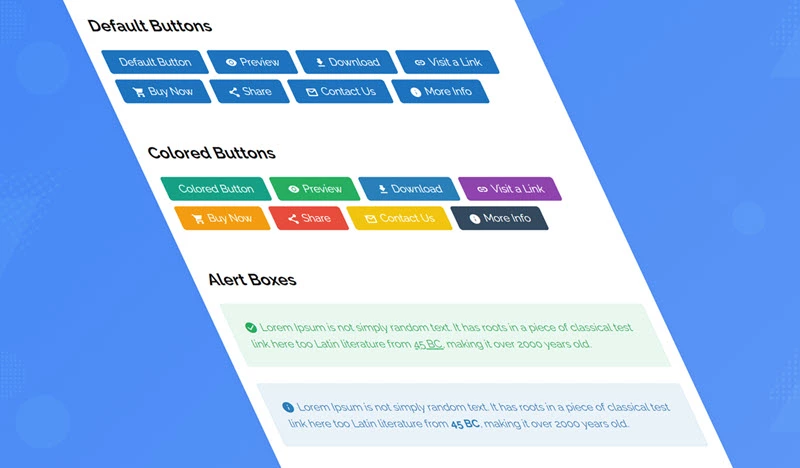
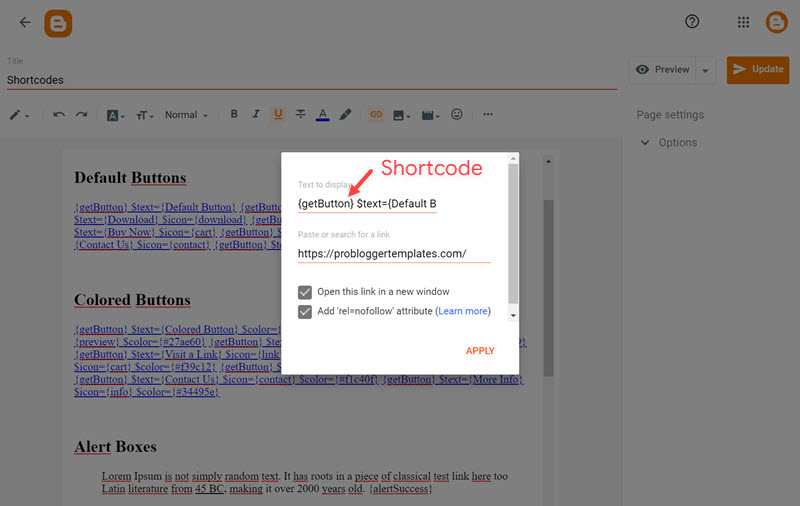
#### 1. Post Buttons&#x20;

Shortcode: `{getButton} $text={Button Text} $icon={Icon Name} $color={Hex Color}`

Available Icons: `preview`, `download`, `link`, `cart`, `share`, `contact`, `info`, `paypal`, `whatsapp`, `gift`

New Attributes: `$size={Button Size} $info={Info Text}`&#x20;

Size Options: `1`, `2`

**Note:** In free versions, some features may not be available.

{% hint style="info" %}
INFO: Icon, Color, Size and Info are optional attributes.
{% endhint %}

**Example:**

<figure><img src="https://4117760356-files.gitbook.io/~/files/v0/b/gitbook-x-prod.appspot.com/o/spaces%2FiWPL7C3XC6Rq82dHvmDX%2Fuploads%2F6EdHNwfCNZGMSKeaxMgq%2Fimage.png?alt=media&amp;token=2f4b2123-c832-4592-928a-d0b4d72c158c" alt="Buttons"><figcaption></figcaption></figure>

#### 2. Alert Boxes

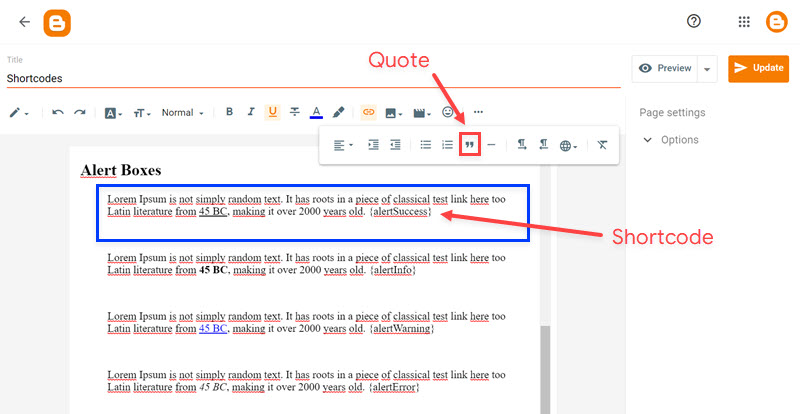
Shortcodes: `{alertSuccess}`, `{alertInfo},` `{alertWarning}`, `{alertError}`

Write whatever you want and add the shortcode, Then select all the desired text including the shortcode and add the **Quote Text** style.

**Example:**

<figure><img src="https://4117760356-files.gitbook.io/~/files/v0/b/gitbook-x-prod.appspot.com/o/spaces%2FiWPL7C3XC6Rq82dHvmDX%2Fuploads%2Fx3HXJVYnlOufOST0l8jg%2Fimage.png?alt=media&amp;token=2d23fd2f-8982-4cd7-9735-faab2764a5f4" alt="Alert boxes"><figcaption></figcaption></figure>

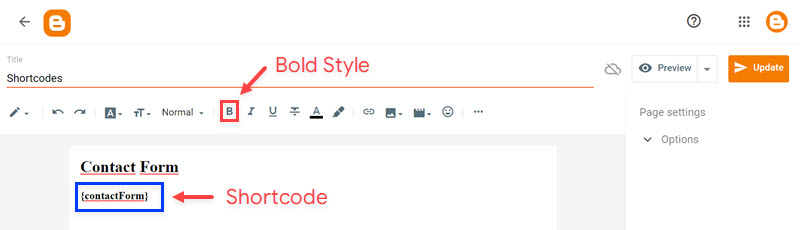
#### 3. Contact Form

Shortcode: `{contactForm}`

Add the shortcode in the desired area, Then select the shortcode and add the **Bold** style.

**Example:**

<figure><img src="https://4117760356-files.gitbook.io/~/files/v0/b/gitbook-x-prod.appspot.com/o/spaces%2FiWPL7C3XC6Rq82dHvmDX%2Fuploads%2FLgy6kC7xv13Zq6F8zivH%2Fimage.png?alt=media&amp;token=deae323f-4aeb-41ee-929f-a96b3d0aa907" alt=""><figcaption></figcaption></figure>

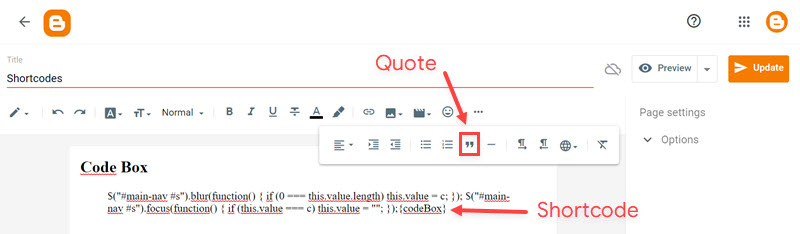
#### 4. Code Box

Shortcode: `{codeBox}`

Add the Code and add the shortcode, Then select all the desired code including the shortcode and add the **Quote Text** style.

**Example:**

<figure><img src="https://4117760356-files.gitbook.io/~/files/v0/b/gitbook-x-prod.appspot.com/o/spaces%2FiWPL7C3XC6Rq82dHvmDX%2Fuploads%2F8287OgRIOI0NLnTmoGmP%2Fimage.png?alt=media&amp;token=1ba3e08c-7f47-4b58-90db-0d1cd34a1147" alt="Code box"><figcaption></figcaption></figure>

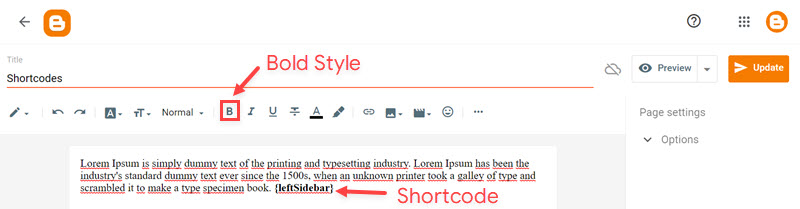
#### 5. Post Layouts

Shortcodes: `{fullWidth}`, `{leftSidebar}`, `{rightSidebar}`

Add the shortcode at the end of the content, Then select the shortcode and add the **Bold** style.

**Example:**

<figure><img src="https://4117760356-files.gitbook.io/~/files/v0/b/gitbook-x-prod.appspot.com/o/spaces%2FiWPL7C3XC6Rq82dHvmDX%2Fuploads%2FBSrbyBNtOTuO99HFPO9Y%2Fimage.png?alt=media&amp;token=42a298cc-a697-4b2e-ae20-1e1eeceef17e" alt="Post layouts"><figcaption></figcaption></figure>

### Video Tutorial

{% embed url="<https://youtu.be/LfeelG-AN5s>" %}


# Welcome

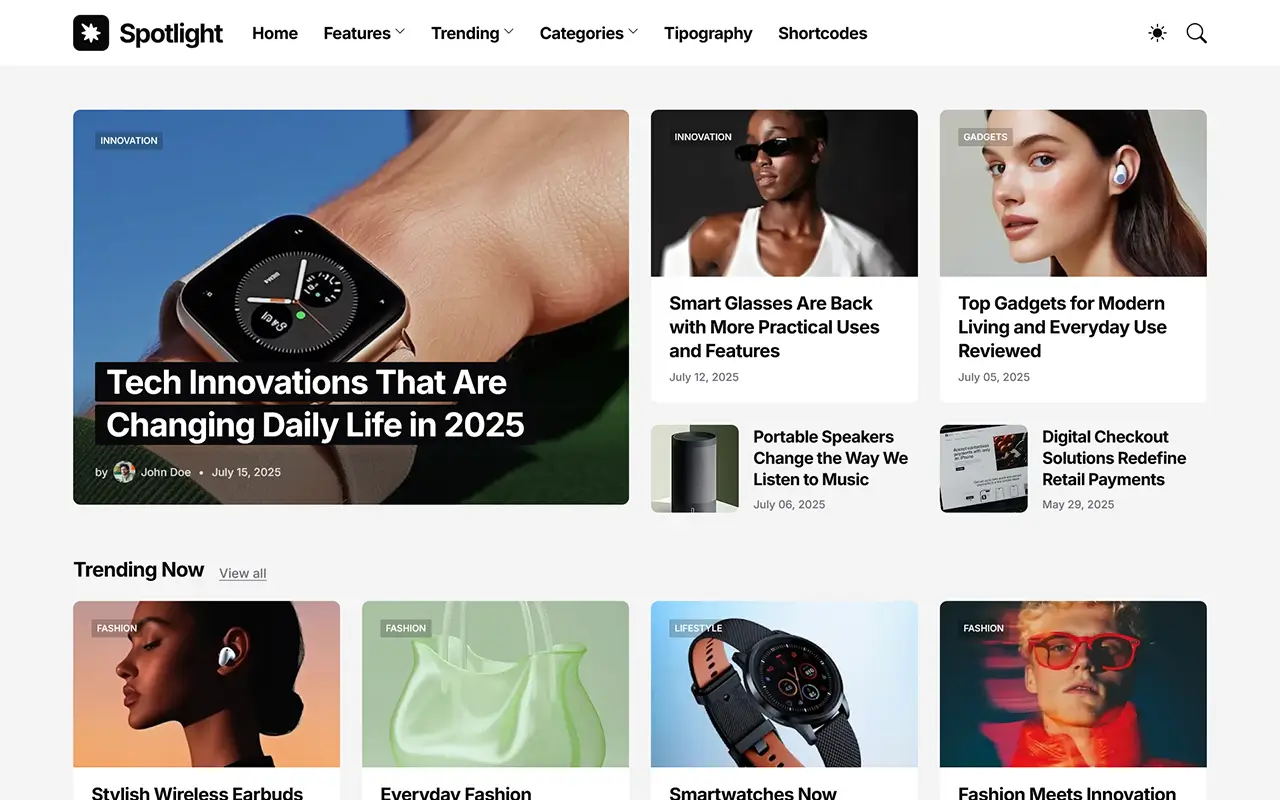
Spotlight is a modern Blogger template built for content-focused magazines, tech blogs, and lifestyle sites. This documentation provides everything you need to get started — from installation and layout setup to customization options like fonts, colors, widgets, and post styles. You’ll also learn how to take full advantage of its responsive design, fast-loading performance, and built-in SEO features to create a smooth and engaging experience for your readers.

<div data-full-width="false"><figure><img src="https://2090754335-files.gitbook.io/~/files/v0/b/gitbook-x-prod.appspot.com/o/spaces%2FLgk0Bukp3MlddTFYiGbP%2Fuploads%2FQKgZtz3PLDFuRmZHuX67%2Fspotlight-blogger-template.webp?alt=media&amp;token=a595aa28-1e34-4c7f-9795-c1af52da4f0b" alt="Spotlight blogger template"><figcaption></figcaption></figure></div>

### Basic Guides

<table data-card-size="large" data-view="cards"><thead><tr><th></th><th></th><th data-hidden data-card-cover data-type="files"></th><th data-hidden></th><th data-hidden data-card-target data-type="content-ref"></th></tr></thead><tbody><tr><td><strong>Installation</strong></td><td>How to Install a Blogger Template</td><td></td><td></td><td><a href="/guides/basic/installation">Installation</a></td></tr><tr><td><strong>Post Shortcodes</strong></td><td>Setup Buttons, Alerts, Forms and More</td><td></td><td></td><td><a href="/guides/basic/shortcodes">Shortcodes</a></td></tr></tbody></table>


# Changelog

### v1.0.0 – July 30, 2025

* Initial Release


# Header ADS

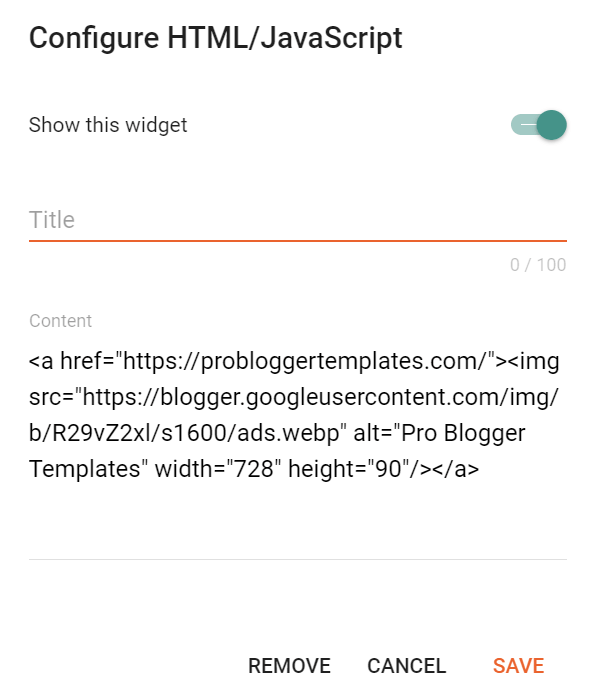
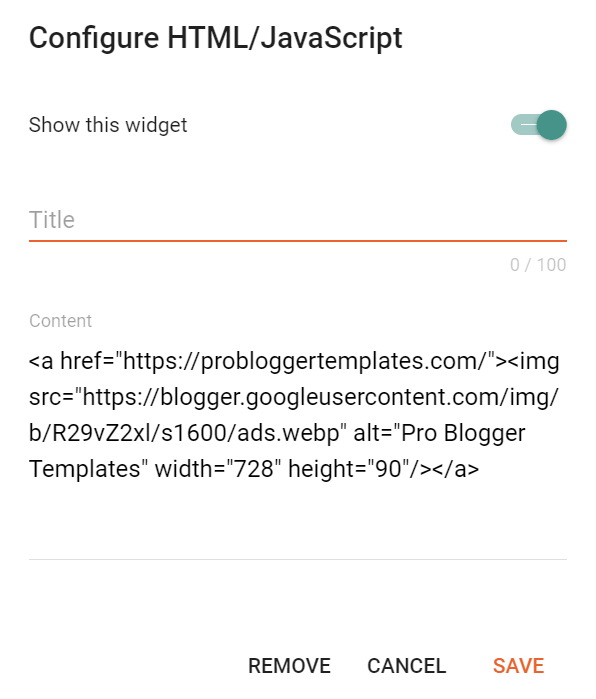
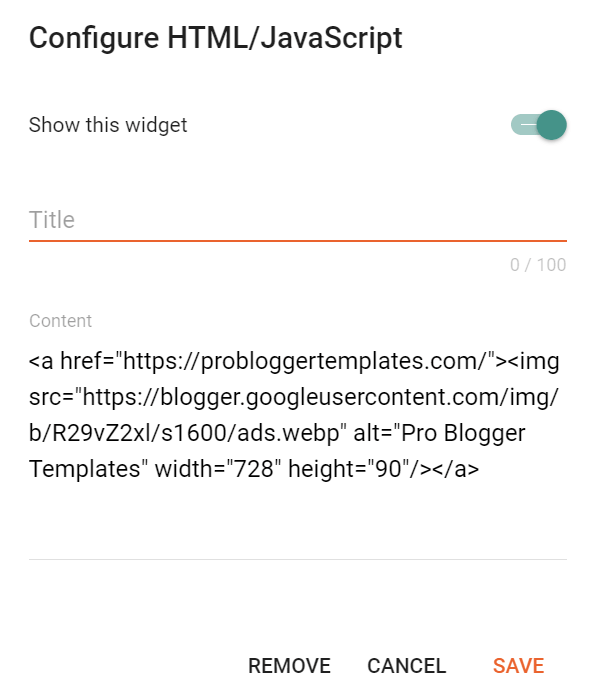
Access your blog **Layout** > and click on the **Add a Gadget** > **HTML/JavaScript**, **Image** or **AdSense** > in the **Header ADS** section.

**Example:**

<figure><img src="https://content.gitbook.com/content/Lgk0Bukp3MlddTFYiGbP/blobs/Cecdt8cCBYxNz7Je8s8T/image.png" alt="Header ads" width="375"><figcaption></figcaption></figure>

### Display Options

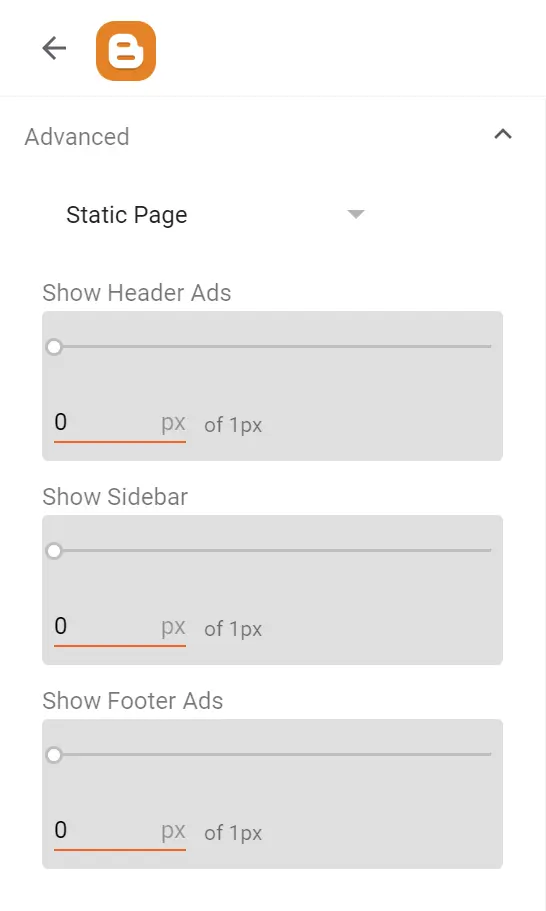
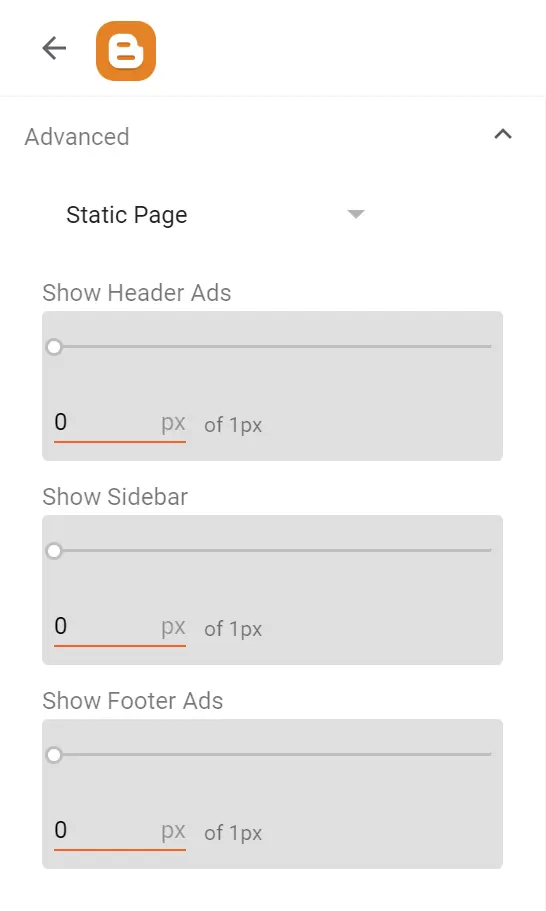
Go to your blog **Theme** > **Customize** > **Advanced** > **Static Page** > **Show Header Ads** > to change the visibility on Static Pages.

<figure><img src="https://content.gitbook.com/content/Lgk0Bukp3MlddTFYiGbP/blobs/oYQNVF4s8uli9WJaDCWI/image.png" alt="Display options" width="375"><figcaption></figcaption></figure>


# Header Logo

Access your blog **Layout** > and click on the **Edit Icon** > in the **Header Logo** (Image) gadget.

**Example:**

<figure><img src="https://2090754335-files.gitbook.io/~/files/v0/b/gitbook-x-prod.appspot.com/o/spaces%2FLgk0Bukp3MlddTFYiGbP%2Fuploads%2FOj9pcDLnFb4ky4aeyt24%2Fspotlight-logo.webp?alt=media&amp;token=eb32d887-56ae-45e8-abce-72461baeeda8" alt="Header logo" width="375"><figcaption></figcaption></figure>

{% hint style="info" %}
INFO: If you hide the logo gadget, the website title will be displayed.
{% endhint %}


# Header Menu

Access your blog **Layout** > and click on the **Edit Icon** > in the **Header Menu** gadget.

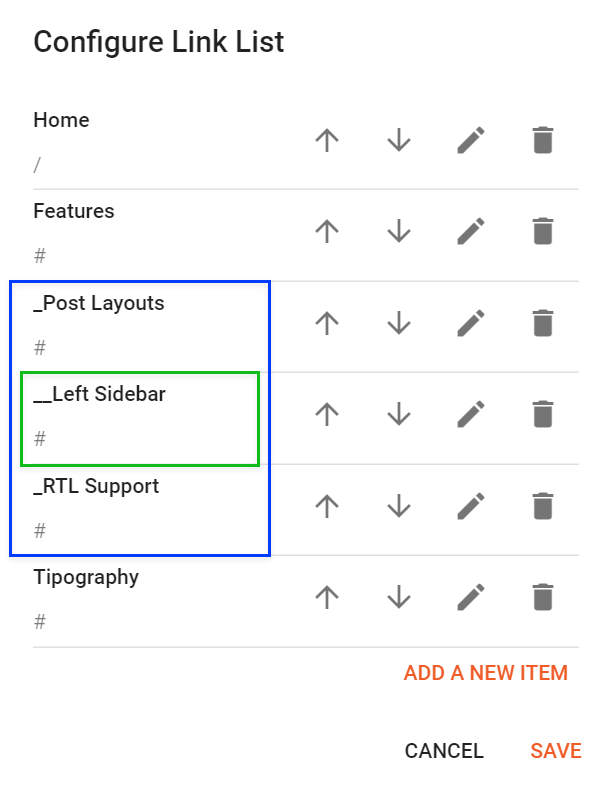
### Default Links and Sub Links

Default Link Example: `Features`&#x20;

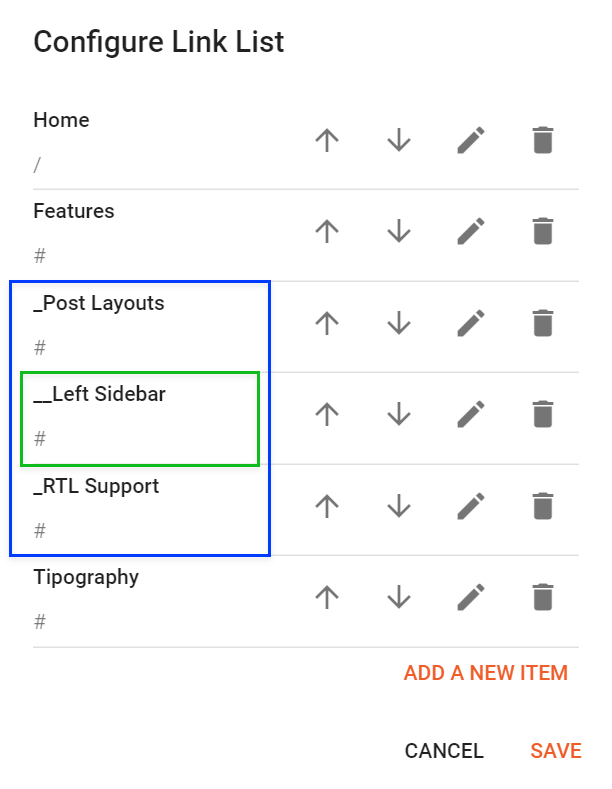
SubLink Level 1 Example: `_Level 1` “Before the Title add 1 underscore”&#x20;

SubLink Level 2 Example: `__Level 2` “Before the Title add 2 underscore”

**Example:**

<figure><img src="https://content.gitbook.com/content/Lgk0Bukp3MlddTFYiGbP/blobs/r6fEQxvi3yHcKA4uxfKY/image.png" alt="Sublinks" width="375"><figcaption></figcaption></figure>

{% hint style="info" %}
INFO: Level 2 Links must be between or below level 1 links.
{% endhint %}

### Menu Icons

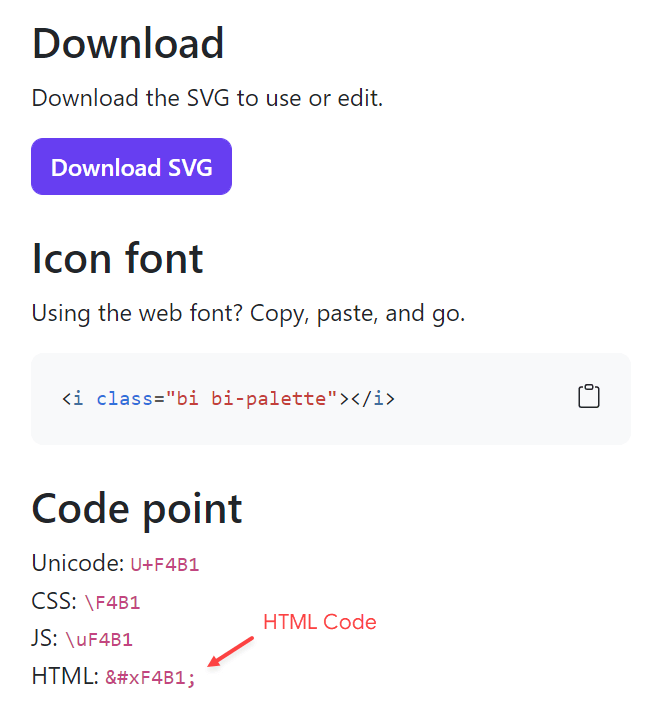
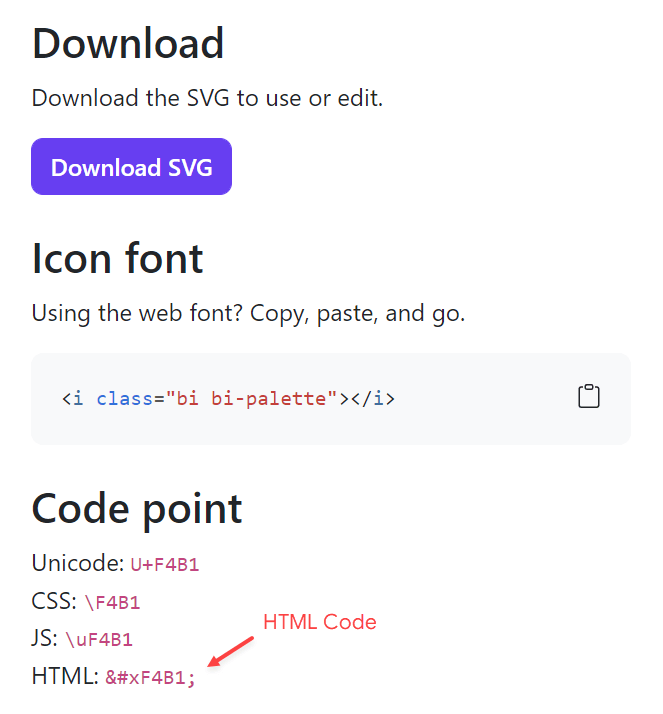
This template uses Bootstrap Icons as the main icon source, so you can choose from thousands of awesome icons to use on your menu link.

Icon Code: `<i code="HTML Code"></i>`

#### How to get HTML Code?

{% stepper %}
{% step %}
Go to the [Bootstrap Icons Gallery](https://icons.getbootstrap.com/).

{% endstep %}

{% step %}
Search for the desired icon, then click on the icon to access the info page.

{% endstep %}

{% step %}
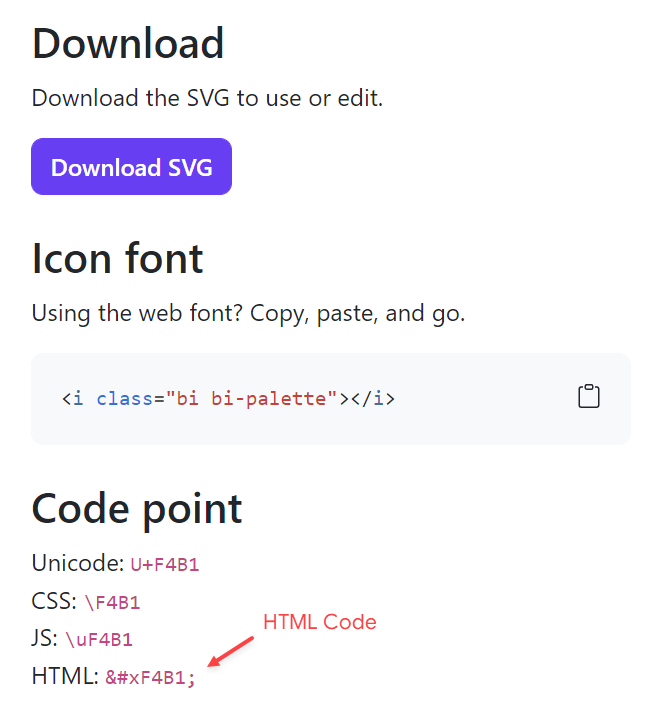
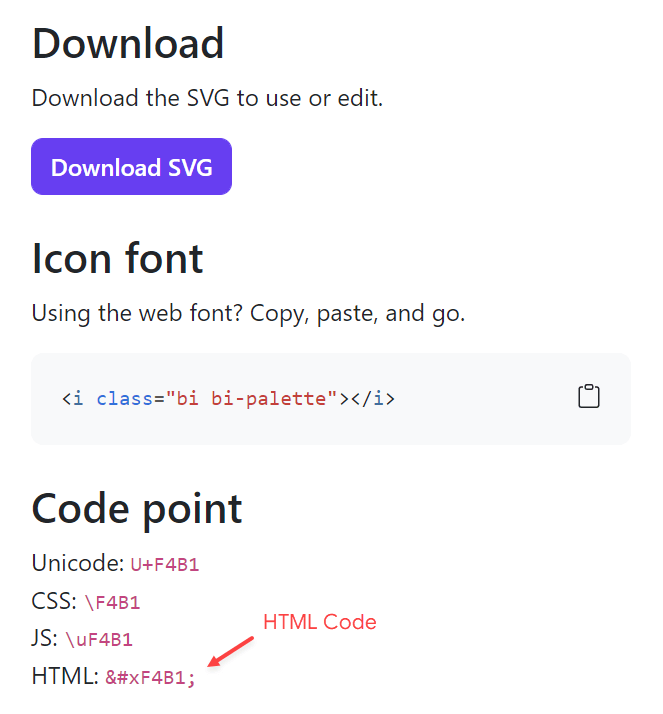
Copy the **HTML Code** available in the **Code Point** section as illustrated in the image below.

<img src="https://content.gitbook.com/content/Lgk0Bukp3MlddTFYiGbP/blobs/g1OjApzD0nmnS80LXNQd/image.png" alt="Bootstrap icon" data-size="original">
{% endstep %}

{% step %}
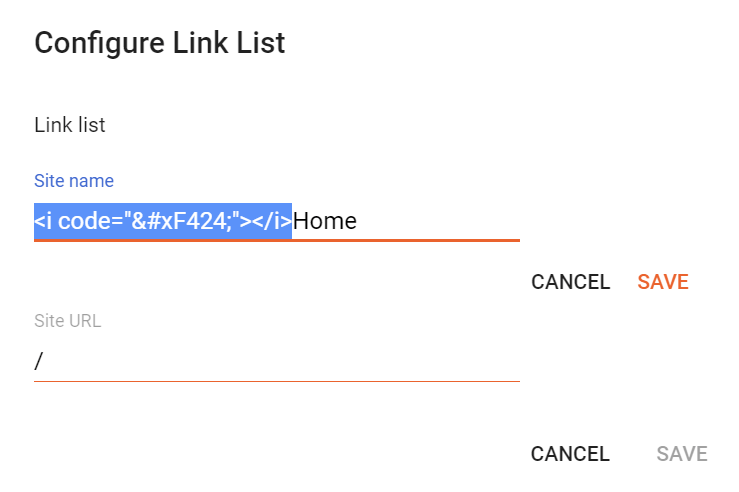
Edit the link text by adding the **Icon Code** as in the example below.
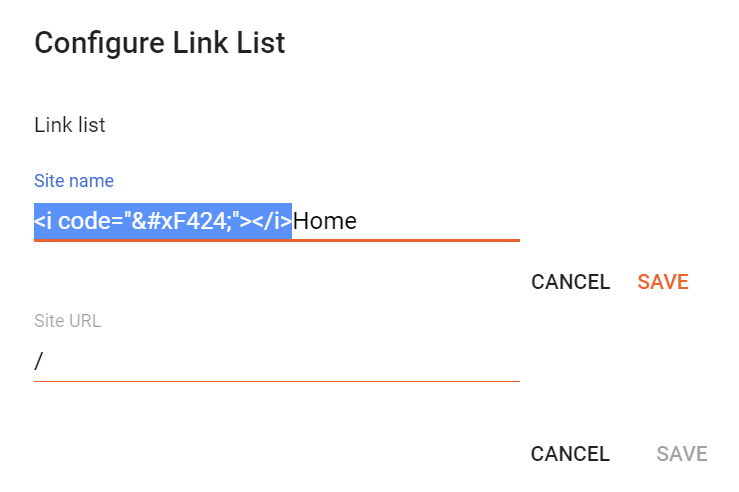
<img src="https://content.gitbook.com/content/Lgk0Bukp3MlddTFYiGbP/blobs/G0HYRQGMnqfHCP5DYt09/image.png" alt="Icon code" data-size="original">
{% endstep %}
{% endstepper %}

{% hint style="info" %}
INFO: Icons are currently not supported for sub links.
{% endhint %}

### Mega Menu

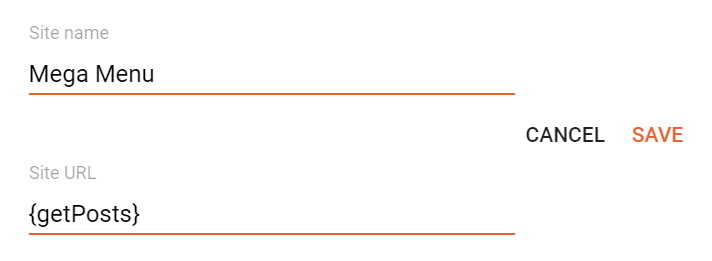
Shortcode: `{getPosts} $label={Label Name}`&#x20;

Label Name: `Custom Label`, `recent`

The `$label={}` attribute is optional! The default value is `recent`.

#### What is Label?

<figure><img src="https://content.gitbook.com/content/Lgk0Bukp3MlddTFYiGbP/blobs/q1YA5600Nn5nA8sq8rZs/image.png" alt="Label name"><figcaption></figcaption></figure>

**Example:**

<figure><img src="https://content.gitbook.com/content/Lgk0Bukp3MlddTFYiGbP/blobs/mjdg5qbWPEWRcSrgooqO/image.png" alt="Mega menu" width="375"><figcaption></figcaption></figure>

### Mega Tabs

Shortcode: `{getPosts} $label={Label Name/Label Name}`&#x20;

Label Settings: Labels must be separated by `/`. Only 5 Labels are supported.

**Example:**

<figure><img src="https://content.gitbook.com/content/Lgk0Bukp3MlddTFYiGbP/blobs/RKXobbMpCr9SgTTttHlv/image.png" alt="Mega tabs" width="375"><figcaption></figcaption></figure>

{% hint style="info" %}
INFO: Mega links must be on the first level! There is no predefined limit amount.
{% endhint %}


# Featured Posts

Access your blog **Layout** > and click on the **Add a Gadget** > **HTML/JavaScript** or **Popular Posts** > in the **Featured Posts** section.

### HTML/JavaScript

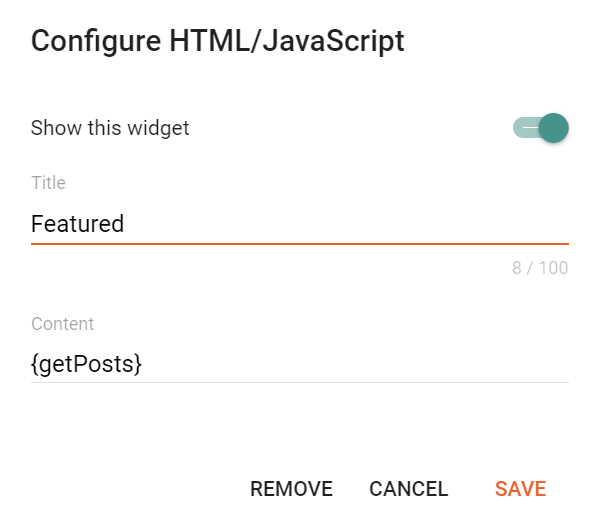
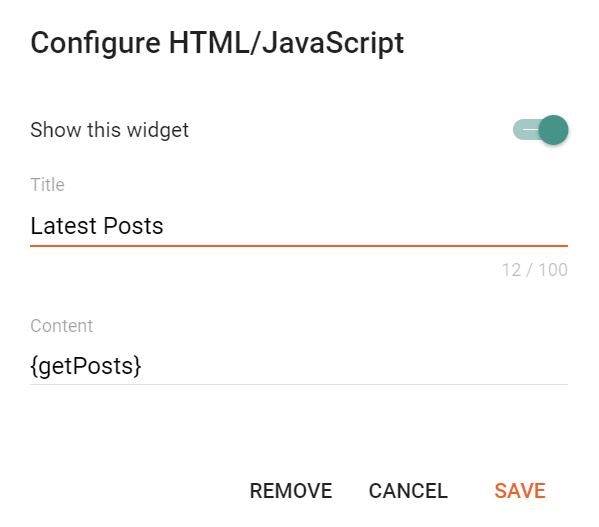
Shortcode: `{getPosts} $label={Label Name}`&#x20;

Label Name: `Custom Label`, `recent`

The `$label={}` attribute is optional! The default value is `recent`.

**Example:**

<figure><img src="https://2090754335-files.gitbook.io/~/files/v0/b/gitbook-x-prod.appspot.com/o/spaces%2FLgk0Bukp3MlddTFYiGbP%2Fuploads%2Ff91tfxywhQakHJsGWyzD%2Ffeatured-posts.webp?alt=media&amp;token=55b90f4d-bbab-454f-b56e-00431cfb7aea" alt="HTML/JavaScript" width="375"><figcaption></figcaption></figure>

### Popular Posts

<figure><img src="https://2090754335-files.gitbook.io/~/files/v0/b/gitbook-x-prod.appspot.com/o/spaces%2FLgk0Bukp3MlddTFYiGbP%2Fuploads%2Fo7ynGQYEUY6ikyjeYbOf%2Ffeatured-posts-popular.webp?alt=media&amp;token=47fbece0-c0f4-45d8-b9af-dbc6ba00f20f" alt="Popular posts" width="375"><figcaption></figcaption></figure>


# Trending Posts

Access your blog **Layout** > and click on the **Add a Gadget** > **HTML/JavaScript** or **Popular Posts** > in the **Trending Posts** section.

### HTML/JavaScript

Shortcode: `{getPosts} $label={Label Name}`&#x20;

Label Name: `Custom Label`, `recent`

The `$label={}` attribute is optional! The default value is `recent`.

**Example:**

<figure><img src="https://2090754335-files.gitbook.io/~/files/v0/b/gitbook-x-prod.appspot.com/o/spaces%2FLgk0Bukp3MlddTFYiGbP%2Fuploads%2FOfIx1L12GesJbhfT9i0U%2Ftrending-posts.webp?alt=media&amp;token=b4ad6ce4-fe7a-404f-bcd0-8dc6554246ad" alt="HTML/JavaScript" width="375"><figcaption></figcaption></figure>

### Popular Posts

<figure><img src="https://2090754335-files.gitbook.io/~/files/v0/b/gitbook-x-prod.appspot.com/o/spaces%2FLgk0Bukp3MlddTFYiGbP%2Fuploads%2FjD2sLYVms3fIXSpyjjVa%2Ftrending-posts-popular.webp?alt=media&amp;token=30693607-f573-4f55-9859-b54d109658a8" alt="Popular posts" width="375"><figcaption></figcaption></figure>


# Home ADS

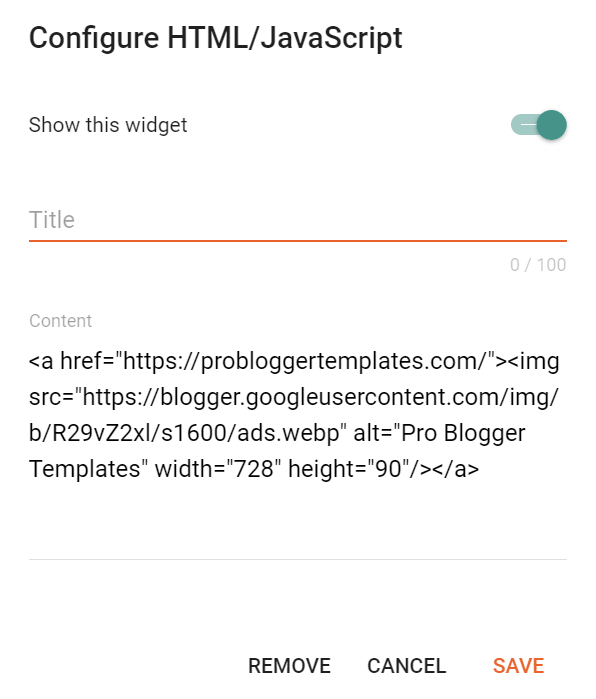
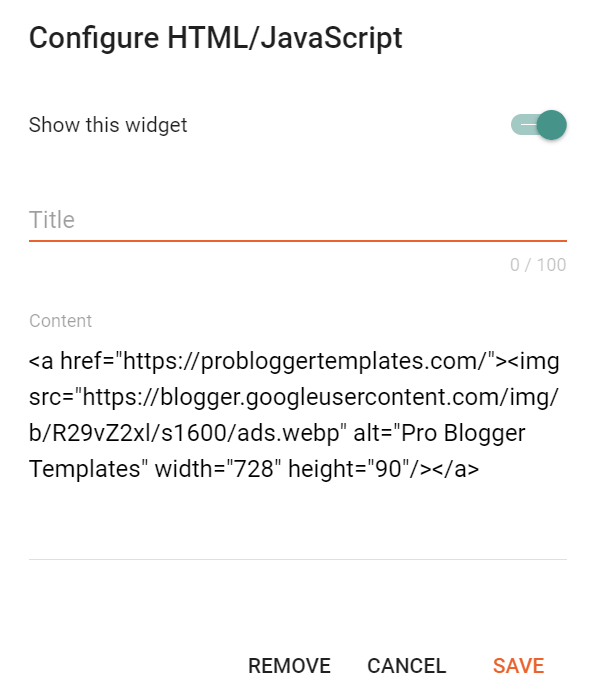
Access your blog **Layout** > and click on the **Add a Gadget** > **HTML/JavaScript**, **Image** or **AdSense** > in the **Home ADS** section.

**Example:**

<figure><img src="https://content.gitbook.com/content/Lgk0Bukp3MlddTFYiGbP/blobs/lXf8lbLZXC0Ldb2dAOO7/image.png" alt="Home ads" width="375"><figcaption></figcaption></figure>


# Latest Posts

Access your blog **Layout** > and click on the **Edit Icon** > in the **Latest Posts/Blog Posts** gadget.

Homepage Headline: Display a custom title by changing the text in the **Post page link text** field. To hide the title add `{hide}`.

**Example:**

<figure><img src="https://content.gitbook.com/content/Lgk0Bukp3MlddTFYiGbP/blobs/ptFdeEOu8ZFVfLZtqjUI/image.png" alt="Main posts" width="375"><figcaption></figcaption></figure>

### Show Author Profile (Author Box)

The Author Box receives the blogger profile informations automatically, As long as your profile is marked as public. Icons are displayed if there are html links in the introduction field.

Supported Icons: `google`, `blogger`, `apple`, `amazon`, `microsoft`, `facebook`, `facebook-f`, `twitter`, `twitter-x`, `x`, `rss`, `youtube`, `skype`, `stumbleupon`, `tumblr`, `vk`, `stack-overflow`, `github`, `linkedin`, `dribbble`, `soundcloud`, `behance`, `digg`, `instagram`, `pinterest`, `pinterest-p`, `twitch`, `steam`, `delicious`, `codepen`, `flipboard`, `reddit`, `whatsapp`, `telegram`, `messenger`, `snapchat`, `discord`, `quora`, `tiktok`, `email`, `share`, `threads`, `mastodon`, `external-link`

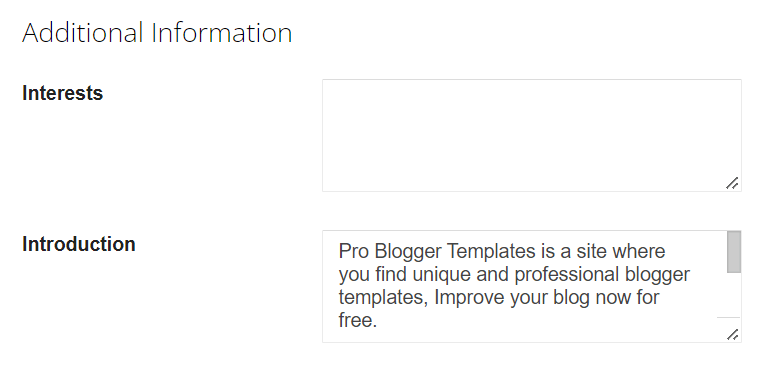
Blogger Settings: Go to <https://www.blogger.com/edit-profile.g> Find for **Additional Information** > **Introduction** > and add your description with HTML links.

HTML Link: `<a href="Your Link Here">Icon Name</a>`

HTML Link Example: `<a href="https://facebook.com/probloggertemplates">facebook</a>`

**Example:**

<figure><img src="https://content.gitbook.com/content/Lgk0Bukp3MlddTFYiGbP/blobs/x66QkwbCCHOKpuWnP20D/image.png" alt="Author description" width="375"><figcaption></figcaption></figure>

{% hint style="info" %}
INFO: The **“Introduction”** text is required for the author box to be displayed! But the links are not required.&#x20;
{% endhint %}

### Comments Settings

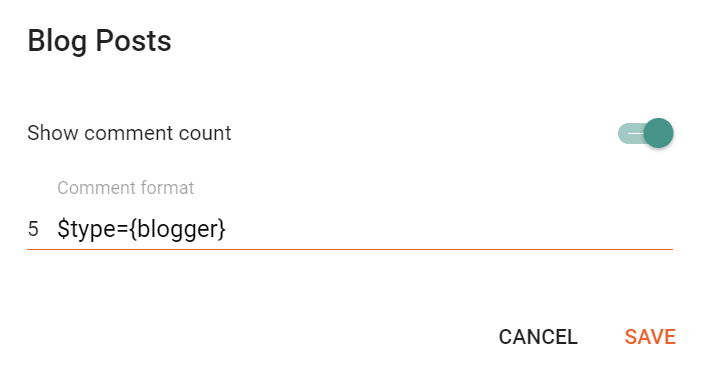
The comment settings are intuitive like never seen before. The shortcodes should be added in > **Layou**t > **Blog Posts** > **Comment Format**.

Blogger Shortcode: `$type={blogger}`&#x20;

Disqus Shortcode: `$type={disqus}`&#x20;

Custom Disqus Shortcode: `$type={disqus} $shortname={Your Shortname}`&#x20;

Facebook Shortcode: `$type={facebook}`&#x20;

Facebook Custom Language: `$type={facebook} $lang={Language Code}`&#x20;

Facebook Language Codes: `en_US`, `es_ES`, `ar_AR`, `id_ID`, `th_TH`, `vi_VN`, `pt_BR`, `fr_FR`, `ru_RU`, `de_DE`, `it_IT`

Extra Languages: To use other languages you should check if it is supported by facebook. ([Facebook Languages](https://developers.facebook.com/docs/internationalization)).

**Example:**

<figure><img src="https://content.gitbook.com/content/Lgk0Bukp3MlddTFYiGbP/blobs/P6WtMUMpFRCOjY2DdS5G/image.png" alt="Comments" width="375"><figcaption></figcaption></figure>

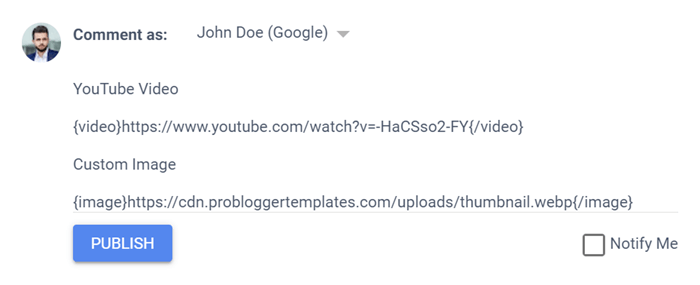
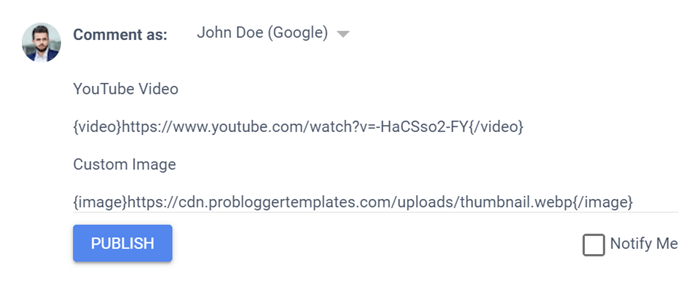
### Embed Media in Blogger Comments&#x20;

The comment settings are intuitive like never seen before. The shortcodes should be added in > **Layout** > **Blog Posts** > **Comment Format**.

Video Shortcode: `{video}YouTube Video URL{/video}`&#x20;

Image Shortcode: `{image}Custom Image URL{/image}`

**Example:**

<figure><img src="https://content.gitbook.com/content/Lgk0Bukp3MlddTFYiGbP/blobs/wDRvcESoQVDYxJqgz5EY/image.png" alt="Embed media" width="375"><figcaption></figcaption></figure>


# Table of Contents

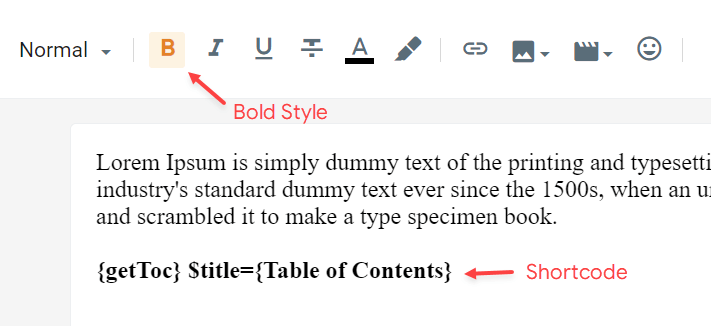
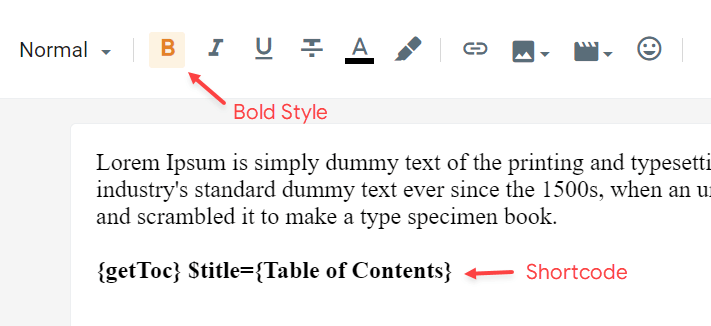
This function is available for posts and pages and can be added easily via shortcode.

Shortcode: `{getToc} $title={Table of Contents} $count={Boolean} $expanded={Boolean}`&#x20;

Count Option: This attribute is optional! Available values are `true` or `false`.&#x20;

Expanded Option: This attribute is optional! Available values are `true` or `false`.

{% hint style="info" %}
INFO: After adding the shortcode, apply the **Bold** style.&#x20;
{% endhint %}

**Example:**

<figure><img src="https://content.gitbook.com/content/Lgk0Bukp3MlddTFYiGbP/blobs/XYT5POQEwnZECOB8avGp/image.png" alt="Table of contents" width="375"><figcaption></figcaption></figure>


# Post Content ADS

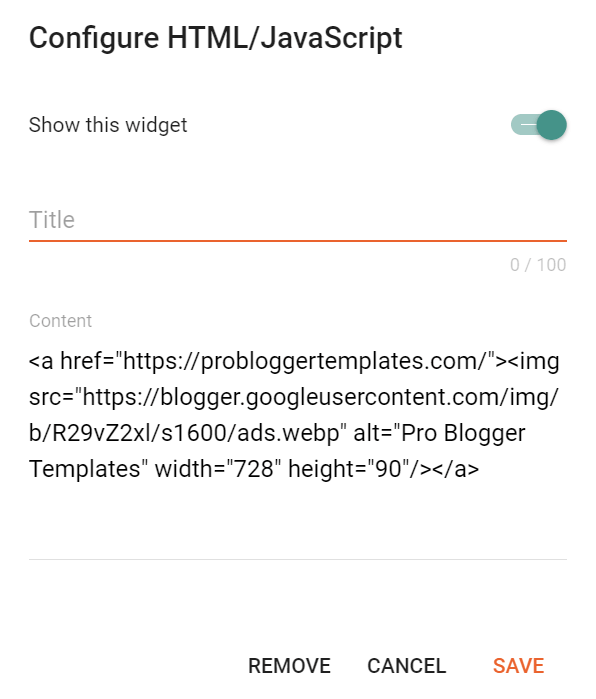
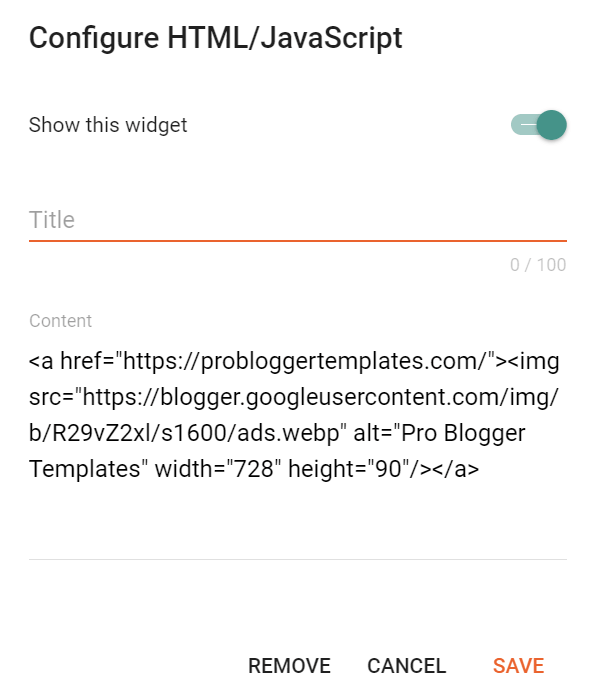
Access your blog **Layout** > and click on the **Add a Gadget** > **HTML/JavaScript**, **Image** or **AdSense** > in the **Before Content**, **After Content** or **In-Article** sections.

**Example:**

<figure><img src="https://content.gitbook.com/content/Lgk0Bukp3MlddTFYiGbP/blobs/lbXjWpsM92eENCH53oPt/image.png" alt="Post content ads" width="375"><figcaption></figcaption></figure>

### Display Options

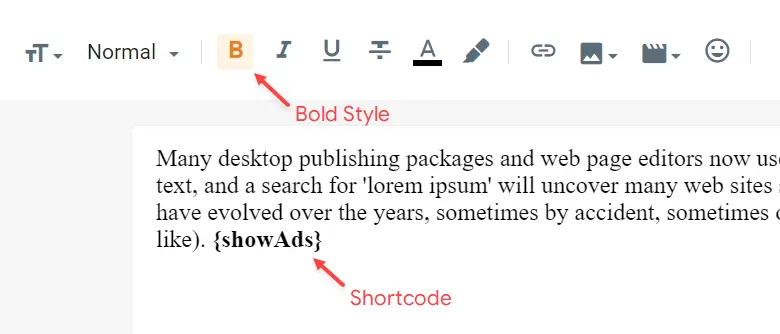
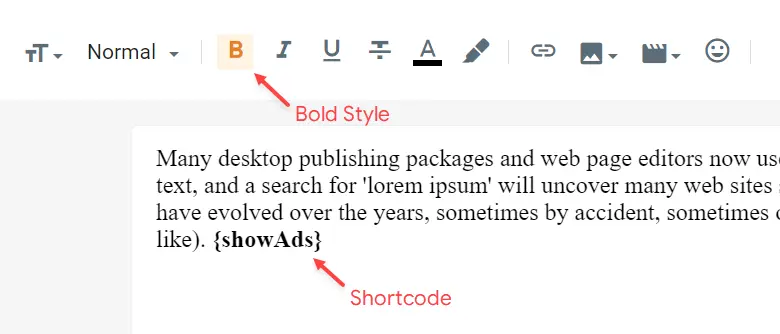
By default, ads in sections **Before Content** and **After Content** are displayed only in **“Posts”**. You can display them on specific **“Pages”** with the help of shortcodes.

Shortcode: `{showAds}`

{% hint style="info" %}
INFO: After adding the shortcode, apply the **Bold** style.&#x20;
{% endhint %}

**Example:**

<figure><img src="https://content.gitbook.com/content/Lgk0Bukp3MlddTFYiGbP/blobs/pv2LhjEjFHK7PRVAuuwO/image.png" alt="Shortcode" width="375"><figcaption></figcaption></figure>

### In-Article Ads (Between Paragraphs)&#x20;

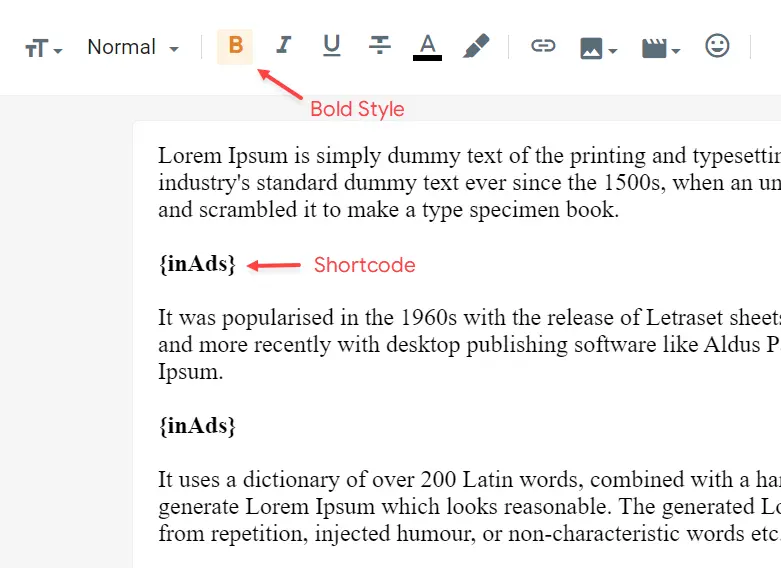
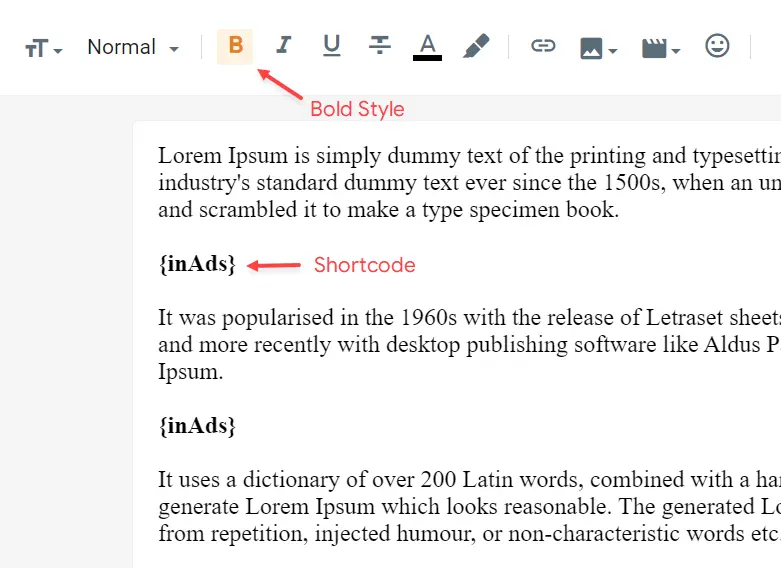
The ad in the **In-Article** section does not have a defined display location. You can display it multiple times in **“Posts”** and **“Pages”** with the help of shortcodes.

Shortcode: **{inAds}**

{% hint style="info" %}
INFO: After adding the shortcode, apply the **Bold** style.&#x20;
{% endhint %}

**Example:**

<figure><img src="https://content.gitbook.com/content/Lgk0Bukp3MlddTFYiGbP/blobs/ExTSexTWXTeQ8zLUJuAV/image.png" alt="Shortcodes" width="375"><figcaption></figcaption></figure>

{% hint style="info" %}
INFO: This function is compatible with the deprecated shortcodes `{ads}`, `$ads={1}` and `$ads={2}`, eliminating the need to edit old posts and pages.
{% endhint %}


# Post Cards

This function is available for posts and pages and allows you to add recommended posts, downloads, products and even custom calls to action.

Shortcode: `{getCard} $type={Card Type} $title={Card Title} $info={Card Info} $button={Button Text} $icon={Icon Code}`&#x20;

Card Type: `post`, `download`, `product`, `custom`&#x20;

Card Title: Attribute compatible with all card types, being optional for the `post` type.

**Example:**

<figure><img src="https://2090754335-files.gitbook.io/~/files/v0/b/gitbook-x-prod.appspot.com/o/spaces%2FLgk0Bukp3MlddTFYiGbP%2Fuploads%2FA1QKJPGr4pBVDHUAoXQm%2Fspotlight-post-cards.webp?alt=media&amp;token=5ac04973-b1ab-4089-b076-1bc0b7fbbe72" alt="Post cards" width="563"><figcaption></figcaption></figure>

The cards are highly flexible, being able to support specific and unique attributes or even optional attributes.

### Post Type&#x20;

Shortcode: `{getCard} $type={post} $title={Card Title}`&#x20;

Card Link: For this card to work properly, a link to a post must be provided.

**Card Demo:**

<figure><img src="https://2090754335-files.gitbook.io/~/files/v0/b/gitbook-x-prod.appspot.com/o/spaces%2FLgk0Bukp3MlddTFYiGbP%2Fuploads%2FYhbhowdK7elbY0qJoMAD%2Fpost-card.webp?alt=media&amp;token=2ca7d9db-836f-4d29-acb6-4adaf71593b5" alt="Post card preview" width="563"><figcaption></figcaption></figure>

### Download Card&#x20;

Shortcode: `{getCard} $type={download} $title={Card Title} $info={Card Info} $button={Button Text}`

Card Link: Add any link whether internal or external.

**Card Demo:**

<figure><img src="https://2090754335-files.gitbook.io/~/files/v0/b/gitbook-x-prod.appspot.com/o/spaces%2FLgk0Bukp3MlddTFYiGbP%2Fuploads%2Fi1oGFqxk5KXmbdyzdHh4%2Fcta-card-download.webp?alt=media&amp;token=a0a5f13e-5699-431c-9087-d9da581cec7b" alt="Download card preview" width="563"><figcaption></figcaption></figure>

Product Card Shortcode: `{getCard} $type={product} $title={Card Title} $info={Card Info} $button={Button Text}`&#x20;

Card Link: Add any link whether internal or external.

**Card Demo:**

<figure><img src="https://2090754335-files.gitbook.io/~/files/v0/b/gitbook-x-prod.appspot.com/o/spaces%2FLgk0Bukp3MlddTFYiGbP%2Fuploads%2FL50FucAT0JgUmkWu5E75%2Fcta-card-product.webp?alt=media&amp;token=df5e693e-c81a-4100-a8d5-475ea52d5661" alt="Product card preview" width="563"><figcaption></figcaption></figure>

Custom Card Shortcode: `{getCard} $type={custom} $title={Card Title} $info={Card Info} $button={Button Text} $icon={Icon Code}`&#x20;

Card Link: Add any link whether internal or external.

Icon Code: This template uses **Bootstrap Icons** as the main icon source, so you can choose from thousands of awesome icons to use on your card.

{% stepper %}
{% step %}
Go to the [Bootstrap Icons Gallery](https://icons.getbootstrap.com/).

{% endstep %}

{% step %}
Search for the desired icon, then click on the icon to access the info page.

{% endstep %}

{% step %}
Copy the **HTML Code** available in the **Code Point** section as illustrated in the image below.

<img src="https://content.gitbook.com/content/Lgk0Bukp3MlddTFYiGbP/blobs/Vq52X4pkSr8MJXJ9fHvT/image.png" alt="Bootstrap icon" data-size="original">
{% endstep %}
{% endstepper %}

{% hint style="info" %}
INFO:  When editing the shortcode the icon attribute should look like `$icon={&#xF4B1;}`
{% endhint %}

**Card Demo:**

<figure><img src="https://2090754335-files.gitbook.io/~/files/v0/b/gitbook-x-prod.appspot.com/o/spaces%2FLgk0Bukp3MlddTFYiGbP%2Fuploads%2FFC710p09utk1KoXmueZG%2Fcta-card-custom.webp?alt=media&amp;token=3834c103-382a-4a12-be9f-21ee4caf2555" alt="Custom card preview" width="563"><figcaption></figcaption></figure>


# Post Split

Content Pagination

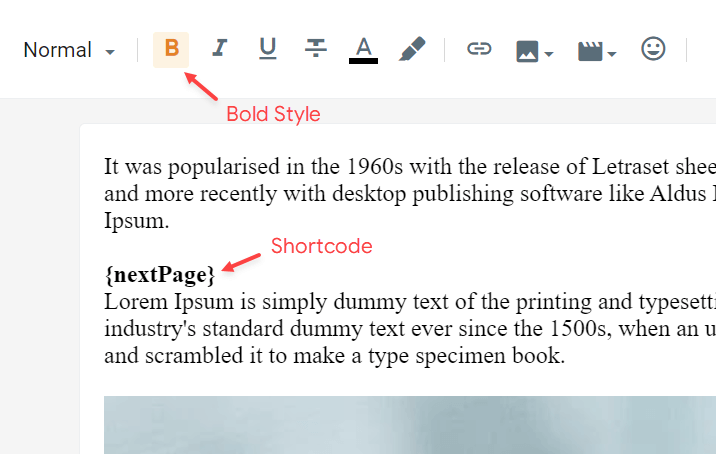
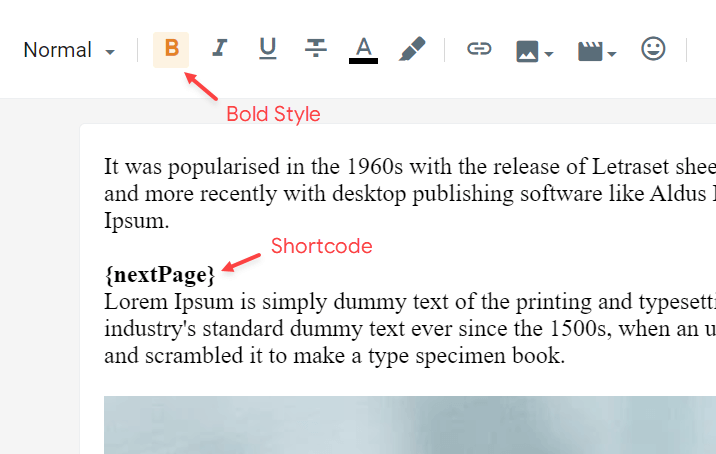
Divide the post content into multiple parts making it interactive and improving the user experience. Combine with ad duplicator to create viral posts and increase ad earnings.

Shortcode: `{nextPage}`

{% hint style="info" %}
INFO: After adding the shortcode, apply the **Bold** style.&#x20;
{% endhint %}

**Example:**

<figure><img src="https://content.gitbook.com/content/Lgk0Bukp3MlddTFYiGbP/blobs/8t3IbwgdFJ1KM8vODHvY/image.png" alt="Shortcode" width="563"><figcaption></figcaption></figure>

### How to Translate the Pagination?&#x20;

Being a custom resource, pagination does not have automatic translation. You can translate it by editing the **Advanced Options** gadget following the instructions in the ([Theme Options](https://docs.probloggertemplates.com/hypermag/getting-started/theme-options#advanced-options)) guide.


# SafeLink Generator

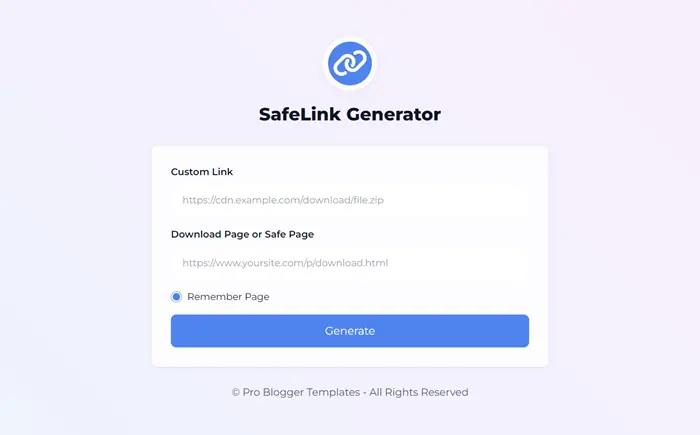
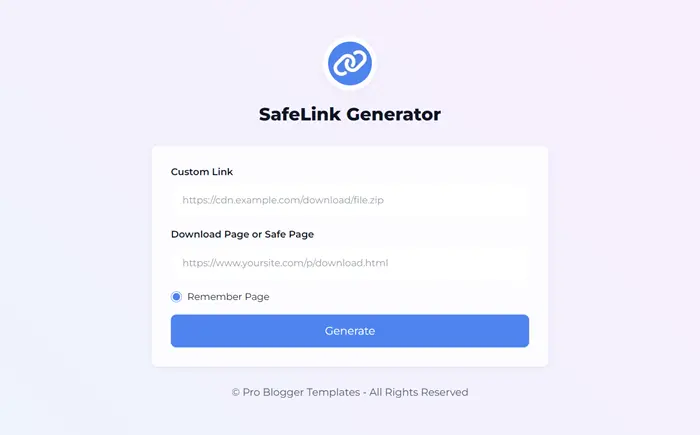
This online tool allows the creation of safelinks with modern and exclusive cryptography fully compatible with the [Download Page](/guides/spotlight/getting-started/download-page) and [Safe Page](/guides/spotlight/getting-started/safe-page) functionalities.

{% stepper %}
{% step %}
Go to the [SafeLink Generator](https://safelink.probloggertemplates.com/).

<img src="https://content.gitbook.com/content/Lgk0Bukp3MlddTFYiGbP/blobs/9EzicY7fmHDdFzECw99P/image.png" alt="Safelink generator" data-size="original">
{% endstep %}

{% step %}
Add the **Custom Link** you want to encrypt in the first field.

{% endstep %}

{% step %}
Add your **Download Page** or **Safe Page** link in the second field.

{% endstep %}

{% step %}
Click the **Generate** button.

{% endstep %}

{% step %}
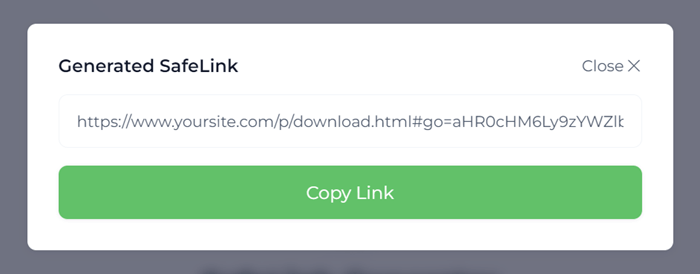
Done! Click the **Copy Link** button to get the Generated Safelink.

<img src="https://content.gitbook.com/content/Lgk0Bukp3MlddTFYiGbP/blobs/CTXK1Tp8cpovdJIjou43/image.png" alt="Safelink" data-size="original">
{% endstep %}
{% endstepper %}

{% hint style="info" %}
INFO: The generated safelink is only compatible with official **PBT** templates that support **Download Page** or **Safe Page** functionality.
{% endhint %}


# Download Page

Create unlimited download pages compatible with **SafeLinks**. This functionality is compatible with posts and pages and is also fully customizable.

### Get Link Button&#x20;

This function will unlock the download button available on the page after the timeout. Follow the instructions below to create the get link button.

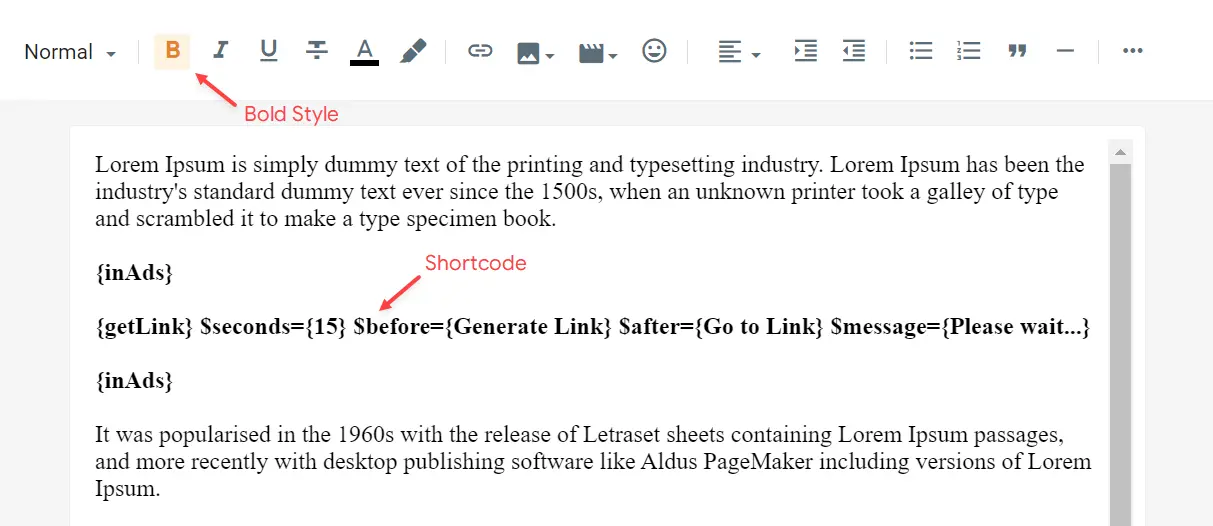
Shortcode: `{getLink} $seconds={15} $before={Generate Link} $after={Go to Link} $message={Please wait...}`

Shortcode Options: All attributes are optional! Just use `{getLink}` to get the default text and timeout.

**Example:**

<figure><img src="https://content.gitbook.com/content/Lgk0Bukp3MlddTFYiGbP/blobs/DbTsdTDJZAGwmv6O1FfA/image.png" alt="Get link button" width="563"><figcaption></figcaption></figure>

### Download Button&#x20;

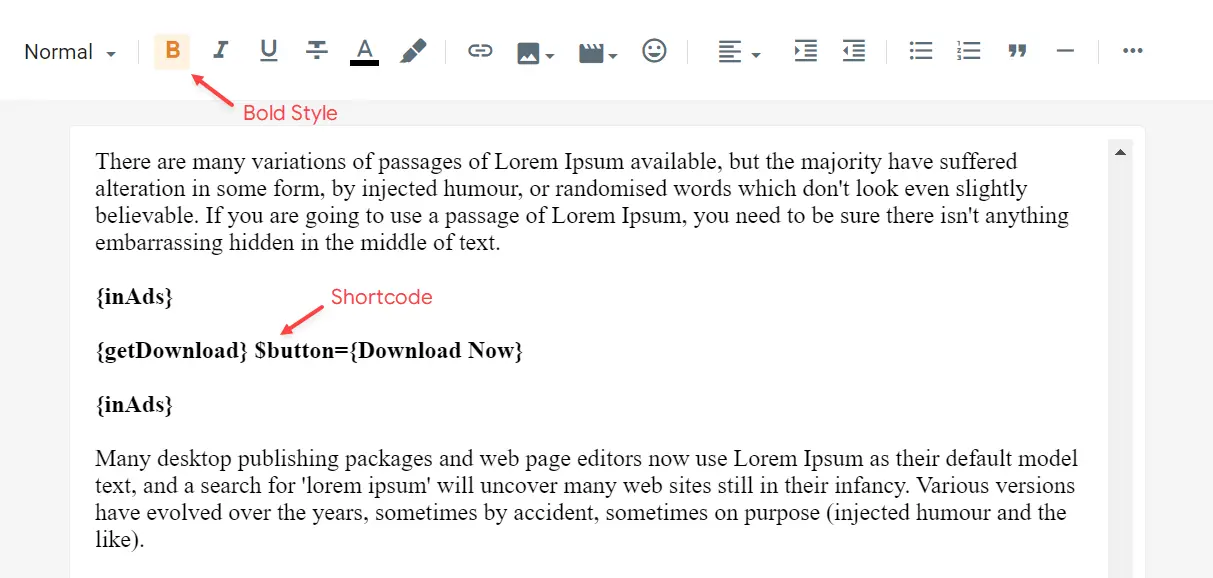
This function will decrypt the safelink and redirect the user to the destination after the click. Follow the instructions below to create the download button.

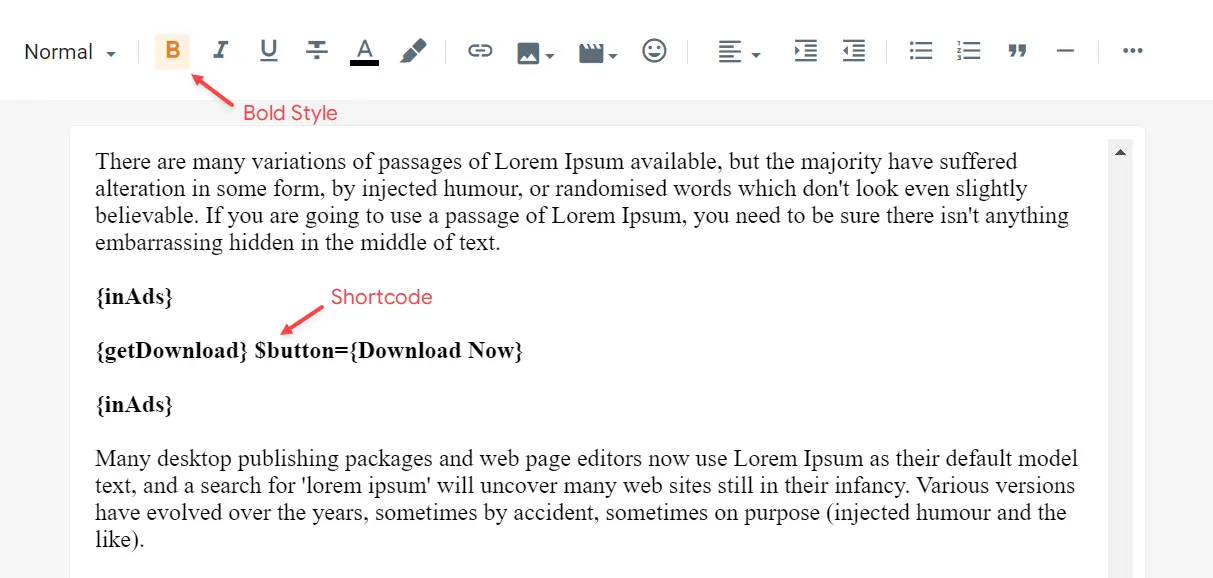
Shortcode: `{getDownload} $button={Button Text}`&#x20;

Button Text: This attribute are optional! The default value is `Download`.

**Example:**

<figure><img src="https://content.gitbook.com/content/Lgk0Bukp3MlddTFYiGbP/blobs/lhe7MnK61ZkLlSNHLeLw/image.png" alt="Download button" width="563"><figcaption></figcaption></figure>

{% hint style="info" %}
INFO: The download page supports direct download links and can also be used to redirect users to custom links (Internal/External).
{% endhint %}


# Safe Page

Create a safe page compatible with **SafeLinks**. The safe page is similar to the download page, but does not require the use of a timeout.

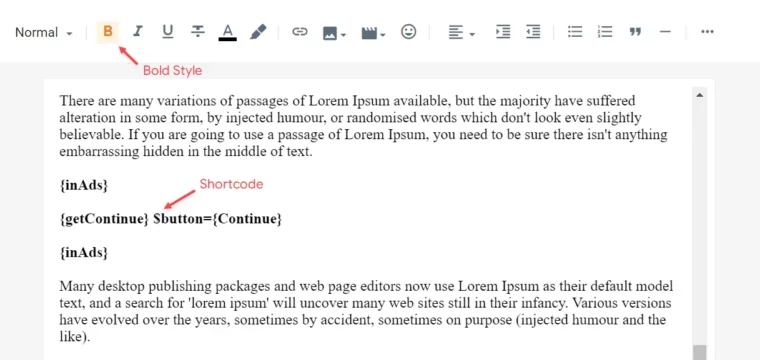
This functionality will decrypt the safelink and redirect the user to the destination after clicking the continue button. Follow the instructions below to create the continue button.

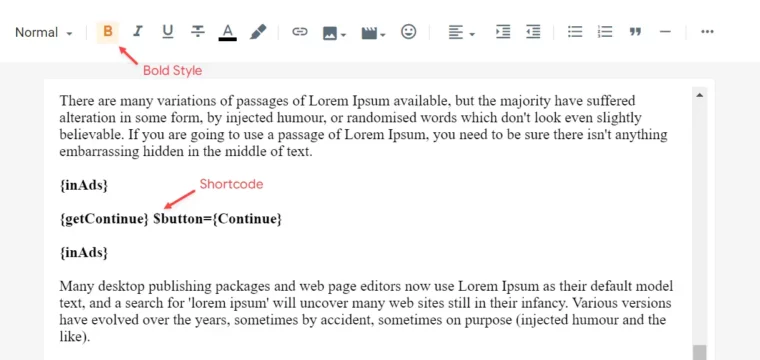
Shortcode: `{getContinue} $button={Button Text}`&#x20;

Button Text: This attribute are optional! The default value is `Continue`.

**Example:**

<figure><img src="https://content.gitbook.com/content/Lgk0Bukp3MlddTFYiGbP/blobs/Eb1aNx5fwGF2ehV43tpi/image.png" alt="Shortcode" width="563"><figcaption></figcaption></figure>

{% hint style="info" %}
INFO: The safe page supports internal links, external links, and additional safelinks.
{% endhint %}


# Related Posts

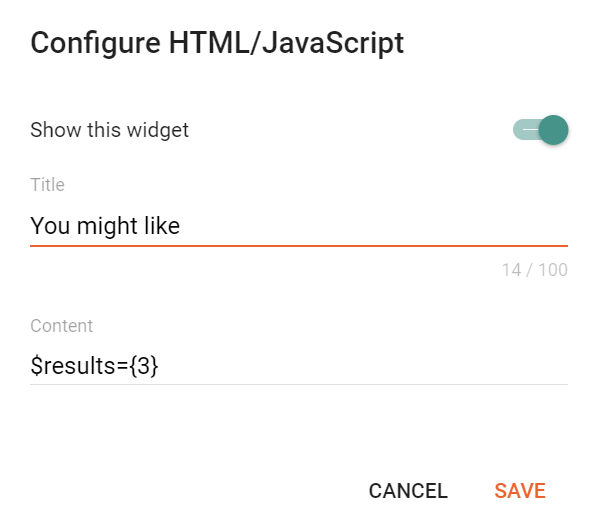
Access your blog **Layout** > and click on the **Edit Icon** > in the **Related Post**s gadget.

Shortcode: `$label={Label Name} $results={Number of Results}`&#x20;

Label Name: `related`, `recent`, `Custom Label`

The `$label={}` attribute is optional! The default value is `related`.

**Example:**

<figure><img src="https://content.gitbook.com/content/Lgk0Bukp3MlddTFYiGbP/blobs/LIwE1tBQECXA9oHbAVfr/image.png" alt="Related posts" width="375"><figcaption></figcaption></figure>


# Post Footer ADS

Access your blog **Layout** > and click on the **Add a Gadget** > **HTML/JavaScript**, **Image** or **AdSense** > in the **Post Footer ADS** section.

**Example:**

<figure><img src="https://content.gitbook.com/content/Lgk0Bukp3MlddTFYiGbP/blobs/KLMNxsUbwrRbtJ6z796S/image.png" alt="Post footer ads" width="375"><figcaption></figcaption></figure>


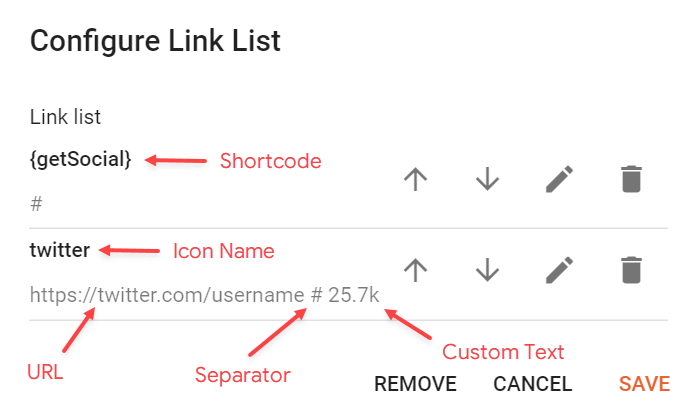
# Social Counter

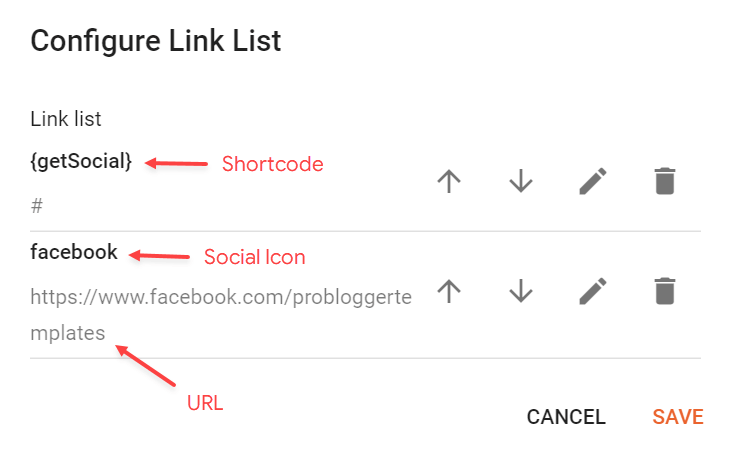
Access your blog **Layout** > and click on the **Add a Gadget** > **Link List** > in the **Sidebar** section.

Supported Icons: `google`, `blogger`, `apple`, `amazon`, `microsoft`, `facebook`, `facebook-f`, `twitter`, `twitter-x`, `x`, `rss`, `youtube`, `skype`, `stumbleupon`, `tumblr`, `vk`, `stack-overflow`, `github`, `linkedin`, `dribbble`, `soundcloud`, `behance`, `digg`, `instagram`, `pinterest`, `pinterest-p`, `twitch`, `steam`, `delicious`, `codepen`, `flipboard`, `reddit`, `whatsapp`, `telegram`, `messenger`, `snapchat`, `discord`, `quora`, `tiktok`, `email`, `share`, `threads`, `mastodon`, `external-link`

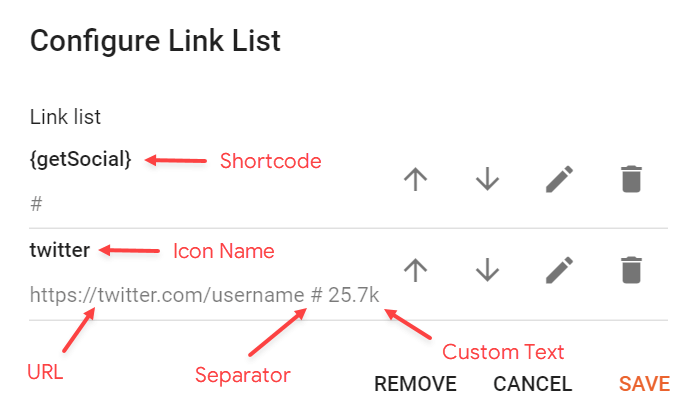
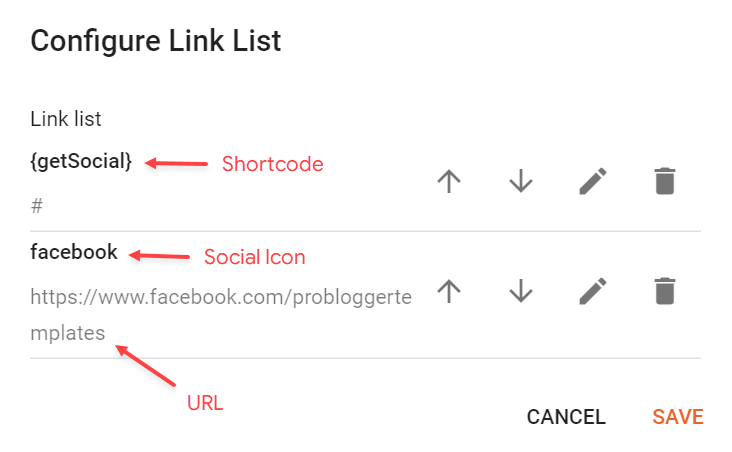
Shortcode: `{getSocial}`&#x20;

Link Structure: `https://twitter.com/username # Twitter`

{% hint style="info" %}
INFO: An item with the shortcode must be added for the Gadget to work correctly.&#x20;
{% endhint %}

**Example:**

<figure><img src="https://content.gitbook.com/content/Lgk0Bukp3MlddTFYiGbP/blobs/GCFbdaRwZkRJyzsjKazP/image.png" alt="Social counter" width="375"><figcaption></figcaption></figure>


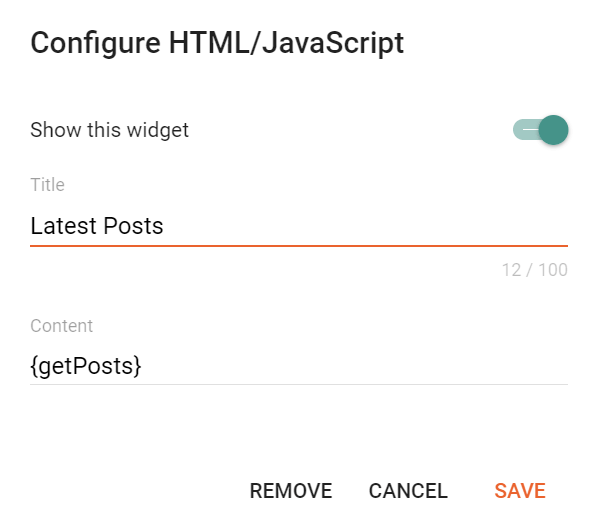
# Post Gadgets

Access your blog **Layout** > and click on the **Add a Gadget** > **HTML/JavaScript** > in the **Sidebar** or **Footer Widgets** sections.

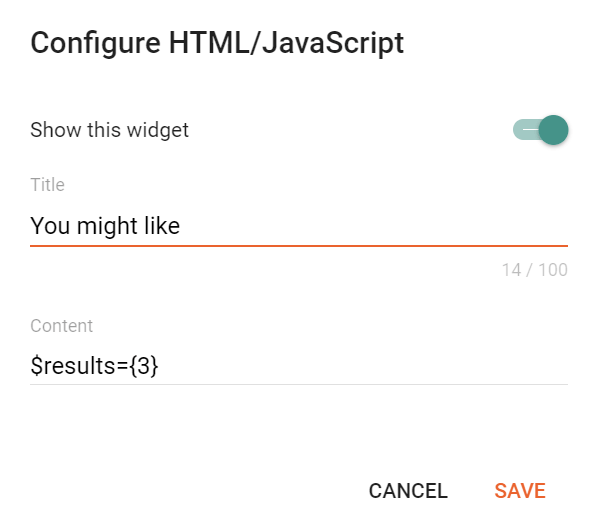
Shortcode: `{getPosts} $label={Label Name} $results={Number of Results}`&#x20;

Label Name: `Custom Label`, `recent`&#x20;

Number of Results: The attribute `$results={}` is optional! Default is `4`.

The `$label={}` attribute is optional! The default value is `recent`.

**Example:**

<figure><img src="https://content.gitbook.com/content/Lgk0Bukp3MlddTFYiGbP/blobs/dZnK5Z0p5GDy95GIPEv0/image.png" alt="Post gadgets" width="375"><figcaption></figcaption></figure>


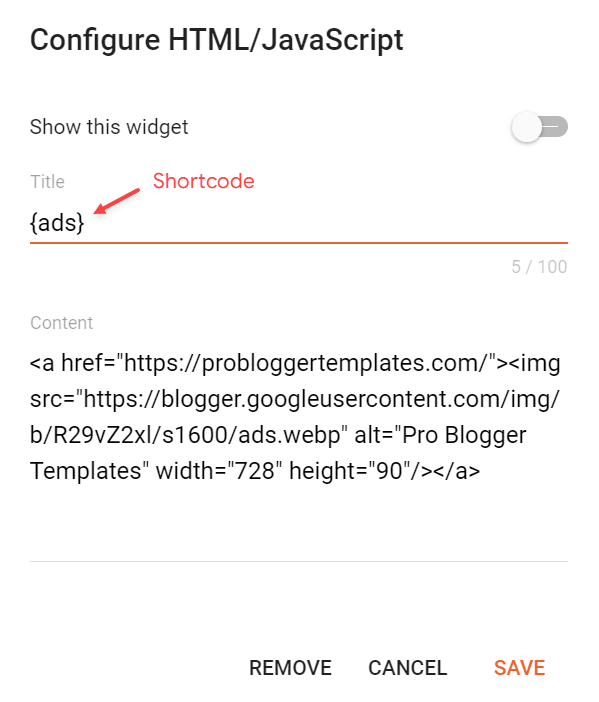
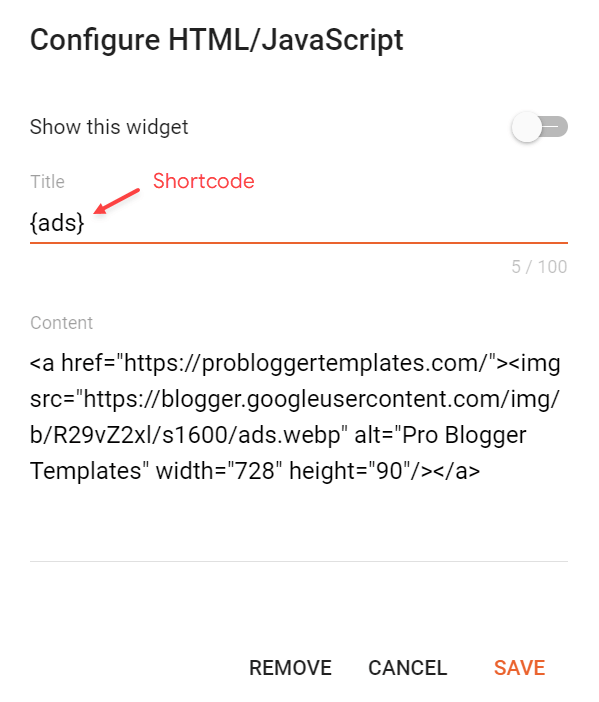
# Sidebar Ads

With this feature you will be able to display custom ads in the sidebar without the gadget style.

Shortcode: `{ads}`

**Example:**

<figure><img src="https://content.gitbook.com/content/Lgk0Bukp3MlddTFYiGbP/blobs/P16SCzbGY0NxoCIaKffE/image.png" alt="Sidebar ads" width="375"><figcaption></figcaption></figure>

{% hint style="info" %}
INFO: This is the default behavior for the native adsense gadget.
{% endhint %}


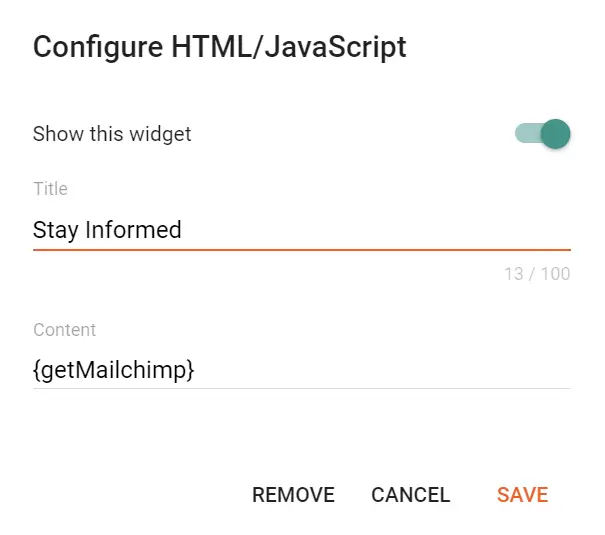
# Mailchimp

Subscribe Form

Access your blog **Layout** > and click on the **Add a Gadget** > **HTML/JavaScript** > in the **Sidebar** or **Footer Widgets** sections.

Shortcode: `{getMailchimp}`

**Example:**

<figure><img src="https://content.gitbook.com/content/Lgk0Bukp3MlddTFYiGbP/blobs/yEyMp4CTqeOJjItUawM5/image.png" alt="Mailchimp" width="375"><figcaption></figcaption></figure>

{% hint style="info" %}
INFO: After add the Mailchimp Form, two new steps must be followed so that it can be ready to get new subscriptions.
{% endhint %}

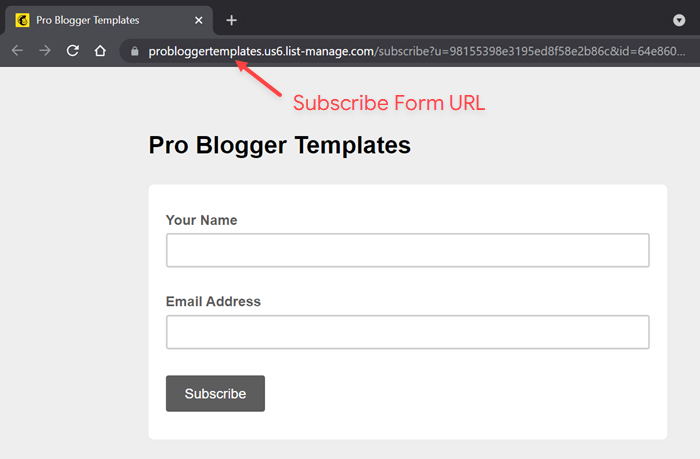
### Get the Subscribe Form URL&#x20;

You can get the subscribe form URL easily by following the steps below.

{% stepper %}
{% step %}
Create a free account on Mailchimp – [Create Now](https://login.mailchimp.com/signup/)

{% endstep %}

{% step %}
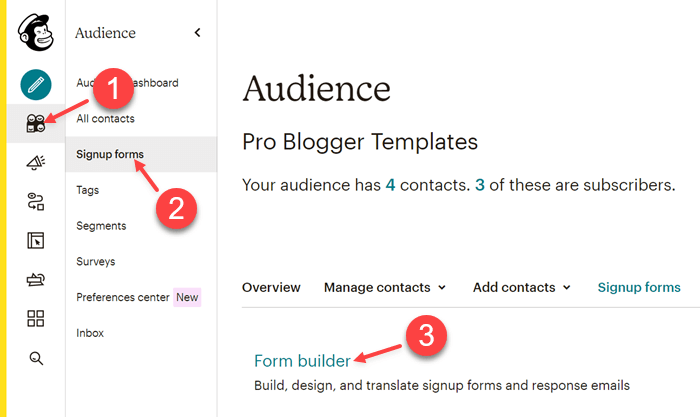
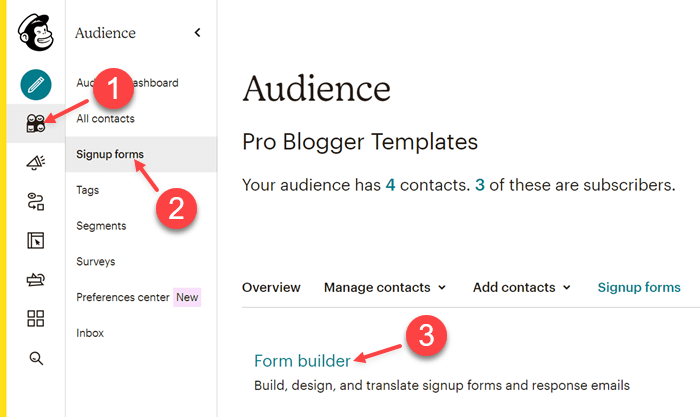
After creating your account go to **Audience** > **Signup forms** > **Form builder**.

<img src="https://content.gitbook.com/content/Lgk0Bukp3MlddTFYiGbP/blobs/Co9bHwmt4iqxtxdnhzrC/image.png" alt="Form builder" data-size="original">
{% endstep %}

{% step %}
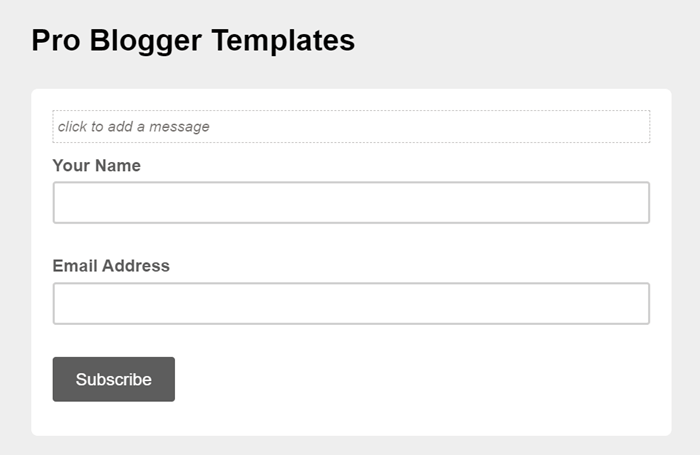
Create and customize your form according to your needs.

<img src="https://content.gitbook.com/content/Lgk0Bukp3MlddTFYiGbP/blobs/xm0qEPpPBPGTWPAGvgg6/image.png" alt="Customize form" data-size="original">
{% endstep %}

{% step %}
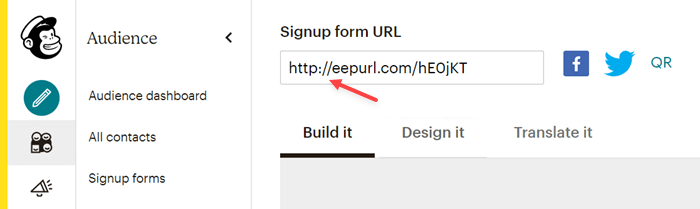
Copy and access the **Signup form URL**.

<img src="https://content.gitbook.com/content/Lgk0Bukp3MlddTFYiGbP/blobs/0sHKllMgwpMo4MBe14AF/image.png" alt="Signup form URL" data-size="original">
{% endstep %}

{% step %}
After the page loads, **Copy** the final **Subscribe Form URL** into your browser’s address bar.

<img src="https://content.gitbook.com/content/Lgk0Bukp3MlddTFYiGbP/blobs/hclSoxvdA8w0c85FJwRO/image.png" alt="Copy Subscribe Form URL" data-size="original">
{% endstep %}
{% endstepper %}

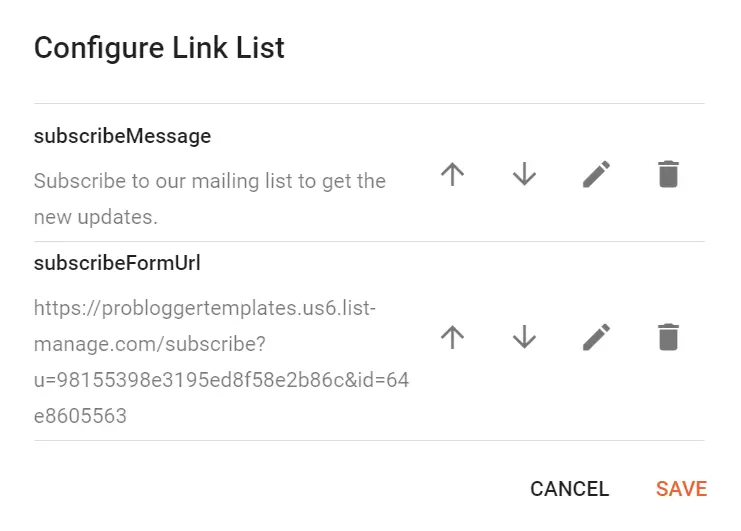
### Set up the Subscribe Form URL and Custom Message&#x20;

You must add this information to the **Advanced Options** gadget following the instructions in the (Theme Options) article.

**Example:**

<figure><img src="https://content.gitbook.com/content/Lgk0Bukp3MlddTFYiGbP/blobs/Xdz7i6Z0j7gKas2ixIV5/image.png" alt="Subscribe form options" width="375"><figcaption></figcaption></figure>

{% hint style="success" %}
SUCCESS: When you complete all the steps described above, your form will be ready to receive new email subscriptions.
{% endhint %}


# Footer ADS

Access your blog **Layout** > and click on the **Add a Gadget** > **HTML/JavaScript**, **Image** or **AdSense** > in the **Footer ADS** section.

**Example:**

<figure><img src="https://content.gitbook.com/content/Lgk0Bukp3MlddTFYiGbP/blobs/HpLsLLJaTa32i1fh3Jjc/image.png" alt="Footer ads" width="375"><figcaption></figcaption></figure>

### Display Options&#x20;

Go to your blog **Theme** > **Customize** > **Advanced** > **Static Page** > **Show Footer Ads** > to change the visibility on Static Pages.

<figure><img src="https://content.gitbook.com/content/Lgk0Bukp3MlddTFYiGbP/blobs/K3IJuMVeorrWRmiRFqQw/image.png" alt="Display options" width="375"><figcaption></figcaption></figure>


# Footer Info

Access your blog **Layout** > and click on the **Edit Icon** > in the **Footer Info** gadgets.

### Logo & Description

<figure><img src="https://2090754335-files.gitbook.io/~/files/v0/b/gitbook-x-prod.appspot.com/o/spaces%2FLgk0Bukp3MlddTFYiGbP%2Fuploads%2FycQKAVhIOtMP2dfYHjQy%2Fspotlight-footer-info.webp?alt=media&amp;token=ca507b22-5e9e-415e-be8e-3752acce9073" alt="Footer info" width="375"><figcaption></figcaption></figure>

### Social Icons&#x20;

Supported Icons: `google`, `blogger`, `apple`, `amazon`, `microsoft`, `facebook`, `facebook-f`, `twitter`, `twitter-x`, `x`, `rss`, `youtube`, `skype`, `stumbleupon`, `tumblr`, `vk`, `stack-overflow`, `github`, `linkedin`, `dribbble`, `soundcloud`, `behance`, `digg`, `instagram`, `pinterest`, `pinterest-p`, `twitch`, `steam`, `delicious`, `codepen`, `flipboard`, `reddit`, `whatsapp`, `telegram`, `messenger`, `snapchat`, `discord`, `quora`, `tiktok`, `email`, `share`, `threads`, `mastodon`, `external-link`

Shortcode: `{getSocial}`

{% hint style="info" %}
INFO: An item with the shortcode must be added for the Gadget to work correctly.&#x20;
{% endhint %}

**Example:**

<figure><img src="https://content.gitbook.com/content/Lgk0Bukp3MlddTFYiGbP/blobs/HeoyGdLfBsItTSpik6B8/image.png" alt="Social icons" width="375"><figcaption></figcaption></figure>


# Footer Copyright

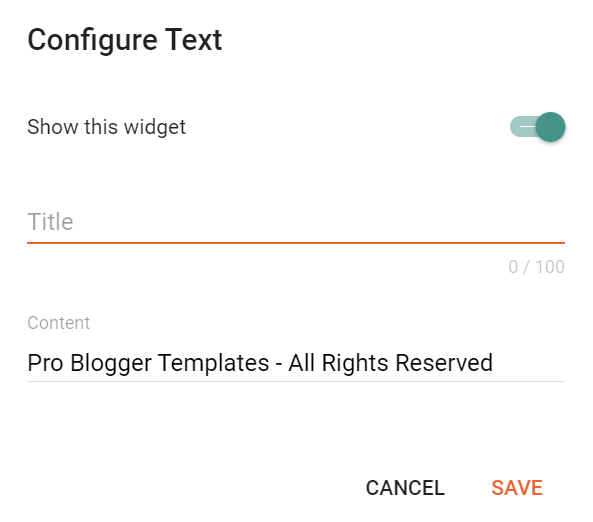
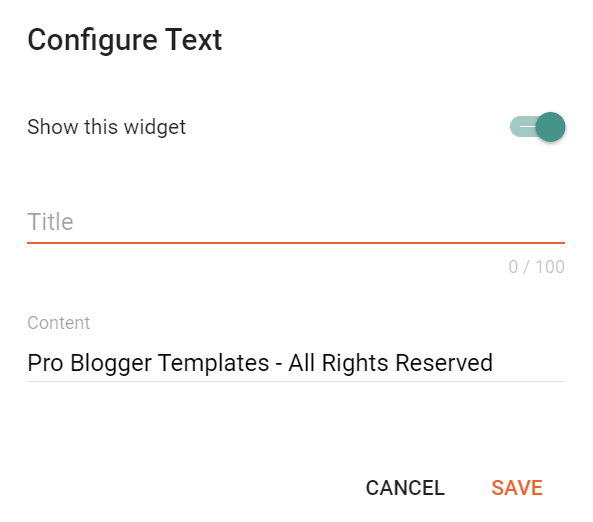
Access your blog **Layout** > and click on the **Edit Icon** > in the **Footer Copyright** gadget.

**Example:**

<figure><img src="https://content.gitbook.com/content/Lgk0Bukp3MlddTFYiGbP/blobs/5YFyaIoxbENpIhJnTDSc/image.png" alt="Footer copyright" width="375"><figcaption></figcaption></figure>


# Footer Menu

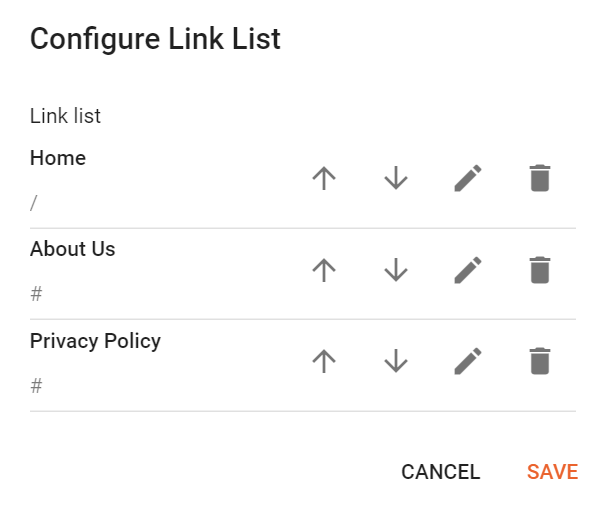
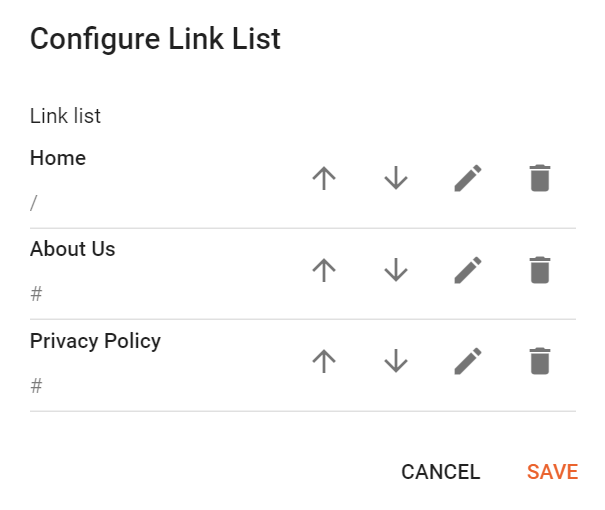
Access your blog **Layout** > and click on the **Edit Icon** > in the **Footer Menu** gadget.

**Example:**

<figure><img src="https://content.gitbook.com/content/Lgk0Bukp3MlddTFYiGbP/blobs/5b62N842WK9GrBFTp0OU/image.png" alt="Footer menu" width="375"><figcaption></figcaption></figure>


# Cookie Consent

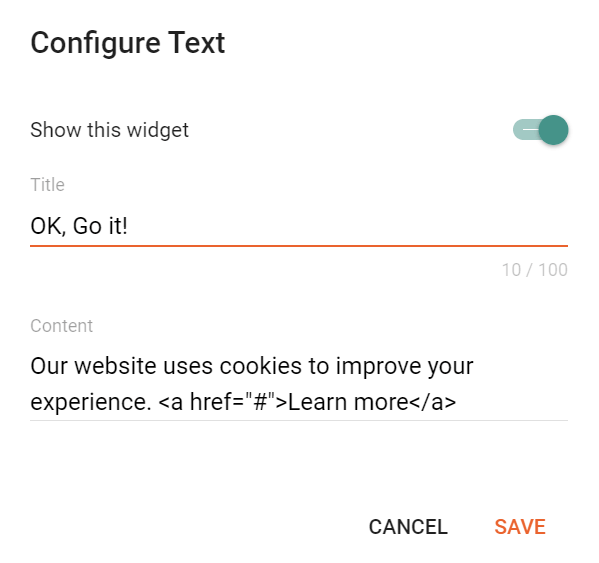
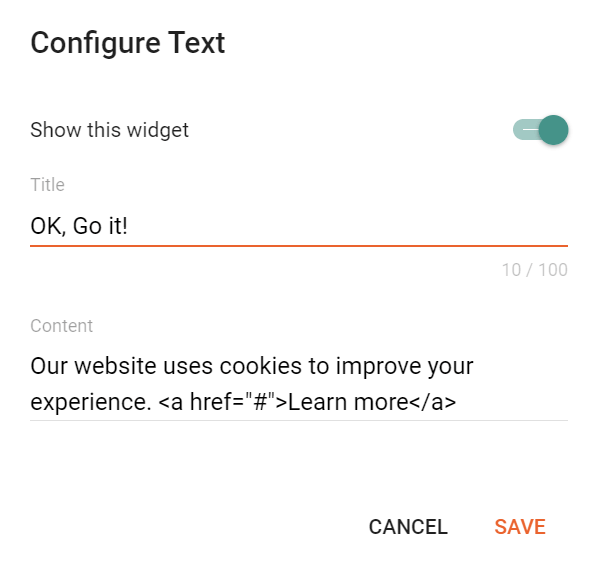
Access your blog **Layout** > and click on the **Edit Icon** > in the **Cookie Consent** gadget.

**Example:**

<figure><img src="https://content.gitbook.com/content/Lgk0Bukp3MlddTFYiGbP/blobs/fMeM9Q8sQFuHt7Zixjj1/image.png" alt="Cookie consent" width="375"><figcaption></figcaption></figure>


# Theme Options

This template allows you to customize some options directly in the layout.

### Default Thumbnail&#x20;

Access your blog **Layout** > and click on the **Edit Icon** > in the **Theme Options** > **Default Thumbnail** gadget.

**Example:**

<figure><img src="https://content.gitbook.com/content/Lgk0Bukp3MlddTFYiGbP/blobs/zbAV2Elu6xkgMjRnoKwk/image.png" alt="Default thumbnail" width="375"><figcaption></figcaption></figure>

{% hint style="info" %}
INFO: This image will be displayed for posts that don’t have an image or youtube video.&#x20;
{% endhint %}

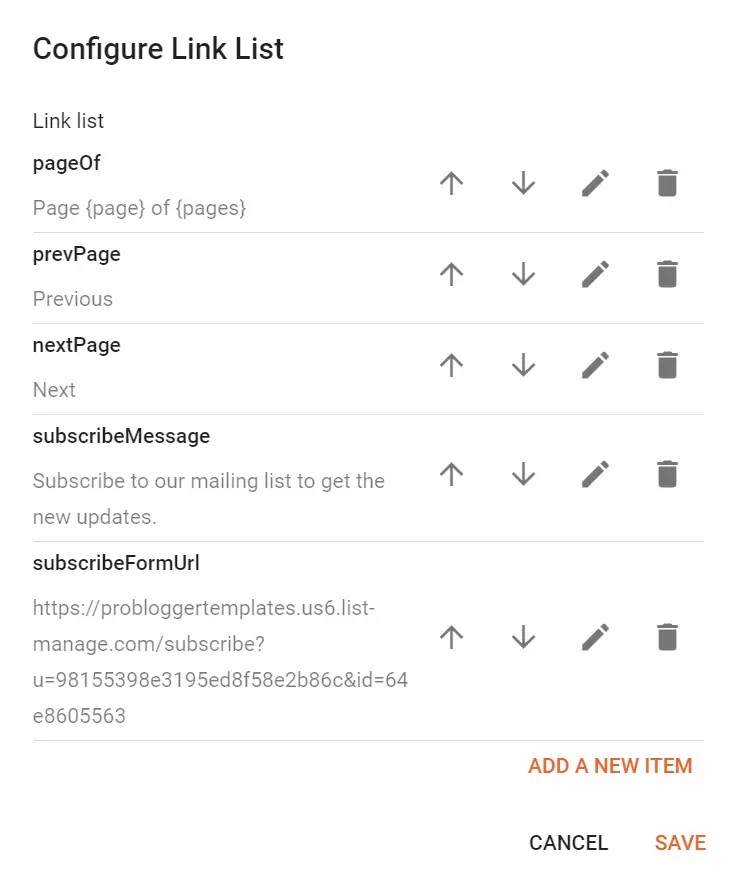
### Advanced Options

Access your blog **Layout** > and click on the **Edit Icon** > in the **Theme Options** > **Advanced Options** gadget.

pageOf: default is `Page {page} of {pages}`&#x20;

prevPage: default is `Previous`&#x20;

nextPage: default is `Next`&#x20;

subscribeMessage: default is `Subscribe to our mailing list to get the new updates.`&#x20;

subscribeFormUrl: default is `https://probloggertemplates.us6.list-manage.com/subscribe?u=98155398e3195ed8f58e2b86c&id=64e8605563`

**Example:**

<figure><img src="https://content.gitbook.com/content/Lgk0Bukp3MlddTFYiGbP/blobs/EckoVeECI5z80svPE4zs/image.png" alt="Advanced options" width="375"><figcaption></figcaption></figure>

{% hint style="info" %}
INFO: Use this feature to configure the Mailchimp Form Gadget and set a custom translation for Content Pagination (Post Split).
{% endhint %}


# Feed Settings

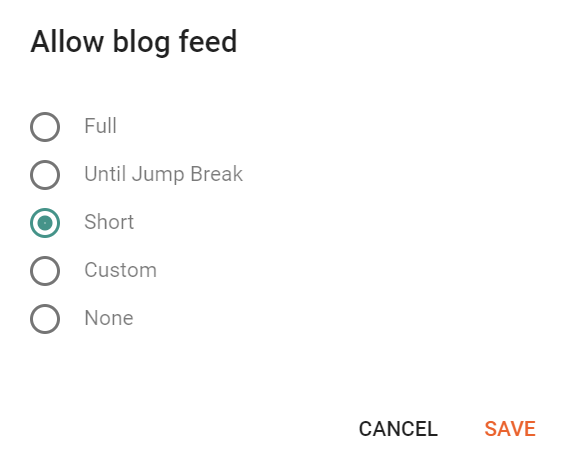
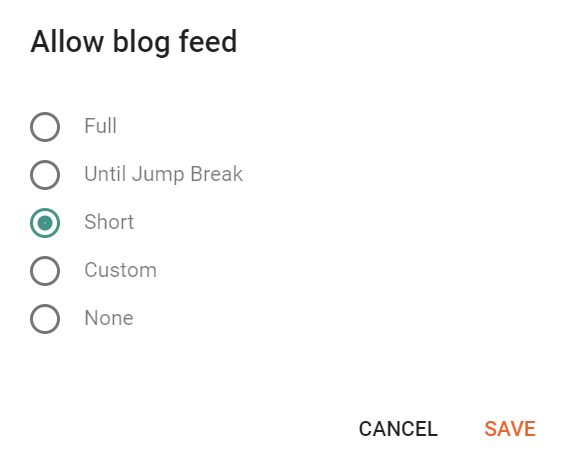
Access your blog **Settings** > and go to **Site Feed** > **Allow Blog Feed**.

This template has a native feed system that does not require the default Blogger system. Therefore, for better performance and security, it is recommended to change to **Short** mode.

**Example:**

<figure><img src="https://content.gitbook.com/content/Lgk0Bukp3MlddTFYiGbP/blobs/4QLgaj9GPhD4ayRbApOD/image.png" alt="Feed settings" width="375"><figcaption></figcaption></figure>

{% hint style="info" %}
NOTE: Disabling the feeds completely can affect Blogger Comments System, so it is not recommended. If comments are disabled on your site, this is not a problem.
{% endhint %}


# Shortcut Keys

This exclusive feature allows the user to use shortcut keys to perform small activities on your site.

### Ajax Search&#x20;

Show Search Modal: `Ctrl + K`&#x20;

Hide Search Modal: `Esc`

### Share Modal (Post Page)&#x20;

Show Share Modal: `Ctrl + S`&#x20;

Hide Share Modal: `Esc`

{% hint style="info" %}
INFO: Your feedback is important to us! Help us improve this unique functionality with new smart shortcuts.
{% endhint %}


# Customization

Access your blog **Theme** > and click on the **Customize** button > and explore **Background** and **Advanced** options.

Fully Customizable: **Layout Options**, **Fonts**, **Background**, **Colors**, **Display Options** and more.

<figure><img src="https://2090754335-files.gitbook.io/~/files/v0/b/gitbook-x-prod.appspot.com/o/spaces%2FLgk0Bukp3MlddTFYiGbP%2Fuploads%2F8aLUsChVpZDc8NCe0dVC%2Fspotlight-customization.webp?alt=media&amp;token=729f8cf1-d817-4d93-9a0d-c891007d3f9a" alt="Customization"><figcaption></figcaption></figure>


# Welcome

HyperMag is a premium Blogger template crafted for modern magazines and dynamic news websites. This documentation covers all the essentials, including installation, customization tips, and leveraging advanced features like widgets, responsive design, and optimized layouts to enhance your site's performance.

<div data-full-width="false"><figure><img src="https://3541635086-files.gitbook.io/~/files/v0/b/gitbook-x-prod.appspot.com/o/spaces%2FtjauJ2SCTA4KF9vk4mp7%2Fuploads%2FpRhERviZpAI9J4vBMEYm%2Fhypermag-blogger-template.webp?alt=media&amp;token=7136689d-27ef-44b0-ac11-b0f6dc4dc20a" alt="Hypermag blogger template"><figcaption></figcaption></figure></div>

### Basic Guides

<table data-card-size="large" data-view="cards"><thead><tr><th></th><th></th><th data-hidden data-card-cover data-type="files"></th><th data-hidden></th><th data-hidden data-card-target data-type="content-ref"></th></tr></thead><tbody><tr><td><strong>Installation</strong></td><td>How to Install a Blogger Template</td><td></td><td></td><td><a href="/guides/basic/installation">Installation</a></td></tr><tr><td><strong>Post Shortcodes</strong></td><td>Setup Buttons, Alerts, Forms and More</td><td></td><td></td><td><a href="/guides/basic/shortcodes">Shortcodes</a></td></tr></tbody></table>


# Changelog

### v1.3.0 – June 20, 2025

* **Added:** Support for "bluesky" icon.

### v1.2.0 – November 22, 2024

* **Added:** Support for "threads" and "mastodon" icons.

### v1.1.0 – November 3, 2024

* **Fixed:** Youtube embed style conflicts with instagram embed.

### v1.0.0 – November 8, 2023

* Initial Release


# Header ADS

Access your blog **Layout** > and click on the **Add a Gadget** > **HTML/JavaScript**, **Image** or **AdSense** > in the **Header ADS** section.

**Example:**

<figure><img src="https://3541635086-files.gitbook.io/~/files/v0/b/gitbook-x-prod.appspot.com/o/spaces%2FtjauJ2SCTA4KF9vk4mp7%2Fuploads%2FnIGqGY2gueaF7f1otUfj%2Fimage.png?alt=media&amp;token=53ff95fd-c9ed-4e67-bf26-566a13e3041b" alt="Header ads" width="447"><figcaption></figcaption></figure>

### Display Options

Go to your blog **Theme** > **Customize** > **Advanced** > **Static Page** > **Show Header Ads** > to change the visibility on Static Pages.

<figure><img src="https://3541635086-files.gitbook.io/~/files/v0/b/gitbook-x-prod.appspot.com/o/spaces%2FtjauJ2SCTA4KF9vk4mp7%2Fuploads%2FZw3ZB6quRVDtgStUoR3L%2Fimage.png?alt=media&amp;token=1c0e6fd4-e656-4081-bf3d-27701d905bbc" alt="Display options" width="410"><figcaption></figcaption></figure>


# Header Logo

Access your blog **Layout** > and click on the **Edit Icon** > in the **Header Logo** (Image) gadget.

**Example:**

<figure><img src="https://3541635086-files.gitbook.io/~/files/v0/b/gitbook-x-prod.appspot.com/o/spaces%2FtjauJ2SCTA4KF9vk4mp7%2Fuploads%2FaopuCjq3zSQM9y0QIeSK%2Fimage.png?alt=media&amp;token=ed124d17-c347-447d-8917-55e7a7e3c2a6" alt="Header logo" width="558"><figcaption></figcaption></figure>

{% hint style="info" %}
INFO: If you hide the logo gadget, the website title will be displayed.
{% endhint %}


# Header Menu

Access your blog **Layout** > and click on the **Edit Icon** > in the **Header Menu** gadget.

### Default Links and Sub Links

Default Link Example: `Features`&#x20;

SubLink Level 1 Example: `_Level 1` “Before the Title add 1 underscore”&#x20;

SubLink Level 2 Example: `__Level 2` “Before the Title add 2 underscore”

**Example:**

<figure><img src="https://3541635086-files.gitbook.io/~/files/v0/b/gitbook-x-prod.appspot.com/o/spaces%2FtjauJ2SCTA4KF9vk4mp7%2Fuploads%2FTFVirETCASX36wP2pFwH%2Fimage.png?alt=media&amp;token=4a091f21-ac52-4aee-b519-802893aff75a" alt="Sublinks" width="459"><figcaption></figcaption></figure>

{% hint style="info" %}
INFO: Level 2 Links must be between or below level 1 links.
{% endhint %}

### Menu Icons

This template uses Bootstrap Icons as the main icon source, so you can choose from thousands of awesome icons to use on your menu link.

Icon Code: `<i code="HTML Code"></i>`

#### How to get HTML Code?

{% stepper %}
{% step %}
Go to the [Bootstrap Icons Gallery](https://icons.getbootstrap.com/).

{% endstep %}

{% step %}
Search for the desired icon, then click on the icon to access the info page.

{% endstep %}

{% step %}
Copy the **HTML Code** available in the **Code Point** section as illustrated in the image below.

<img src="https://3541635086-files.gitbook.io/~/files/v0/b/gitbook-x-prod.appspot.com/o/spaces%2FtjauJ2SCTA4KF9vk4mp7%2Fuploads%2FX9z9NGXAjume6E2pAgMg%2Fimage.png?alt=media&amp;token=0c3b2073-18ba-47b7-b060-ba8831017107" alt="Bootstrap icon" data-size="original">
{% endstep %}

{% step %}
Edit the link text by adding the **Icon Code** as in the example below.

<img src="https://3541635086-files.gitbook.io/~/files/v0/b/gitbook-x-prod.appspot.com/o/spaces%2FtjauJ2SCTA4KF9vk4mp7%2Fuploads%2F76loCjohUmLpqxbEgU31%2Fimage.png?alt=media&amp;token=89ca7937-27c5-4e1c-8fd9-4414526e4052" alt="Icon code" data-size="original">
{% endstep %}
{% endstepper %}

{% hint style="info" %}
INFO: Icons are currently not supported for sub links.
{% endhint %}

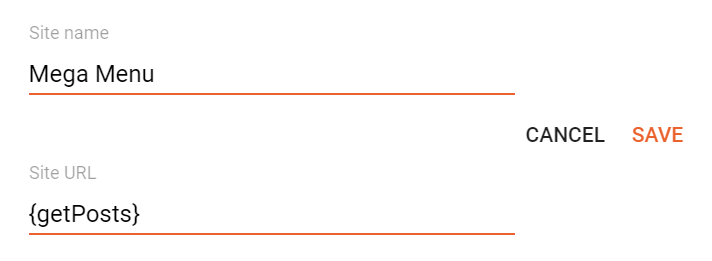
### Mega Menu

Shortcode: `{getPosts} $label={Label Name}`&#x20;

Label Name: `Custom Label`, `recent`

The `$label={}` attribute is optional! The default value is `recent`.

#### What is Label?
<figure><img src="https://3541635086-files.gitbook.io/~/files/v0/b/gitbook-x-prod.appspot.com/o/spaces%2FtjauJ2SCTA4KF9vk4mp7%2Fuploads%2FZSsSrh2G0NN2LLrDHVuw%2Fimage.png?alt=media&amp;token=10d46e29-0815-4ec3-b548-c77a3399516c" alt="Label name"><figcaption></figcaption></figure>

**Example:**

<figure><img src="https://3541635086-files.gitbook.io/~/files/v0/b/gitbook-x-prod.appspot.com/o/spaces%2FtjauJ2SCTA4KF9vk4mp7%2Fuploads%2FQhOnEzIyf53ii8IP83js%2Fimage.png?alt=media&amp;token=3a4fba8b-e522-40cb-966a-26d1b3f32b71" alt="Mega menu" width="534"><figcaption></figcaption></figure>

### Mega Tabs

Shortcode: `{getPosts} $label={Label Name/Label Name}`&#x20;

Label Settings: Labels must be separated by `/`. Only 5 Labels are supported.

**Example:**

<figure><img src="https://3541635086-files.gitbook.io/~/files/v0/b/gitbook-x-prod.appspot.com/o/spaces%2FtjauJ2SCTA4KF9vk4mp7%2Fuploads%2Fw7HLSAN2bQ3FT4wehEad%2Fimage.png?alt=media&amp;token=7febac36-a789-40a0-87ac-8095e11c5147" alt="Mega tabs" width="539"><figcaption></figcaption></figure>

{% hint style="info" %}
INFO: Mega links must be on the first level! There is no predefined limit amount.
{% endhint %}


# Featured Posts

Access your blog **Layout** > and click on the **Add a Gadget** > **HTML/JavaScript** or **Popular Posts** > in the **Featured Posts** section.

### HTML/JavaScript

Shortcode: `{getPosts} $label={Label Name}`&#x20;

Label Name: `Custom Label`, `recent`

The `$label={}` attribute is optional! The default value is `recent`.

**Example:**

<figure><img src="https://3541635086-files.gitbook.io/~/files/v0/b/gitbook-x-prod.appspot.com/o/spaces%2FtjauJ2SCTA4KF9vk4mp7%2Fuploads%2F1pKKeenVuuL3kVlzdlnS%2Fimage.png?alt=media&amp;token=5bcfea8f-04f1-4caf-95d3-9a7d7b9fdc5c" alt="HTML/JavaScript" width="451"><figcaption></figcaption></figure>

### Popular Posts

<figure><img src="https://3541635086-files.gitbook.io/~/files/v0/b/gitbook-x-prod.appspot.com/o/spaces%2FtjauJ2SCTA4KF9vk4mp7%2Fuploads%2FBhXIKdIMNnGXe4hVXdsL%2Fimage.png?alt=media&amp;token=ad388921-6f2a-409f-8b01-faa56a8e5a53" alt="Popular posts" width="448"><figcaption></figcaption></figure>


# Featured ADS

Access your blog **Layout** > and click on the **Add a Gadget** > **HTML/JavaScript**, **Image** or **AdSense** > in the **Featured ADS** section.

**Example:**

<figure><img src="https://3541635086-files.gitbook.io/~/files/v0/b/gitbook-x-prod.appspot.com/o/spaces%2FtjauJ2SCTA4KF9vk4mp7%2Fuploads%2FGioNlzQzCt3zWEWrM278%2Fimage.png?alt=media&amp;token=a9792f3c-2523-442c-844d-c9fcdb21c046" alt="Featured ads" width="447"><figcaption></figcaption></figure>


# Content Blocks

Access your blog **Layout** > and click on the **Add a Gadget** > **HTML/JavaScript** > in the **Content Blocks** sections.

Shortcode: `{getPosts} $label={Label Name} $type={Block Type} $results={Number of Results}`&#x20;

Label Name: `Custom Label`, `recent`&#x20;

Block Type: `block1`, `block2`, `list`, `grid`, `story`, `video`&#x20;

Number of Results: This attribute is optional! Add it to define a custom value.

The `$label={}` attribute is optional! The default value is `recent`.

**Example:**

<figure><img src="https://3541635086-files.gitbook.io/~/files/v0/b/gitbook-x-prod.appspot.com/o/spaces%2FtjauJ2SCTA4KF9vk4mp7%2Fuploads%2FbnJu95sAq9GGfDLhAyMR%2Fimage.png?alt=media&amp;token=711ab238-f191-4d55-a756-bec50ca3f5bc" alt="Content blocks" width="456"><figcaption></figcaption></figure>

{% hint style="info" %}
INFO: The number of results for types block1, story and video cannot be changed.
{% endhint %}


# Content Blocks ADS

Access your blog **Layout** > and click on the **Add a Gadget** > **HTML/JavaScript**, Image or **AdSense** > in the **Content Blocks** sections.

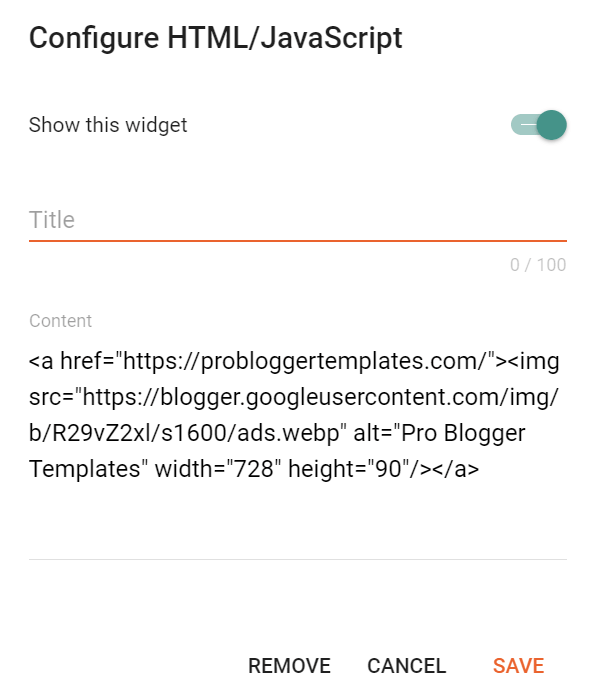
Shortcode: `{ads}`

**Example:**

<figure><img src="https://3541635086-files.gitbook.io/~/files/v0/b/gitbook-x-prod.appspot.com/o/spaces%2FtjauJ2SCTA4KF9vk4mp7%2Fuploads%2FF5fCC4u7ctt7HKcz1j3R%2Fimage.png?alt=media&amp;token=d755afed-b71a-4927-af7d-ef2ad51c4831" alt="Content blocks ads" width="449"><figcaption></figcaption></figure>

{% hint style="info" %}
INFO: Shortcode is required for **HTML/Javascript** and **Image** gadgets.
{% endhint %}


# Latest Posts

Access your blog **Layout** > and click on the **Edit Icon** > in the **Latest Posts/Blog Posts** gadget.

Homepage Headline: Display a custom title by changing the text in the **Post page link text** field. To hide the title add `{hide}`.

**Example:**

<figure><img src="https://3541635086-files.gitbook.io/~/files/v0/b/gitbook-x-prod.appspot.com/o/spaces%2FtjauJ2SCTA4KF9vk4mp7%2Fuploads%2FI5kiHwhEYwTWp67Dbdrn%2Fimage.png?alt=media&amp;token=e20aa0aa-5619-4354-813a-437e956903dd" alt="Main posts" width="556"><figcaption></figcaption></figure>

### Show Author Profile (Author Box)

The Author Box receives the blogger profile informations automatically, As long as your profile is marked as public. Icons are displayed if there are html links in the introduction field.

Supported Icons: `google`, `blogger`, `apple`, `amazon`, `microsoft`, `facebook`, `facebook-f`, `twitter`, `twitter-x`, `x`, `rss`, `youtube`, `skype`, `stumbleupon`, `tumblr`, `vk`, `stack-overflow`, `github`, `linkedin`, `dribbble`, `soundcloud`, `behance`, `digg`, `instagram`, `pinterest`, `pinterest-p`, `twitch`, `steam`, `delicious`, `codepen`, `flipboard`, `reddit`, `whatsapp`, `telegram`, `messenger`, `snapchat`, `discord`, `quora`, `tiktok`, `email`, `share`, `threads`, `mastodon`, `external-link`

Blogger Settings: Go to <https://www.blogger.com/edit-profile.g> Find for **Additional Information** > **Introduction** > and add your description with HTML links.

HTML Link: `<a href="Your Link Here">Icon Name</a>`

HTML Link Example: `<a href="https://facebook.com/probloggertemplates">facebook</a>`

**Example:**

<figure><img src="https://3541635086-files.gitbook.io/~/files/v0/b/gitbook-x-prod.appspot.com/o/spaces%2FtjauJ2SCTA4KF9vk4mp7%2Fuploads%2FI8REYnYcTI4e87kEgSvf%2Fimage.png?alt=media&amp;token=182c9063-b021-410b-a3ec-ebf1d0deed84" alt="Author description" width="563"><figcaption></figcaption></figure>

{% hint style="info" %}
INFO: The **“Introduction”** text is required for the author box to be displayed! But the links are not required.&#x20;
{% endhint %}

### Comments Settings

The comment settings are intuitive like never seen before. The shortcodes should be added in > **Layou**t > **Blog Posts** > **Comment Format**.

Blogger Shortcode: `$type={blogger}`&#x20;

Disqus Shortcode: `$type={disqus}`&#x20;

Custom Disqus Shortcode: `$type={disqus} $shortname={Your Shortname}`&#x20;

Facebook Shortcode: `$type={facebook}`&#x20;

Facebook Custom Language: `$type={facebook} $lang={Language Code}`&#x20;

Facebook Language Codes: `en_US`, `es_ES`, `ar_AR`, `id_ID`, `th_TH`, `vi_VN`, `pt_BR`, `fr_FR`, `ru_RU`, `de_DE`, `it_IT`

Extra Languages: To use other languages you should check if it is supported by facebook. ([Facebook Languages](https://developers.facebook.com/docs/internationalization)).

**Example:**

<figure><img src="https://3541635086-files.gitbook.io/~/files/v0/b/gitbook-x-prod.appspot.com/o/spaces%2FtjauJ2SCTA4KF9vk4mp7%2Fuploads%2Ftip1jmlIRMAoMfIzTWK0%2Fimage.png?alt=media&amp;token=74abe2b6-4b3d-43f9-b339-35d4d5dea8ec" alt="Comments" width="529"><figcaption></figcaption></figure>

### Embed Media in Blogger Comments&#x20;

The comment settings are intuitive like never seen before. The shortcodes should be added in > **Layout** > **Blog Posts** > **Comment Format**.

Video Shortcode: `{video}YouTube Video URL{/video}`&#x20;

Image Shortcode: `{image}Custom Image URL{/image}`

**Example:**

<figure><img src="https://3541635086-files.gitbook.io/~/files/v0/b/gitbook-x-prod.appspot.com/o/spaces%2FtjauJ2SCTA4KF9vk4mp7%2Fuploads%2FgvNfuNTy2NGYHZPrZNhm%2Fimage.png?alt=media&amp;token=d1b23fe3-cbb0-45ac-99d6-7fe6b2cfdea3" alt="Embed media" width="525"><figcaption></figcaption></figure>


# Table of Contents

This function is available for posts and pages and can be added easily via shortcode.

Shortcode: `{getToc} $title={Table of Contents} $count={Boolean} $expanded={Boolean}`&#x20;

Count Option: This attribute is optional! Available values are `true` or `false`.&#x20;

Expanded Option: This attribute is optional! Available values are `true` or `false`.

{% hint style="info" %}
INFO: After adding the shortcode, apply the **Bold** style.&#x20;
{% endhint %}

**Example:**

<figure><img src="https://3541635086-files.gitbook.io/~/files/v0/b/gitbook-x-prod.appspot.com/o/spaces%2FtjauJ2SCTA4KF9vk4mp7%2Fuploads%2F7hbRn0EKmdLJ7Zg4P2mL%2Fimage.png?alt=media&amp;token=2df86b9f-b783-41c6-ac22-2736778d42d8" alt="Table of contents" width="533"><figcaption></figcaption></figure>


# Post Content ADS

Access your blog **Layout** > and click on the **Add a Gadget** > **HTML/JavaScript**, **Image** or **AdSense** > in the **Before Content**, **After Content** or **In-Article** sections.

**Example:**

<figure><img src="https://3541635086-files.gitbook.io/~/files/v0/b/gitbook-x-prod.appspot.com/o/spaces%2FtjauJ2SCTA4KF9vk4mp7%2Fuploads%2FbYSXNlOkwftzoZkINKzl%2Fimage.png?alt=media&amp;token=868a46de-2513-4306-8a1c-aa15c24952bb" alt="Post content ads" width="447"><figcaption></figcaption></figure>

### Display Options

By default, ads in sections **Before Content** and **After Content** are displayed only in **“Posts”**. You can display them on specific **“Pages”** with the help of shortcodes.

Shortcode: `{showAds}`

{% hint style="info" %}
INFO: After adding the shortcode, apply the **Bold** style.&#x20;
{% endhint %}

**Example:**

<figure><img src="https://3541635086-files.gitbook.io/~/files/v0/b/gitbook-x-prod.appspot.com/o/spaces%2FtjauJ2SCTA4KF9vk4mp7%2Fuploads%2FTyrWSaSCW8Yh7wvm7vA1%2Fimage.png?alt=media&amp;token=23f1289e-f7d9-4813-b693-fd3c93a3d22a" alt="Shortcode" width="563"><figcaption></figcaption></figure>

### In-Article Ads (Between Paragraphs)&#x20;

The ad in the **In-Article** section does not have a defined display location. You can display it multiple times in **“Posts”** and **“Pages”** with the help of shortcodes.

Shortcode: **{inAds}**

{% hint style="info" %}
INFO: After adding the shortcode, apply the **Bold** style.&#x20;
{% endhint %}

**Example:**

<figure><img src="https://3541635086-files.gitbook.io/~/files/v0/b/gitbook-x-prod.appspot.com/o/spaces%2FtjauJ2SCTA4KF9vk4mp7%2Fuploads%2Fz7MSqWpkj3qXoMaKjMmP%2Fimage.png?alt=media&amp;token=08f49f16-934f-429c-a772-ca9fa9746dc4" alt="Shortcodes" width="563"><figcaption></figcaption></figure>

{% hint style="info" %}
INFO: This function is compatible with the deprecated shortcodes `{ads}`, `$ads={1}` and `$ads={2}`, eliminating the need to edit old posts and pages.
{% endhint %}


# Post Cards

This function is available for posts and pages and allows you to add recommended posts, downloads, products and even custom calls to action.

Shortcode: `{getCard} $type={Card Type} $title={Card Title} $info={Card Info} $button={Button Text} $icon={Icon Code}`&#x20;

Card Type: `post`, `download`, `product`, `custom`&#x20;

Card Title: Attribute compatible with all card types, being optional for the `post` type.

**Example:**

<figure><img src="https://3541635086-files.gitbook.io/~/files/v0/b/gitbook-x-prod.appspot.com/o/spaces%2FtjauJ2SCTA4KF9vk4mp7%2Fuploads%2Fn4tRbZkiNivcpTP1FFpf%2Fimage.png?alt=media&amp;token=96ee6923-9f68-4f8b-85cc-d64d9b3aeabc" alt="Post cards" width="525"><figcaption></figcaption></figure>

The cards are highly flexible, being able to support specific and unique attributes or even optional attributes.

### Post Type&#x20;

Shortcode: `{getCard} $type={post} $title={Card Title}`&#x20;

Card Link: For this card to work properly, a link to a post must be provided.

**Card Demo:**

<figure><img src="https://3541635086-files.gitbook.io/~/files/v0/b/gitbook-x-prod.appspot.com/o/spaces%2FtjauJ2SCTA4KF9vk4mp7%2Fuploads%2Fcx3uyfKXPKqkxEpqZoPO%2Fimage.png?alt=media&amp;token=a0da1a90-bb0b-4189-9b0d-e0b7b7e98f2a" alt="Post card preview" width="525"><figcaption></figcaption></figure>

### Download Card&#x20;

Shortcode: `{getCard} $type={download} $title={Card Title} $info={Card Info} $button={Button Text}`

Card Link: Add any link whether internal or external.

**Card Demo:**

<figure><img src="https://3541635086-files.gitbook.io/~/files/v0/b/gitbook-x-prod.appspot.com/o/spaces%2FtjauJ2SCTA4KF9vk4mp7%2Fuploads%2FgZbvAdvYc7eyTkmgOsfa%2Fimage.png?alt=media&amp;token=5450b08c-43c7-461c-8907-ab00facd8e97" alt="Download card preview" width="525"><figcaption></figcaption></figure>

Product Card Shortcode: `{getCard} $type={product} $title={Card Title} $info={Card Info} $button={Button Text}`&#x20;

Card Link: Add any link whether internal or external.

**Card Demo:**

<figure><img src="https://3541635086-files.gitbook.io/~/files/v0/b/gitbook-x-prod.appspot.com/o/spaces%2FtjauJ2SCTA4KF9vk4mp7%2Fuploads%2F5CmzlUkflzw3XQmBUDxh%2Fimage.png?alt=media&amp;token=279b3441-9437-496f-be69-cd75638cfd5a" alt="Product card preview" width="525"><figcaption></figcaption></figure>

Custom Card Shortcode: `{getCard} $type={custom} $title={Card Title} $info={Card Info} $button={Button Text} $icon={Icon Code}`&#x20;

Card Link: Add any link whether internal or external.

Icon Code: This template uses **Bootstrap Icons** as the main icon source, so you can choose from thousands of awesome icons to use on your card.

{% stepper %}
{% step %}
Go to the [Bootstrap Icons Gallery](https://icons.getbootstrap.com/).

{% endstep %}

{% step %}
Search for the desired icon, then click on the icon to access the info page.

{% endstep %}

{% step %}
Copy the **HTML Code** available in the **Code Point** section as illustrated in the image below.

<img src="https://3541635086-files.gitbook.io/~/files/v0/b/gitbook-x-prod.appspot.com/o/spaces%2FtjauJ2SCTA4KF9vk4mp7%2Fuploads%2FgF1DN9akfsOY0ewI3P6i%2Fimage.png?alt=media&amp;token=445fa5e6-1d78-4d5d-be2d-fbd6f266ca36" alt="Bootstrap icon" data-size="original">
{% endstep %}
{% endstepper %}

{% hint style="info" %}
INFO:  When editing the shortcode the icon attribute should look like `$icon={&#xF4B1;}`
{% endhint %}

**Card Demo:**

<figure><img src="https://3541635086-files.gitbook.io/~/files/v0/b/gitbook-x-prod.appspot.com/o/spaces%2FtjauJ2SCTA4KF9vk4mp7%2Fuploads%2FtWxa4LEU8E0XjquXL91q%2Fimage.png?alt=media&amp;token=5e82d5b4-2f60-47a3-8f96-63081f239929" alt="Custom card preview" width="525"><figcaption></figcaption></figure>


# Post Split

Content Pagination

Divide the post content into multiple parts making it interactive and improving the user experience. Combine with ad duplicator to create viral posts and increase ad earnings.

Shortcode: `{nextPage}`

{% hint style="info" %}
INFO: After adding the shortcode, apply the **Bold** style.&#x20;
{% endhint %}

**Example:**

<figure><img src="https://3541635086-files.gitbook.io/~/files/v0/b/gitbook-x-prod.appspot.com/o/spaces%2FtjauJ2SCTA4KF9vk4mp7%2Fuploads%2F4pzV4HU3SfQzIgUaNU9O%2Fimage.png?alt=media&amp;token=4c84b143-ff0a-44f0-af16-87a95bf93bb5" alt="Shortcode" width="537"><figcaption></figcaption></figure>

### How to Translate the Pagination?&#x20;

Being a custom resource, pagination does not have automatic translation. You can translate it by editing the **Advanced Options** gadget following the instructions in the ([Theme Options](https://docs.probloggertemplates.com/hypermag/getting-started/theme-options#advanced-options)) guide.


# SafeLink Generator

This online tool allows the creation of safelinks with modern and exclusive cryptography fully compatible with the [Download Page](/guides/hypermag/getting-started/download-page) and [Safe Page](/guides/hypermag/getting-started/safe-page) functionalities.

{% stepper %}
{% step %}
Go to the [SafeLink Generator](https://safelink.probloggertemplates.com/).

<img src="https://3541635086-files.gitbook.io/~/files/v0/b/gitbook-x-prod.appspot.com/o/spaces%2FtjauJ2SCTA4KF9vk4mp7%2Fuploads%2FueR7QXYZw5Ec4WMZvV6a%2Fimage.png?alt=media&amp;token=e13afaa4-3ed7-4ce4-aef5-9fa4901ff40a" alt="Safelink generator" data-size="original">
{% endstep %}

{% step %}
Add the **Custom Link** you want to encrypt in the first field.

{% endstep %}

{% step %}
Add your **Download Page** or **Safe Page** link in the second field.

{% endstep %}

{% step %}
Click the **Generate** button.

{% endstep %}

{% step %}
Done! Click the **Copy Link** button to get the Generated Safelink.

<img src="https://3541635086-files.gitbook.io/~/files/v0/b/gitbook-x-prod.appspot.com/o/spaces%2FtjauJ2SCTA4KF9vk4mp7%2Fuploads%2FdSBUcPEFdtnIHGcVxtOz%2Fimage.png?alt=media&amp;token=e5744040-eb9a-4202-b59c-30d227207d2c" alt="Safelink" data-size="original">
{% endstep %}
{% endstepper %}

{% hint style="info" %}
INFO: The generated safelink is only compatible with official **PBT** templates that support **Download Page** or **Safe Page** functionality.
{% endhint %}


# Download Page

Create unlimited download pages compatible with **SafeLinks**. This functionality is compatible with posts and pages and is also fully customizable.

### Get Link Button&#x20;

This function will unlock the download button available on the page after the timeout. Follow the instructions below to create the get link button.

Shortcode: `{getLink} $seconds={15} $before={Generate Link} $after={Go to Link} $message={Please wait...}`

Shortcode Options: All attributes are optional! Just use `{getLink}` to get the default text and timeout.

**Example:**

<figure><img src="https://3541635086-files.gitbook.io/~/files/v0/b/gitbook-x-prod.appspot.com/o/spaces%2FtjauJ2SCTA4KF9vk4mp7%2Fuploads%2Fpv2evzreVw3epThUmj9a%2Fimage.png?alt=media&amp;token=5b03a36c-b89e-4099-ac82-54033578659c" alt="Get link button" width="563"><figcaption></figcaption></figure>

### Download Button&#x20;

This function will decrypt the safelink and redirect the user to the destination after the click. Follow the instructions below to create the download button.

Shortcode: `{getDownload} $button={Button Text}`&#x20;

Button Text: This attribute are optional! The default value is `Download`.

**Example:**

<figure><img src="https://3541635086-files.gitbook.io/~/files/v0/b/gitbook-x-prod.appspot.com/o/spaces%2FtjauJ2SCTA4KF9vk4mp7%2Fuploads%2FWEBRAttdcXZqykAweDpu%2Fimage.png?alt=media&amp;token=ee506cf7-61b5-4079-b8a0-1e1a381c1e96" alt="Download button" width="563"><figcaption></figcaption></figure>

{% hint style="info" %}
INFO: The download page supports direct download links and can also be used to redirect users to custom links (Internal/External).
{% endhint %}


# Safe Page

Create a safe page compatible with **SafeLinks**. The safe page is similar to the download page, but does not require the use of a timeout.

This functionality will decrypt the safelink and redirect the user to the destination after clicking the continue button. Follow the instructions below to create the continue button.

Shortcode: `{getContinue} $button={Button Text}`&#x20;

Button Text: This attribute are optional! The default value is `Continue`.

**Example:**

<figure><img src="https://3541635086-files.gitbook.io/~/files/v0/b/gitbook-x-prod.appspot.com/o/spaces%2FtjauJ2SCTA4KF9vk4mp7%2Fuploads%2FnfVsEucrp5OLBXaSA9rL%2Fimage.png?alt=media&amp;token=1434d5ac-c14c-48ce-b969-9b2f5207a046" alt="Shortcode" width="563"><figcaption></figcaption></figure>

{% hint style="info" %}
INFO: The safe page supports internal links, external links, and additional safelinks.
{% endhint %}


# Related Posts

Access your blog **Layout** > and click on the **Edit Icon** > in the **Related Post**s gadget.

Shortcode: `$label={Label Name} $results={Number of Results}`&#x20;

Label Name: `related`, `recent`, `Custom Label`

The `$label={}` attribute is optional! The default value is `related`.

**Example:**

<figure><img src="https://3541635086-files.gitbook.io/~/files/v0/b/gitbook-x-prod.appspot.com/o/spaces%2FtjauJ2SCTA4KF9vk4mp7%2Fuploads%2FfdUcnJZPVSTtFCyFsxEy%2Fimage.png?alt=media&amp;token=8bec155b-1b78-454e-aa0e-67543d4da637" alt="Related posts" width="449"><figcaption></figcaption></figure>


# Post Footer ADS

Access your blog **Layout** > and click on the **Add a Gadget** > **HTML/JavaScript**, **Image** or **AdSense** > in the **Post Footer ADS** section.

**Example:**

<figure><img src="https://3541635086-files.gitbook.io/~/files/v0/b/gitbook-x-prod.appspot.com/o/spaces%2FtjauJ2SCTA4KF9vk4mp7%2Fuploads%2Fc0FqFPb2fZVUopVbuSBW%2Fimage.png?alt=media&amp;token=14872e89-fc7d-4521-a632-29d2b77358c0" alt="Post footer ads" width="447"><figcaption></figcaption></figure>


# Social Counter

Access your blog **Layout** > and click on the **Add a Gadget** > **Link List** > in the **Sidebar** section.

Supported Icons: `google`, `blogger`, `apple`, `amazon`, `microsoft`, `facebook`, `facebook-f`, `twitter`, `twitter-x`, `x`, `rss`, `youtube`, `skype`, `stumbleupon`, `tumblr`, `vk`, `stack-overflow`, `github`, `linkedin`, `dribbble`, `soundcloud`, `behance`, `digg`, `instagram`, `pinterest`, `pinterest-p`, `twitch`, `steam`, `delicious`, `codepen`, `flipboard`, `reddit`, `whatsapp`, `telegram`, `messenger`, `snapchat`, `discord`, `quora`, `tiktok`, `email`, `share`, `threads`, `mastodon`, `external-link`

Shortcode: `{getSocial}`&#x20;

Link Structure: `https://twitter.com/username # 25.7k`

{% hint style="info" %}
INFO: An item with the shortcode must be added for the Gadget to work correctly.&#x20;
{% endhint %}

**Example:**

<figure><img src="https://3541635086-files.gitbook.io/~/files/v0/b/gitbook-x-prod.appspot.com/o/spaces%2FtjauJ2SCTA4KF9vk4mp7%2Fuploads%2FRy9XHj5IrfuTm2Ic3E7s%2Fimage.png?alt=media&amp;token=bbbdfcc3-0250-4ea8-a4a6-203406fa80d1" alt="Social counter" width="524"><figcaption></figcaption></figure>


# Post Gadgets

Access your blog **Layout** > and click on the **Add a Gadget** > **HTML/JavaScript** > in the **Sidebar** or **Footer Widgets** sections.

Shortcode: `{getPosts} $label={Label Name} $results={Number of Results}`&#x20;

Label Name: `Custom Label`, `recent`&#x20;

Number of Results: The attribute `$results={}` is optional! Default is `4`.

The `$label={}` attribute is optional! The default value is `recent`.

**Example:**

<figure><img src="https://3541635086-files.gitbook.io/~/files/v0/b/gitbook-x-prod.appspot.com/o/spaces%2FtjauJ2SCTA4KF9vk4mp7%2Fuploads%2FrTRrF1PmNj5BUCkE8WXY%2Fimage.png?alt=media&amp;token=72fccc87-0c1a-4e60-ac06-739ba9859ca9" alt="Post gadgets" width="449"><figcaption></figcaption></figure>


# Sidebar Ads

With this feature you will be able to display custom ads in the sidebar without the gadget style.

Shortcode: `{ads}`

**Example:**

<figure><img src="https://3541635086-files.gitbook.io/~/files/v0/b/gitbook-x-prod.appspot.com/o/spaces%2FtjauJ2SCTA4KF9vk4mp7%2Fuploads%2FPNQ1wWrN6YuPRYbqWcGh%2Fimage.png?alt=media&amp;token=188b8f60-fc2f-4e9c-ba4f-66605c1711bc" alt="Sidebar ads" width="449"><figcaption></figcaption></figure>

{% hint style="info" %}
INFO: This is the default behavior for the native adsense gadget.
{% endhint %}


# Mailchimp

Subscribe Form

Access your blog **Layout** > and click on the **Add a Gadget** > **HTML/JavaScript** > in the **Sidebar** or **Footer Widgets** sections.

Shortcode: `{getMailchimp}`

**Example:**

<figure><img src="https://3541635086-files.gitbook.io/~/files/v0/b/gitbook-x-prod.appspot.com/o/spaces%2FtjauJ2SCTA4KF9vk4mp7%2Fuploads%2F9VCVCiddiJNdRrEcQKIp%2Fimage.png?alt=media&amp;token=8af0830b-5c8c-4817-9726-06113cf7a9c4" alt="Mailchimp" width="454"><figcaption></figcaption></figure>

{% hint style="info" %}
INFO: After add the Mailchimp Form, two new steps must be followed so that it can be ready to get new subscriptions.
{% endhint %}

### Get the Subscribe Form URL&#x20;

You can get the subscribe form URL easily by following the steps below.

{% stepper %}
{% step %}
Create a free account on Mailchimp – [Create Now](https://login.mailchimp.com/signup/)

{% endstep %}

{% step %}
After creating your account go to **Audience** > **Signup forms** > **Form builder**.

<img src="https://3541635086-files.gitbook.io/~/files/v0/b/gitbook-x-prod.appspot.com/o/spaces%2FtjauJ2SCTA4KF9vk4mp7%2Fuploads%2FinsXEXmXvPGomEbIPJRk%2Fimage.png?alt=media&amp;token=e576cbcd-b481-4ef2-9aeb-5678a5e2fa9b" alt="Form builder" data-size="original">
{% endstep %}

{% step %}
Create and customize your form according to your needs.

<img src="https://3541635086-files.gitbook.io/~/files/v0/b/gitbook-x-prod.appspot.com/o/spaces%2FtjauJ2SCTA4KF9vk4mp7%2Fuploads%2FyLYSGf3WnqfapxU2gdZe%2Fimage.png?alt=media&amp;token=3a9864e6-6441-4767-b4f3-24c658c94d2d" alt="Customize form" data-size="original">
{% endstep %}

{% step %}
Copy and access the **Signup form URL**.

<img src="https://3541635086-files.gitbook.io/~/files/v0/b/gitbook-x-prod.appspot.com/o/spaces%2FtjauJ2SCTA4KF9vk4mp7%2Fuploads%2FX24z5v7jCt4qsN0w367P%2Fimage.png?alt=media&amp;token=132d8faf-d7bb-4192-9251-9a8248bad52f" alt="Signup form URL" data-size="original">
{% endstep %}

{% step %}
After the page loads, **Copy** the final **Subscribe Form URL** into your browser’s address bar.

<img src="https://3541635086-files.gitbook.io/~/files/v0/b/gitbook-x-prod.appspot.com/o/spaces%2FtjauJ2SCTA4KF9vk4mp7%2Fuploads%2FENT3XOsNT0qhqDQiL27f%2Fimage.png?alt=media&amp;token=684f90c8-737f-4d3b-938d-3054d0db47a3" alt="Copy Subscribe Form URL" data-size="original">
{% endstep %}
{% endstepper %}

### Set up the Subscribe Form URL and Custom Message&#x20;

You must add this information to the **Advanced Options** gadget following the instructions in the (Theme Options) article.

**Example:**

<figure><img src="https://3541635086-files.gitbook.io/~/files/v0/b/gitbook-x-prod.appspot.com/o/spaces%2FtjauJ2SCTA4KF9vk4mp7%2Fuploads%2F7by7zfdnwsbmEr6pOw29%2Fimage.png?alt=media&amp;token=32a4cc3c-8391-41ea-bda9-762fa897f5b1" alt="Subscribe form options" width="556"><figcaption></figcaption></figure>

{% hint style="success" %}
SUCCESS: When you complete all the steps described above, your form will be ready to receive new email subscriptions.
{% endhint %}


# Footer ADS

Access your blog **Layout** > and click on the **Add a Gadget** > **HTML/JavaScript**, **Image** or **AdSense** > in the **Footer ADS** section.

**Example:**

<figure><img src="https://3541635086-files.gitbook.io/~/files/v0/b/gitbook-x-prod.appspot.com/o/spaces%2FtjauJ2SCTA4KF9vk4mp7%2Fuploads%2FwGb7BI6MqUG1w49xWgAD%2Fimage.png?alt=media&amp;token=7c469e7e-3a7e-46ff-afe6-f276e9ed8d43" alt="Footer ads" width="447"><figcaption></figcaption></figure>

### Display Options&#x20;

Go to your blog **Theme** > **Customize** > **Advanced** > **Static Page** > **Show Footer Ads** > to change the visibility on Static Pages.

<figure><img src="https://3541635086-files.gitbook.io/~/files/v0/b/gitbook-x-prod.appspot.com/o/spaces%2FtjauJ2SCTA4KF9vk4mp7%2Fuploads%2F1ws6jCDNf4sXUE94iVdf%2Fimage.png?alt=media&amp;token=b2f27b8a-eafa-4774-97e7-98a3e0698f20" alt="Display options" width="410"><figcaption></figcaption></figure>


# Footer Info

Access your blog **Layout** > and click on the **Edit Icon** > in the **Footer** Info gadgets.

### Logo & Description

<figure><img src="https://3541635086-files.gitbook.io/~/files/v0/b/gitbook-x-prod.appspot.com/o/spaces%2FtjauJ2SCTA4KF9vk4mp7%2Fuploads%2FLkKayTgqCOExYgLPvrTj%2Fimage.png?alt=media&amp;token=e6d6563b-e6fd-4fcf-b170-85110caa5b6d" alt="Footer info" width="554"><figcaption></figcaption></figure>

### Social Icons&#x20;

Supported Icons: `google`, `blogger`, `apple`, `amazon`, `microsoft`, `facebook`, `facebook-f`, `twitter`, `twitter-x`, `x`, `rss`, `youtube`, `skype`, `stumbleupon`, `tumblr`, `vk`, `stack-overflow`, `github`, `linkedin`, `dribbble`, `soundcloud`, `behance`, `digg`, `instagram`, `pinterest`, `pinterest-p`, `twitch`, `steam`, `delicious`, `codepen`, `flipboard`, `reddit`, `whatsapp`, `telegram`, `messenger`, `snapchat`, `discord`, `quora`, `tiktok`, `email`, `share`, `threads`, `mastodon`, `external-link`

Shortcode: `{getSocial}`

{% hint style="info" %}
INFO: An item with the shortcode must be added for the Gadget to work correctly.&#x20;
{% endhint %}

**Example:**

<figure><img src="https://3541635086-files.gitbook.io/~/files/v0/b/gitbook-x-prod.appspot.com/o/spaces%2FtjauJ2SCTA4KF9vk4mp7%2Fuploads%2F6xHyBq4llc1xP81NcRSj%2Fimage.png?alt=media&amp;token=8c78c5e7-9f7e-4558-aa5d-281cf94cefa6" alt="Social icons" width="549"><figcaption></figcaption></figure>


# Footer Copyright

Access your blog **Layout** > and click on the **Edit Icon** > in the **Footer Copyright** gadget.

**Example:**

<figure><img src="https://3541635086-files.gitbook.io/~/files/v0/b/gitbook-x-prod.appspot.com/o/spaces%2FtjauJ2SCTA4KF9vk4mp7%2Fuploads%2Fkl0XmxBuOFAZBBOTPF1x%2Fimage.png?alt=media&amp;token=5e474b8e-3e80-4b80-a026-6d2e26138a49" alt="Footer copyright" width="445"><figcaption></figcaption></figure>


# Footer Menu

Access your blog **Layout** > and click on the **Edit Icon** > in the **Footer Menu** gadget.

**Example:**

<figure><img src="https://3541635086-files.gitbook.io/~/files/v0/b/gitbook-x-prod.appspot.com/o/spaces%2FtjauJ2SCTA4KF9vk4mp7%2Fuploads%2FJ32uPGYZXg9EJ8VteMaO%2Fimage.png?alt=media&amp;token=7059cc36-22c4-430c-aea4-d963a49a8c2d" alt="Footer menu" width="454"><figcaption></figcaption></figure>


# Cookie Consent

Access your blog **Layout** > and click on the **Edit Icon** > in the **Cookie Consent** gadget.

**Example:**

<figure><img src="https://3541635086-files.gitbook.io/~/files/v0/b/gitbook-x-prod.appspot.com/o/spaces%2FtjauJ2SCTA4KF9vk4mp7%2Fuploads%2FLX9cKc35ZYRGtmK1iH7v%2Fimage.png?alt=media&amp;token=164a8a34-81bd-4bf4-85b5-35da3373c953" alt="Cookie consent" width="449"><figcaption></figcaption></figure>


# Theme Options

This template allows you to customize some options directly in the layout.

### Default Thumbnail&#x20;

Access your blog **Layout** > and click on the **Edit Icon** > in the **Theme Options** > **Default Thumbnail** gadget.

**Example:**

<figure><img src="https://3541635086-files.gitbook.io/~/files/v0/b/gitbook-x-prod.appspot.com/o/spaces%2FtjauJ2SCTA4KF9vk4mp7%2Fuploads%2FKfxch4AaBtHV1NybHlFs%2Fimage.png?alt=media&amp;token=ff4533db-1d91-406b-be47-684bde28ce3c" alt="Default thumbnail" width="553"><figcaption></figcaption></figure>

{% hint style="info" %}
INFO: This image will be displayed for posts that don’t have an image or youtube video.&#x20;
{% endhint %}

### Advanced Options

Access your blog **Layout** > and click on the **Edit Icon** > in the **Theme Options** > **Advanced Options** gadget.

pageOf: default is `Page {page} of {pages}`&#x20;

prevPage: default is `Previous`&#x20;

nextPage: default is `Next`&#x20;

subscribeMessage: default is `Subscribe to our mailing list to get the new updates.`&#x20;

subscribeFormUrl: default is `https://probloggertemplates.us6.list-manage.com/subscribe?u=98155398e3195ed8f58e2b86c&id=64e8605563`

**Example:**

<figure><img src="https://3541635086-files.gitbook.io/~/files/v0/b/gitbook-x-prod.appspot.com/o/spaces%2FtjauJ2SCTA4KF9vk4mp7%2Fuploads%2FnqNSKANogopU3z0fog0g%2Fimage.png?alt=media&amp;token=5bf1c2fd-26c4-485a-b43f-d1c200b4a34b" alt="Advanced options" width="554"><figcaption></figcaption></figure>

{% hint style="info" %}
INFO: Use this feature to configure the Mailchimp Form Gadget and set a custom translation for Content Pagination (Post Split).
{% endhint %}


# Feed Settings

Access your blog **Settings** > and go to **Site Feed** > **Allow Blog Feed**.

This template has a native feed system that does not require the default Blogger system. Therefore, for better performance and security, it is recommended to change to **Short** mode.

**Example:**

<figure><img src="https://3541635086-files.gitbook.io/~/files/v0/b/gitbook-x-prod.appspot.com/o/spaces%2FtjauJ2SCTA4KF9vk4mp7%2Fuploads%2FiQpVmVI4FLkD1gtQXx3v%2Fimage.png?alt=media&amp;token=56e0af47-d3a6-4872-86ee-0ce0193efd64" alt="Feed settings" width="428"><figcaption></figcaption></figure>

{% hint style="info" %}
NOTE: Disabling the feeds completely can affect Blogger Comments System, so it is not recommended. If comments are disabled on your site, this is not a problem.
{% endhint %}


# Shortcut Keys

This exclusive feature allows the user to use shortcut keys to perform small activities on your site.

### Ajax Search&#x20;

Show Search Modal: `Ctrl + K`&#x20;

Hide Search Modal: `Esc`

### Share Modal (Post Page)&#x20;

Show Share Modal: `Ctrl + S`&#x20;

Hide Share Modal: `Esc`

### Post Navigation (Post Page)&#x20;

Previous Post: `Ctrl + Arrow Left`&#x20;

Next Post: `Ctrl + Arrow Right`

{% hint style="info" %}
INFO: Your feedback is important to us! Help us improve this unique functionality with new smart shortcuts.
{% endhint %}


# Customization

Access your blog **Theme** > and click on the **Customize** button > and explore **Background** and **Advanced** options.

Fully Customizable: **Layout Options**, **Fonts**, **Background**, **Colors**, **Display Options** and more.

<figure><img src="https://3541635086-files.gitbook.io/~/files/v0/b/gitbook-x-prod.appspot.com/o/spaces%2FtjauJ2SCTA4KF9vk4mp7%2Fuploads%2FOpx3gmvPAgNA9lfCx7Oy%2Fimage.png?alt=media&amp;token=5a85de97-e183-4c39-b026-c747aa0bc493" alt="Customization"><figcaption></figcaption></figure>


# Welcome

SeoFlex is a versatile Blogger template designed for speed, SEO optimization, and adaptability. In this documentation, you'll find detailed instructions on installation, customization, and maximizing its powerful features to create a sleek and high-performing website for blogs, businesses, or portfolios.

<div data-full-width="false"><figure><img src="https://323979841-files.gitbook.io/~/files/v0/b/gitbook-x-prod.appspot.com/o/spaces%2FWEe3RjtDQ7wNsLsA20hR%2Fuploads%2FtmDTtUtCljYohfLw1zKQ%2Fseoflex-blogger-template.webp?alt=media&amp;token=55f557cc-4319-47cd-bfe9-dae8805364ca" alt="Seoflex blogger template"><figcaption></figcaption></figure></div>

### Basic Guides

<table data-card-size="large" data-view="cards"><thead><tr><th></th><th></th><th data-hidden data-card-cover data-type="files"></th><th data-hidden></th><th data-hidden data-card-target data-type="content-ref"></th></tr></thead><tbody><tr><td><strong>Installation</strong></td><td>How to Install a Blogger Template</td><td></td><td></td><td><a href="/guides/basic/installation">Installation</a></td></tr><tr><td><strong>Post Shortcodes</strong></td><td>Setup Buttons, Alerts, Forms and More</td><td></td><td></td><td><a href="/guides/basic/shortcodes">Shortcodes</a></td></tr></tbody></table>


# Changelog

### v1.8.0 – June 20, 2025

* **Added:** Support for "bluesky" icon.

### v1.7.0 – November 22, 2024

* **Added:** Support for "threads" and "mastodon" icons.

### v1.6.0 – November 3, 2024

* **Fixed:** Youtube embed style conflicts with instagram embed.

### v1.5.0 – July 6, 2024

* **Fixed:** View all link in the trending section does not work in some cases.

### v1.4.0 – November 11, 2023

* **Updated:** Small code improvements.
* **Updated:** Twitter icon color updated to “Black”.

### v1.3.0 – October 10, 2023

* **Updated:** Small code and performance improvements.

### v1.2.0 – September 20, 2023

* **Updated:** Default Twitter logo updated to “X”.

### v1.1.0 – September 14, 2023

* **Added:** New Twitter logo “X” is now supported.

### v1.0.0 – April 21, 2023

* Initial Release


# Header Logo

Access your blog **Layout** > and click on the **Edit Icon** > in the **Header Logo** (Image) gadget.

**Example:**

<figure><img src="https://323979841-files.gitbook.io/~/files/v0/b/gitbook-x-prod.appspot.com/o/spaces%2FWEe3RjtDQ7wNsLsA20hR%2Fuploads%2FuKSgBbmomErbjeEg3TbI%2Fimage.png?alt=media&amp;token=d399c446-d995-4859-ae12-180ef71f4977" alt="Header logo" width="546"><figcaption></figcaption></figure>

{% hint style="info" %}
INFO: If you hide the logo gadget, the website title will be displayed.
{% endhint %}


# Header Menu

Access your blog **Layout** > and click on the **Edit Icon** > in the **Header Menu** gadget.

### Default Links and Sub Links

Default Link Example: `Features`&#x20;

SubLink Level 1 Example: `_Level 1` “Before the Title add 1 underscore”&#x20;

SubLink Level 2 Example: `__Level 2` “Before the Title add 2 underscore”

**Example:**

<figure><img src="https://content.gitbook.com/content/WEe3RjtDQ7wNsLsA20hR/blobs/LfeRntlFS3d4ZsmUjJS7/image.png" alt="Sublinks" width="459"><figcaption></figcaption></figure>

{% hint style="info" %}
INFO: Level 2 Links must be between or below level 1 links.
{% endhint %}

### Menu Icons

This template uses Bootstrap Icons as the main icon source, so you can choose from thousands of awesome icons to use on your menu link.

Icon Code: `<i code="HTML Code"></i>`

#### How to get HTML Code?

{% stepper %}
{% step %}
Go to the [Bootstrap Icons Gallery](https://icons.getbootstrap.com/).

{% endstep %}

{% step %}
Search for the desired icon, then click on the icon to access the info page.

{% endstep %}

{% step %}
Copy the **HTML Code** available in the **Code Point** section as illustrated in the image below.

<img src="https://content.gitbook.com/content/WEe3RjtDQ7wNsLsA20hR/blobs/rRcTSl2U6sAh72MUxQPd/image.png" alt="Bootstrap icon" data-size="original">
{% endstep %}

{% step %}
Edit the link text by adding the **Icon Code** as in the example below.

<img src="https://content.gitbook.com/content/WEe3RjtDQ7wNsLsA20hR/blobs/iNFHplRNHiGIvjSSPXmr/image.png" alt="Icon code" data-size="original">
{% endstep %}
{% endstepper %}

{% hint style="info" %}
INFO: Icons are currently not supported for sub links.
{% endhint %}

### Mega Menu

Shortcode: `{getPosts} $label={Label Name}`&#x20;

Label Name: `Custom Label`, `recent`

The `$label={}` attribute is optional! The default value is `recent`.

#### What is Label?
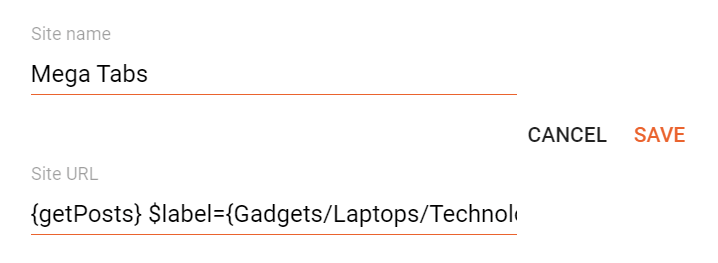
<figure><img src="https://323979841-files.gitbook.io/~/files/v0/b/gitbook-x-prod.appspot.com/o/spaces%2FWEe3RjtDQ7wNsLsA20hR%2Fuploads%2F570Beaxl4kR4uQvc1vJj%2Fimage.png?alt=media&amp;token=9a7d0249-787d-44ef-bf4e-d13196b76281" alt="Label name"><figcaption></figcaption></figure>

**Example:**

<figure><img src="https://content.gitbook.com/content/WEe3RjtDQ7wNsLsA20hR/blobs/3UljRQD9bsyzk5AfF71z/image.png" alt="Mega menu" width="534"><figcaption></figcaption></figure>

{% hint style="info" %}
INFO: Mega links must be on the first level! There is no predefined limit amount.
{% endhint %}


# Header ADS

Access your blog **Layout** > and click on the **Add a Gadget** > **HTML/JavaScript**, **Image** or **AdSense** > in the **Header ADS** section.

**Example:**

<figure><img src="https://content.gitbook.com/content/WEe3RjtDQ7wNsLsA20hR/blobs/YhFQ4GoHo7rA6o9GUNmt/image.png" alt="Header ads" width="447"><figcaption></figcaption></figure>

### Display Options

Go to your blog **Theme** > **Customize** > **Advanced** > **Header ADS** > to change the visibility on Posts and Pages.

<figure><img src="https://323979841-files.gitbook.io/~/files/v0/b/gitbook-x-prod.appspot.com/o/spaces%2FWEe3RjtDQ7wNsLsA20hR%2Fuploads%2FrS7wdMbmxv3NKTJBpbdS%2Fimage.png?alt=media&amp;token=e2b98643-f3ba-4744-bf4b-b6f3b9e04566" alt="Display options" width="427"><figcaption></figcaption></figure>


# Featured Posts

Access your blog **Layout** > and click on the **Add a Gadget** > **HTML/JavaScript** or **Popular Posts** > in the **Featured Posts** section.

### HTML/JavaScript

Shortcode: `{getPosts} $label={Label Name}`&#x20;

Label Name: `Custom Label`, `recent`

The `$label={}` attribute is optional! The default value is `recent`.

**Example:**

<figure><img src="https://content.gitbook.com/content/WEe3RjtDQ7wNsLsA20hR/blobs/caRPtYd48dRO3E4PjFhc/image.png" alt="HTML/JavaScript" width="451"><figcaption></figcaption></figure>

### Popular Posts

<figure><img src="https://323979841-files.gitbook.io/~/files/v0/b/gitbook-x-prod.appspot.com/o/spaces%2FWEe3RjtDQ7wNsLsA20hR%2Fuploads%2FCdwZLXvAMBHikPhNOeAE%2Fimage.png?alt=media&amp;token=e478423e-1610-46d7-861b-552ec5217110" alt="Popular posts" width="439"><figcaption></figcaption></figure>


# Featured ADS

Access your blog **Layout** > and click on the **Add a Gadget** > **HTML/JavaScript**, **Image** or **AdSense** > in the **Featured ADS** section.

**Example:**

<figure><img src="https://content.gitbook.com/content/WEe3RjtDQ7wNsLsA20hR/blobs/kQAZpoctVAb2NMJLDeqb/image.png" alt="Featured ads" width="447"><figcaption></figcaption></figure>


# Trending Posts

Access your blog **Layout** > and click on the **Add a Gadget** > **HTML/JavaScript** or **Popular Posts** > in the **Trending Posts** section.

### HTML/JavaScript&#x20;

Shortcode: `{getPosts} $label={Label Name} $results={Number of Results}`&#x20;

Label Name: `Custom Label`, `recent`&#x20;

Number of Results: The attribute `$results={}` is optional! Default is `5`.

The `$label={}` attribute is optional! The default value is `recent`.

**Example:**

<figure><img src="https://323979841-files.gitbook.io/~/files/v0/b/gitbook-x-prod.appspot.com/o/spaces%2FWEe3RjtDQ7wNsLsA20hR%2Fuploads%2Fq4T4jjEE6W64Qa2o50ge%2Fimage.png?alt=media&amp;token=28911c8d-d00b-46f9-8c53-44ad58651d73" alt="HTML/JavaScript" width="453"><figcaption></figcaption></figure>

### Popular Posts

<figure><img src="https://323979841-files.gitbook.io/~/files/v0/b/gitbook-x-prod.appspot.com/o/spaces%2FWEe3RjtDQ7wNsLsA20hR%2Fuploads%2FU3Tmlp3rQJWLqFBso9O1%2Fimage.png?alt=media&amp;token=6d8cccc7-d931-4ecc-87b1-4bdc3ef34912" alt="Popular posts" width="443"><figcaption></figcaption></figure>


# Trending ADS

Access your blog **Layout** > and click on the **Add a Gadget** > **HTML/JavaScript**, Image or **AdSense** > in the **Trending ADS** section.

**Example:**

<figure><img src="https://323979841-files.gitbook.io/~/files/v0/b/gitbook-x-prod.appspot.com/o/spaces%2FWEe3RjtDQ7wNsLsA20hR%2Fuploads%2Fxjg1yKFUmPREGxtA9gjK%2Fimage.png?alt=media&amp;token=a1ea6590-0a1f-4d6b-881b-4ef1adb8e870" alt="Trending ads" width="447"><figcaption></figcaption></figure>


# Main Posts

Access your blog **Layout** > and click on the **Edit Icon** > in the **Latest Posts/Blog Posts** gadget.

Homepage Headline: Display a custom title by changing the text in the **Post page link text** field. To hide the title add `{hide}`.

**Example:**

<figure><img src="https://323979841-files.gitbook.io/~/files/v0/b/gitbook-x-prod.appspot.com/o/spaces%2FWEe3RjtDQ7wNsLsA20hR%2Fuploads%2Fn47eNPRF883yz5tzZwxe%2Fimage.png?alt=media&amp;token=eb9ba2e2-729c-40c1-9b8b-d7e2e3255a78" alt="Main posts" width="488"><figcaption></figcaption></figure>

### Show Author Profile (Author Box)

The Author Box receives the blogger profile informations automatically, As long as your profile is marked as public. Icons are displayed if there are html links in the introduction field.

Supported Icons: `google`, `blogger`, `apple`, `amazon`, `microsoft`, `facebook`, `facebook-f`, `twitter`, `twitter-x`, `x`, `rss`, `youtube`, `skype`, `stumbleupon`, `tumblr`, `vk`, `stack-overflow`, `github`, `linkedin`, `dribbble`, `soundcloud`, `behance`, `digg`, `instagram`, `pinterest`, `pinterest-p`, `twitch`, `steam`, `delicious`, `codepen`, `flipboard`, `reddit`, `whatsapp`, `telegram`, `messenger`, `snapchat`, `discord`, `quora`, `tiktok`, `email`, `share`, `threads`, `mastodon`, `external-link`

Blogger Settings: Go to <https://www.blogger.com/edit-profile.g> Find for **Additional Information** > **Introduction** > and add your description with HTML links.

HTML Link: `<a href="Your Link Here">Icon Name</a>`

HTML Link Example: `<a href="https://facebook.com/probloggertemplates">facebook</a>`

**Example:**

<figure><img src="https://content.gitbook.com/content/WEe3RjtDQ7wNsLsA20hR/blobs/AyLqaEJ99YzxwEaxB26o/image.png" alt="Author description" width="563"><figcaption></figcaption></figure>

{% hint style="info" %}
INFO: The **“Introduction”** text is required for the author box to be displayed! But the links are not required.&#x20;
{% endhint %}

### Comments Settings

The comment settings are intuitive like never seen before. The shortcodes should be added in > **Layou**t > **Blog Posts** > **Comment Format**.

Blogger Shortcode: `$type={blogger}`&#x20;

Disqus Shortcode: `$type={disqus}`&#x20;

Custom Disqus Shortcode: `$type={disqus} $shortname={Your Shortname}`&#x20;

Facebook Shortcode: `$type={facebook}`&#x20;

Facebook Custom Language: `$type={facebook} $lang={Language Code}`&#x20;

Facebook Language Codes: `en_US`, `es_ES`, `ar_AR`, `id_ID`, `th_TH`, `vi_VN`, `pt_BR`, `fr_FR`, `ru_RU`, `de_DE`, `it_IT`

Extra Languages: To use other languages you should check if it is supported by facebook. ([Facebook Languages](https://developers.facebook.com/docs/internationalization)).

**Example:**

<figure><img src="https://content.gitbook.com/content/WEe3RjtDQ7wNsLsA20hR/blobs/xg74L2KVPTUSJYpEqsOw/image.png" alt="Comments" width="529"><figcaption></figcaption></figure>

### Embed Media in Blogger Comments&#x20;

The comment settings are intuitive like never seen before. The shortcodes should be added in > **Layout** > **Blog Posts** > **Comment Format**.

Video Shortcode: `{video}YouTube Video URL{/video}`&#x20;

Image Shortcode: `{image}Custom Image URL{/image}`

**Example:**

<figure><img src="https://content.gitbook.com/content/WEe3RjtDQ7wNsLsA20hR/blobs/tlGbQJWcSwMHYkitrjTM/image.png" alt="Embed media" width="525"><figcaption></figcaption></figure>


# Table of Contents

This function is available for posts and pages and can be added easily via shortcode.

Shortcode: `{getToc} $title={Table of Contents} $count={Boolean} $expanded={Boolean}`&#x20;

Count Option: This attribute is optional! Available values are `true` or `false`.&#x20;

Expanded Option: This attribute is optional! Available values are `true` or `false`.

{% hint style="info" %}
INFO: After adding the shortcode, apply the **Bold** style.&#x20;
{% endhint %}

**Example:**

<figure><img src="https://content.gitbook.com/content/WEe3RjtDQ7wNsLsA20hR/blobs/a1lGOdlsUXBZWP3JEdd9/image.png" alt="Table of contents" width="533"><figcaption></figcaption></figure>


# Post Content ADS

Access your blog **Layout** > and click on the **Add a Gadget** > **HTML/JavaScript**, **Image** or **AdSense** > in the **Before Content**, **After Content** or **In-Article** sections.

**Example:**

<figure><img src="https://content.gitbook.com/content/WEe3RjtDQ7wNsLsA20hR/blobs/W7LcSftvRKxlYSBD6mjl/image.png" alt="Post content ads" width="447"><figcaption></figcaption></figure>

### Display Options

By default, ads in sections **Before Content** and **After Content** are displayed only in **“Posts”**. You can display them on specific **“Pages”** with the help of shortcodes.

Shortcode: `{showAds}`

{% hint style="info" %}
INFO: After adding the shortcode, apply the **Bold** style.&#x20;
{% endhint %}

**Example:**

<figure><img src="https://content.gitbook.com/content/WEe3RjtDQ7wNsLsA20hR/blobs/Ys6qm7BHFRsDzEQQci4E/image.png" alt="Shortcode" width="563"><figcaption></figcaption></figure>

### In-Article Ads (Between Paragraphs)&#x20;

The ad in the **In-Article** section does not have a defined display location. You can display it multiple times in **“Posts”** and **“Pages”** with the help of shortcodes.

Shortcode: **{inAds}**

{% hint style="info" %}
INFO: After adding the shortcode, apply the **Bold** style.&#x20;
{% endhint %}

**Example:**

<figure><img src="https://content.gitbook.com/content/WEe3RjtDQ7wNsLsA20hR/blobs/ZSpqRPs7h3Kt1MPyNrc8/image.png" alt="Shortcodes" width="563"><figcaption></figcaption></figure>

{% hint style="info" %}
INFO: This function is compatible with the deprecated shortcodes `{ads}`, `$ads={1}` and `$ads={2}`, eliminating the need to edit old posts and pages.
{% endhint %}


# Post Cards

This function is available for posts and pages and allows you to add recommended posts, downloads, products and even custom calls to action.

Shortcode: `{getCard} $type={Card Type} $title={Card Title} $info={Card Info} $button={Button Text} $icon={Icon Code}`&#x20;

Card Type: `post`, `download`, `product`, `custom`&#x20;

Card Title: Attribute compatible with all card types, being optional for the `post` type.

**Example:**

<figure><img src="https://323979841-files.gitbook.io/~/files/v0/b/gitbook-x-prod.appspot.com/o/spaces%2FWEe3RjtDQ7wNsLsA20hR%2Fuploads%2FGboa5B2JqCLUTVZrXutw%2Fimage.png?alt=media&amp;token=a68f596d-5729-4a0c-bef2-3d86ee6c0280" alt="Post cards" width="525"><figcaption></figcaption></figure>

The cards are highly flexible, being able to support specific and unique attributes or even optional attributes.

### Post Type&#x20;

Shortcode: `{getCard} $type={post} $title={Card Title}`&#x20;

Card Link: For this card to work properly, a link to a post must be provided.

**Card Demo:**

<figure><img src="https://323979841-files.gitbook.io/~/files/v0/b/gitbook-x-prod.appspot.com/o/spaces%2FWEe3RjtDQ7wNsLsA20hR%2Fuploads%2Fdi4bEAlgTkR0octjsELE%2Fimage.png?alt=media&amp;token=2692eb41-42ef-44de-8093-72ae25274ef1" alt="Post card preview" width="525"><figcaption></figcaption></figure>

### Download Card&#x20;

Shortcode: `{getCard} $type={download} $title={Card Title} $info={Card Info} $button={Button Text}`

Card Link: Add any link whether internal or external.

**Card Demo:**

<figure><img src="https://323979841-files.gitbook.io/~/files/v0/b/gitbook-x-prod.appspot.com/o/spaces%2FWEe3RjtDQ7wNsLsA20hR%2Fuploads%2FBLmeNugAnqCiArFJOQYl%2Fimage.png?alt=media&amp;token=f51a272a-4e1f-4241-abef-b7cf5aae7dab" alt="Download card preview" width="525"><figcaption></figcaption></figure>

Product Card Shortcode: `{getCard} $type={product} $title={Card Title} $info={Card Info} $button={Button Text}`&#x20;

Card Link: Add any link whether internal or external.

**Card Demo:**

<figure><img src="https://323979841-files.gitbook.io/~/files/v0/b/gitbook-x-prod.appspot.com/o/spaces%2FWEe3RjtDQ7wNsLsA20hR%2Fuploads%2FbH6KmNbBNE9E7cVmLaZF%2Fimage.png?alt=media&amp;token=fb4f125b-c6e0-42d6-bf4c-e0c063712503" alt="Product card preview" width="525"><figcaption></figcaption></figure>

Custom Card Shortcode: `{getCard} $type={custom} $title={Card Title} $info={Card Info} $button={Button Text} $icon={Icon Code}`&#x20;

Card Link: Add any link whether internal or external.

Icon Code: This template uses **Bootstrap Icons** as the main icon source, so you can choose from thousands of awesome icons to use on your card.

{% stepper %}
{% step %}
Go to the [Bootstrap Icons Gallery](https://icons.getbootstrap.com/).

{% endstep %}

{% step %}
Search for the desired icon, then click on the icon to access the info page.

{% endstep %}

{% step %}
Copy the **HTML Code** available in the **Code Point** section as illustrated in the image below.

<img src="https://content.gitbook.com/content/WEe3RjtDQ7wNsLsA20hR/blobs/LPzehoTHxQhuIUX2YDWk/image.png" alt="Bootstrap icon" data-size="original">
{% endstep %}
{% endstepper %}

{% hint style="info" %}
INFO:  When editing the shortcode the icon attribute should look like `$icon={&#xF4B1;}`
{% endhint %}

**Card Demo:**

<figure><img src="https://323979841-files.gitbook.io/~/files/v0/b/gitbook-x-prod.appspot.com/o/spaces%2FWEe3RjtDQ7wNsLsA20hR%2Fuploads%2FNICwdfTthVp4vADqqhkw%2Fimage.png?alt=media&amp;token=49e5fd75-7a21-445b-9017-093634d3e34f" alt="Custom card preview" width="525"><figcaption></figcaption></figure>


# Post Split

Content Pagination

Divide the post content into multiple parts making it interactive and improving the user experience. Combine with ad duplicator to create viral posts and increase ad earnings.

Shortcode: `{nextPage}`

{% hint style="info" %}
INFO: After adding the shortcode, apply the **Bold** style.&#x20;
{% endhint %}

**Example:**

<figure><img src="https://content.gitbook.com/content/WEe3RjtDQ7wNsLsA20hR/blobs/qxrpRENYZ9XEEE8rBk50/image.png" alt="Shortcode" width="537"><figcaption></figcaption></figure>

### How to Translate the Pagination?&#x20;

Being a custom resource, pagination does not have automatic translation. You can translate it by editing the **JSON Variables** gadget following the instructions in the ([Theme Options](https://docs.probloggertemplates.com/seoflex/getting-started/theme-options#json-variables)) guide.


# SafeLink Generator

This online tool allows the creation of safelinks with modern and exclusive cryptography fully compatible with the [Download Page](/guides/seoflex/getting-started/download-page) and [Safe Page](/guides/seoflex/getting-started/safe-page) functionalities.

{% stepper %}
{% step %}
Go to the [SafeLink Generator](https://safelink.probloggertemplates.com/).

<img src="https://content.gitbook.com/content/WEe3RjtDQ7wNsLsA20hR/blobs/DJLwSQ6nSIKqEmUbdXMe/image.png" alt="Safelink generator" data-size="original">
{% endstep %}

{% step %}
Add the **Custom Link** you want to encrypt in the first field.

{% endstep %}

{% step %}
Add your **Download Page** or **Safe Page** link in the second field.

{% endstep %}

{% step %}
Click the **Generate** button.

{% endstep %}

{% step %}
Done! Click the **Copy Link** button to get the Generated Safelink.
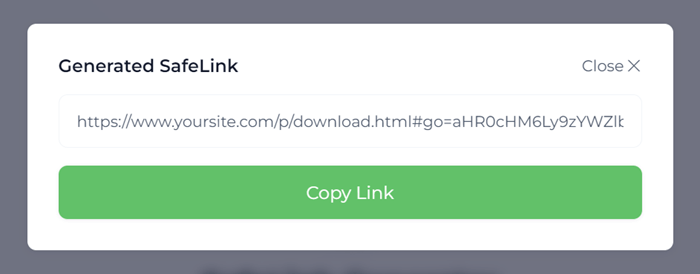
<img src="https://content.gitbook.com/content/WEe3RjtDQ7wNsLsA20hR/blobs/LyaXlYd8WZ21SbF6LkmW/image.png" alt="Safelink" data-size="original">
{% endstep %}
{% endstepper %}

{% hint style="info" %}
INFO: The generated safelink is only compatible with official **PBT** templates that support **Download Page** or **Safe Page** functionality.
{% endhint %}


# Download Page

Create unlimited download pages compatible with **SafeLinks**. This functionality is compatible with posts and pages and is also fully customizable.

### Get Link Button&#x20;

This function will unlock the download button available on the page after the timeout. Follow the instructions below to create the get link button.

Shortcode: `{getLink} $seconds={15} $before={Generate Link} $after={Go to Link} $message={Please wait...}`

Shortcode Options: All attributes are optional! Just use `{getLink}` to get the default text and timeout.

**Example:**
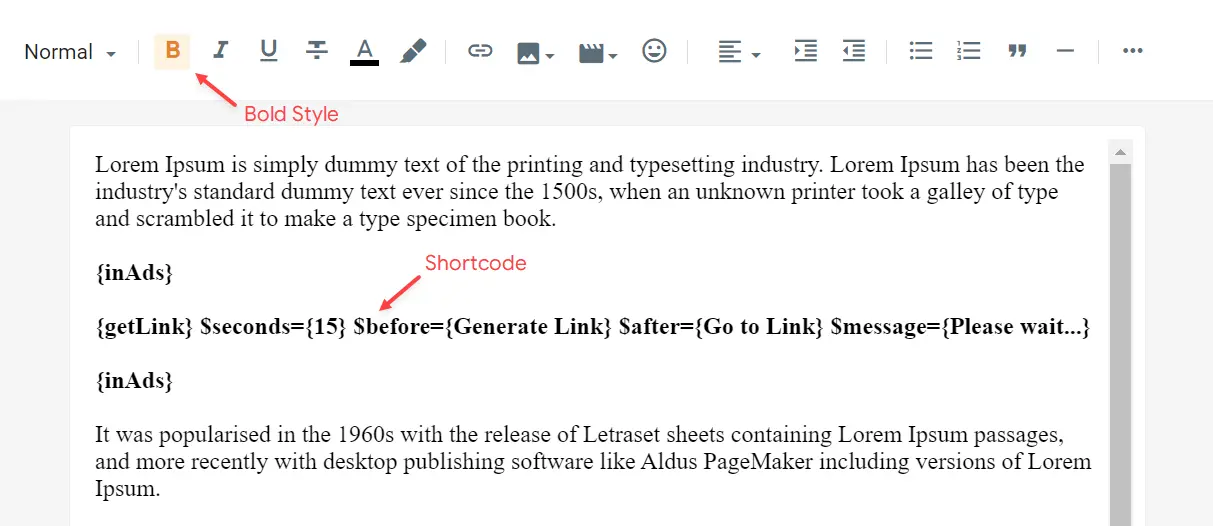
<figure><img src="https://content.gitbook.com/content/WEe3RjtDQ7wNsLsA20hR/blobs/q5Sh3pTNX3xsvEHIdqBX/image.png" alt="Get link button" width="563"><figcaption></figcaption></figure>

### Download Button&#x20;

This function will decrypt the safelink and redirect the user to the destination after the click. Follow the instructions below to create the download button.

Shortcode: `{getDownload} $button={Button Text}`&#x20;

Button Text: This attribute are optional! The default value is `Download`.

**Example:**

<figure><img src="https://content.gitbook.com/content/WEe3RjtDQ7wNsLsA20hR/blobs/BS9jkklVBVGu2XY1pC7o/image.png" alt="Download button" width="563"><figcaption></figcaption></figure>

{% hint style="info" %}
INFO: The download page supports direct download links and can also be used to redirect users to custom links (Internal/External).
{% endhint %}


# Safe Page

Create a safe page compatible with **SafeLinks**. The safe page is similar to the download page, but does not require the use of a timeout.

This functionality will decrypt the safelink and redirect the user to the destination after clicking the continue button. Follow the instructions below to create the continue button.

Shortcode: `{getContinue} $button={Button Text}`&#x20;

Button Text: This attribute are optional! The default value is `Continue`.

**Example:**

<figure><img src="https://content.gitbook.com/content/WEe3RjtDQ7wNsLsA20hR/blobs/vaKV4WXzmQSBchqgtmDu/image.png" alt="Shortcode" width="563"><figcaption></figcaption></figure>

{% hint style="info" %}
INFO: The safe page supports internal links, external links, and additional safelinks.
{% endhint %}


# Related Posts

Access your blog **Layout** > and click on the **Edit Icon** > in the **Related Post**s gadget.

Shortcode: `$label={Label Name} $results={Number of Results}`&#x20;

Label Name: `related`, `recent`, `Custom Label`

The `$label={}` attribute is optional! The default value is `related`.

**Example:**

<figure><img src="https://content.gitbook.com/content/WEe3RjtDQ7wNsLsA20hR/blobs/3NbRoklH70vORmR9RVeR/image.png" alt="Related posts" width="449"><figcaption></figcaption></figure>


# Post Footer ADS

Access your blog **Layout** > and click on the **Add a Gadget** > **HTML/JavaScript**, **Image** or **AdSense** > in the **Post Footer ADS** section.

**Example:**

<figure><img src="https://content.gitbook.com/content/WEe3RjtDQ7wNsLsA20hR/blobs/awpTYI4JNrcJNwxE0yGd/image.png" alt="Post footer ads" width="447"><figcaption></figcaption></figure>


# Social Counter

Access your blog **Layout** > and click on the **Add a Gadget** > **Link List** > in the **Sidebar** section.

Supported Icons: `google`, `blogger`, `apple`, `amazon`, `microsoft`, `facebook`, `facebook-f`, `twitter`, `twitter-x`, `x`, `rss`, `youtube`, `skype`, `stumbleupon`, `tumblr`, `vk`, `stack-overflow`, `github`, `linkedin`, `dribbble`, `soundcloud`, `behance`, `digg`, `instagram`, `pinterest`, `pinterest-p`, `twitch`, `steam`, `delicious`, `codepen`, `flipboard`, `reddit`, `whatsapp`, `telegram`, `messenger`, `snapchat`, `discord`, `quora`, `tiktok`, `email`, `share`, `threads`, `mastodon`, `external-link`

Shortcode: `{getSocial}`&#x20;

Link Structure: `https://twitter.com/username # 25.7k`

{% hint style="info" %}
INFO: An item with the shortcode must be added for the Gadget to work correctly.&#x20;
{% endhint %}

**Example:**

<figure><img src="https://content.gitbook.com/content/WEe3RjtDQ7wNsLsA20hR/blobs/gj9ajWmSPdmcoJ1jWKQh/image.png" alt="Social counter" width="524"><figcaption></figcaption></figure>


# Post Gadgets

Access your blog **Layout** > and click on the **Add a Gadget** > **HTML/JavaScript** > in the **Sidebar** section.

Shortcode: `{getPosts} $label={Label Name} $results={Number of Results}`&#x20;

Label Name: `Custom Label`, `recent`&#x20;

Number of Results: The attribute `$results={}` is optional! Default is `4`.

The `$label={}` attribute is optional! The default value is `recent`.

**Example:**

<figure><img src="https://content.gitbook.com/content/WEe3RjtDQ7wNsLsA20hR/blobs/MI1ip6BK4mbzkcHkRiuM/image.png" alt="Post gadgets" width="449"><figcaption></figcaption></figure>


# Sidebar Ads

With this feature you will be able to display custom ads in the sidebar without the gadget style.

Shortcode: `{ads}`

**Example:**

<figure><img src="https://content.gitbook.com/content/WEe3RjtDQ7wNsLsA20hR/blobs/FymUqp4D91lDzqLNjVm7/image.png" alt="Sidebar ads" width="449"><figcaption></figcaption></figure>

{% hint style="info" %}
INFO: This is the default behavior for the native adsense gadget.
{% endhint %}


# Mailchimp

Subscribe Form

Access your blog **Layout** > and click on the **Add a Gadget** > **HTML/JavaScript** > in the **Sidebar** or **Footer Widgets** sections.

Shortcode: `{getMailchimp} $title={Gadget Title} $text={Gadget Text}`

Gadget Attributes: The `$title={}` and `$text={}` attributes are optional.

**Example:**

<figure><img src="https://323979841-files.gitbook.io/~/files/v0/b/gitbook-x-prod.appspot.com/o/spaces%2FWEe3RjtDQ7wNsLsA20hR%2Fuploads%2Fb9KJ8y0gKqQ6MKhxJntD%2Fimage.png?alt=media&amp;token=fd115005-1d06-4687-b1e5-49cdbf0bd006" alt="Mailchimp" width="451"><figcaption></figcaption></figure>

### Get the Subscribe Form URL&#x20;

You can get the subscribe form URL easily by following the steps below.

{% stepper %}
{% step %}
Create a free account on Mailchimp – [Create Now](https://login.mailchimp.com/signup/)

{% endstep %}

{% step %}
After creating your account go to **Audience** > **Signup forms** > **Form builder**.

<img src="https://content.gitbook.com/content/WEe3RjtDQ7wNsLsA20hR/blobs/LhJbe9HR2kioY5oHeE6Z/image.png" alt="Form builder" data-size="original">
{% endstep %}

{% step %}
Create and customize your form according to your needs.
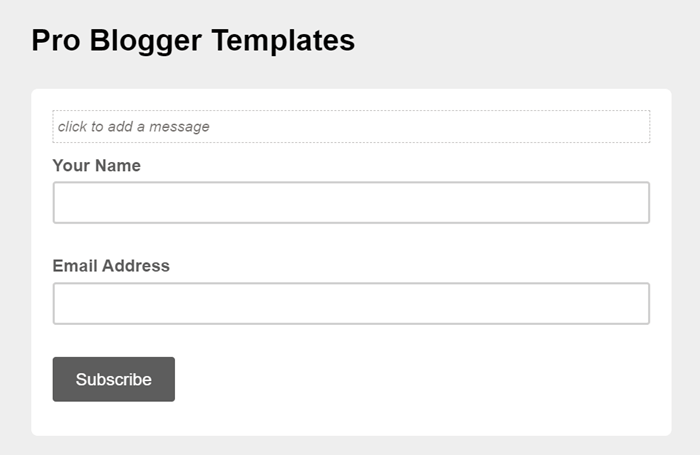
<img src="https://content.gitbook.com/content/WEe3RjtDQ7wNsLsA20hR/blobs/i2QpIQZJPGdNhLy6kLRk/image.png" alt="Customize form" data-size="original">
{% endstep %}

{% step %}
Copy and access the **Signup form URL**.
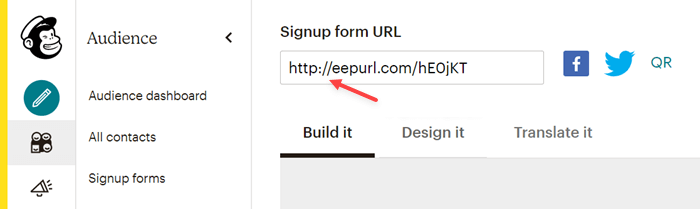
<img src="https://content.gitbook.com/content/WEe3RjtDQ7wNsLsA20hR/blobs/4ovhR0vX1JVshLYw0sOB/image.png" alt="Signup form URL" data-size="original">
{% endstep %}

{% step %}
After the page loads, **Copy** the final **Subscribe Form URL** into your browser’s address bar.
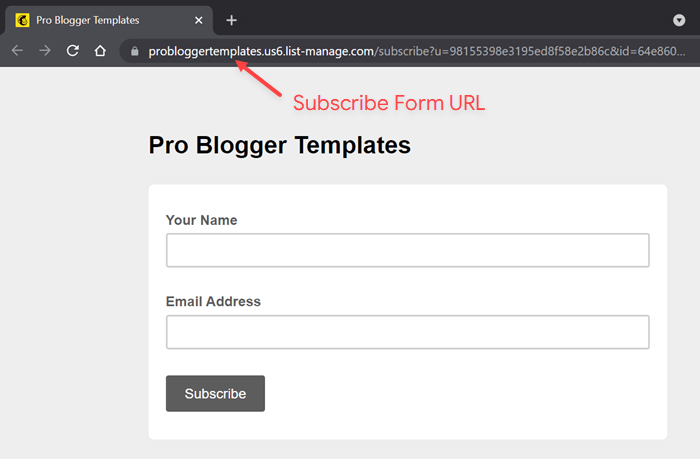
<img src="https://content.gitbook.com/content/WEe3RjtDQ7wNsLsA20hR/blobs/Viw40VYFn0DA1ApfRso2/image.png" alt="Copy Subscribe Form URL" data-size="original">
{% endstep %}
{% endstepper %}

{% hint style="success" %}
SUCCESS: Now you can correctly setup your subscription gadget.
{% endhint %}


# Footer ADS

Access your blog **Layout** > and click on the **Add a Gadget** > **HTML/JavaScript**, **Image** or **AdSense** > in the **Footer ADS** section.

**Example:**
<figure><img src="https://content.gitbook.com/content/WEe3RjtDQ7wNsLsA20hR/blobs/weZkiA3lTGjUgDroWgQC/image.png" alt="Footer ads" width="447"><figcaption></figcaption></figure>

### Display Options&#x20;

Go to your blog **Theme** > **Customize** > **Advanced** > **Footer ADS** > to change the visibility on Posts and Pages.

<figure><img src="https://323979841-files.gitbook.io/~/files/v0/b/gitbook-x-prod.appspot.com/o/spaces%2FWEe3RjtDQ7wNsLsA20hR%2Fuploads%2F5ckeFI8aMbvTRq9SmPQ4%2Fimage.png?alt=media&amp;token=5fc1967d-9a23-481f-917e-91d936ffdd47" alt="Display options" width="428"><figcaption></figcaption></figure>


# About Section

Access your blog **Layout** > and click on the **Edit Icon** > in the **About Section** Info gadgets.

### About Us

<figure><img src="https://323979841-files.gitbook.io/~/files/v0/b/gitbook-x-prod.appspot.com/o/spaces%2FWEe3RjtDQ7wNsLsA20hR%2Fuploads%2F6IgtBTahAMTZ0yTjXXJm%2Fimage.png?alt=media&amp;token=972336ef-601d-4c4f-bba6-8ef32dbc694c" alt="About us" width="555"><figcaption></figcaption></figure>

### Social Icons&#x20;

Supported Icons: `google`, `blogger`, `apple`, `amazon`, `microsoft`, `facebook`, `facebook-f`, `twitter`, `twitter-x`, `x`, `rss`, `youtube`, `skype`, `stumbleupon`, `tumblr`, `vk`, `stack-overflow`, `github`, `linkedin`, `dribbble`, `soundcloud`, `behance`, `digg`, `instagram`, `pinterest`, `pinterest-p`, `twitch`, `steam`, `delicious`, `codepen`, `flipboard`, `reddit`, `whatsapp`, `telegram`, `messenger`, `snapchat`, `discord`, `quora`, `tiktok`, `email`, `share`, `threads`, `mastodon`, `external-link`

Shortcode: `{getSocial}`

{% hint style="info" %}
INFO: An item with the shortcode must be added for the Gadget to work correctly.&#x20;
{% endhint %}

**Example:**

<figure><img src="https://content.gitbook.com/content/WEe3RjtDQ7wNsLsA20hR/blobs/zO0KMZg1aBn6gfZxYexz/image.png" alt="Social icons" width="549"><figcaption></figcaption></figure>


# Footer Copyright

Access your blog **Layout** > and click on the **Edit Icon** > in the **Footer Copyright** gadget.

**Example:**

<figure><img src="https://content.gitbook.com/content/WEe3RjtDQ7wNsLsA20hR/blobs/twyrTDcdUqB37kHXmCxI/image.png" alt="Footer copyright" width="445"><figcaption></figcaption></figure>


# Footer Menu

Access your blog **Layout** > and click on the **Edit Icon** > in the **Footer Menu** gadget.

**Example:**

<figure><img src="https://content.gitbook.com/content/WEe3RjtDQ7wNsLsA20hR/blobs/Qsk4Ro0DtYxr8lFpvzJx/image.png" alt="Footer menu" width="454"><figcaption></figcaption></figure>


# Cookie Consent

Access your blog **Layout** > and click on the **Edit Icon** > in the **Cookie Consent** gadget.

**Example:**

<figure><img src="https://content.gitbook.com/content/WEe3RjtDQ7wNsLsA20hR/blobs/uzQdiCjTtYicR820ppGT/image.png" alt="Cookie consent" width="449"><figcaption></figcaption></figure>


# Theme Options

This template allows you to customize some options directly in the layout.

### Default Thumbnail&#x20;

Access your blog **Layout** > and click on the **Edit Icon** > in the **Theme Options** > **Default Thumbnail** gadget.

**Example:**

<figure><img src="https://content.gitbook.com/content/WEe3RjtDQ7wNsLsA20hR/blobs/yaYMoPXqThNfmVHtPXaV/image.png" alt="Default thumbnail" width="553"><figcaption></figcaption></figure>

{% hint style="info" %}
INFO: This image will be displayed for posts that don’t have an image or youtube video.&#x20;
{% endhint %}

### JSON Variables

Access your blog **Layout** > and click on the **Edit Icon** > in the **Theme Options** > **JSON Variables** gadget.

```json
{
    translate: {
        pageOf: "Page {page} of {pages}",
        prevMsg: "Previous",
        nextMsg: "Next"
    }
}
```

pageOf: default is `Page {page} of {pages}`&#x20;

prevMsg: default is `Previous`&#x20;

nextMsg: default is `Next`

**Example:**

<figure><img src="https://323979841-files.gitbook.io/~/files/v0/b/gitbook-x-prod.appspot.com/o/spaces%2FWEe3RjtDQ7wNsLsA20hR%2Fuploads%2FSocCiF817w0Wulo03knW%2Fimage.png?alt=media&amp;token=51e825d9-d7b0-490e-8147-168d68698e3d" alt="JSON Variables" width="449"><figcaption></figcaption></figure>

{% hint style="info" %}
INFO: Use this feature to define a custom translation for Content Pagination (Post Split).
{% endhint %}


# Feed Settings

Access your blog **Settings** > and go to **Site Feed** > **Allow Blog Feed**.

This template has a native feed system that does not require the default Blogger system. Therefore, for better performance and security, it is recommended to change to **Short** mode.

**Example:**

<figure><img src="https://content.gitbook.com/content/WEe3RjtDQ7wNsLsA20hR/blobs/KlglDcYNIXUeA30XFTGp/image.png" alt="Feed settings" width="428"><figcaption></figcaption></figure>

{% hint style="info" %}
NOTE: Disabling the feeds completely can affect Blogger Comments System, so it is not recommended. If comments are disabled on your site, this is not a problem.
{% endhint %}


# Shortcut Keys

This exclusive feature allows the user to use shortcut keys to perform small activities on your site.

### Ajax Search&#x20;

Show Search Modal: `Ctrl + K`&#x20;

Hide Search Modal: `Esc`

### Share Modal (Post Page)&#x20;

Show Share Modal: `Ctrl + S`&#x20;

Hide Share Modal: `Esc`

### Post Navigation (Post Page)&#x20;

Previous Post: `Ctrl + Arrow Left`&#x20;

Next Post: `Ctrl + Arrow Right`

{% hint style="info" %}
INFO: Your feedback is important to us! Help us improve this unique functionality with new smart shortcuts.
{% endhint %}


# Customization

Access your blog **Theme** > and click on the **Customize** button > and explore **Background** and **Advanced** options.

Fully Customizable: **Layout Options**, **Fonts**, **Background**, **Colors**, **Display Options** and more.

<figure><img src="https://323979841-files.gitbook.io/~/files/v0/b/gitbook-x-prod.appspot.com/o/spaces%2FWEe3RjtDQ7wNsLsA20hR%2Fuploads%2FpLzBk8iOfXux4ONiPe3q%2Fimage.png?alt=media&amp;token=e8bdfcd0-0224-404c-b3c7-0cd314fc98f3" alt="Customization"><figcaption></figcaption></figure>


# Welcome

SmartMag is a cutting-edge Blogger template tailored for modern magazine and news websites. This documentation provides step-by-step guidance on setting up, customizing, and utilizing SmartMag's dynamic features, ensuring a seamless experience and a professional online presence for your content.

<figure><img src="https://787168730-files.gitbook.io/~/files/v0/b/gitbook-x-prod.appspot.com/o/spaces%2FJoVhnsLwgc7ylgaqw6Gd%2Fuploads%2F2mBa9k1vnUWDp1pECHfD%2Fsmartmag-blogger-template.webp?alt=media&amp;token=3c4cc15f-4ca7-4afe-b9d1-c16b1c11605d" alt="Smartmag blogger template"><figcaption></figcaption></figure>

### Basic Guides

<table data-card-size="large" data-view="cards"><thead><tr><th></th><th></th><th data-hidden data-card-cover data-type="files"></th><th data-hidden></th><th data-hidden data-card-target data-type="content-ref"></th></tr></thead><tbody><tr><td><strong>Installation</strong></td><td>How to Install a Blogger Template</td><td></td><td></td><td><a href="/guides/basic/installation">Installation</a></td></tr><tr><td><strong>Post Shortcodes</strong></td><td>Setup Buttons, Alerts, Forms and More</td><td></td><td></td><td><a href="/guides/basic/shortcodes">Shortcodes</a></td></tr></tbody></table>


# Changelog

### v2.0.0 – June 20, 2025

* **Added:** Support for "bluesky" icon.

### v1.9.0 – November 22, 2024

* **Added:** Support for "threads" and "mastodon" icons.

### v1.8.0 – November 3, 2024

* **Fixed:** Youtube embed style conflicts with instagram embed.

### v1.7.0 – November 11, 2023

* **Updated:** Small code improvements.
* **Updated:** Twitter icon color updated to “Black”.

### v1.6.0 – October 10, 2023

* **Updated:** Small code and performance improvements.

### v1.5.0 – September 20, 2023

* **Updated:** Default Twitter logo updated to “X”.

### v1.4.0 – September 14, 2023

* **Added:** New Twitter logo “X” is now supported.

### v1.3.0 – April 26, 2023

* **Fixed:** Mobile menu icons were not displayed in some cases.

### v1.2.0 – January 15, 2023

* **Fixed:** Mobile menu design with icons was not good.

### v1.1.0 – December 30, 2022

* **Added:** Option “Show Latest Posts (Homepage)” added in customize page.
* **Added:** Compatibility with the SafeLink Generator tool.
* **Improved:** Download Page now supports custom links.
* **Added:** The Safe Page feature has arrived.
* **Improved:** Post Content Ads now has two new sections.
* **Improved:** Some bug fixes and code improvements.

### v1.0.0 – December 1, 2022

* Initial Release


---

[Next Page](https://docs.probloggertemplates.com/guides/llms-full.txt/1)