> For the complete documentation index, see [llms.txt](https://docs.probloggertemplates.com/guides/llms.txt). Markdown versions of documentation pages are available by appending `.md` to page URLs; this page is available as [Markdown](https://docs.probloggertemplates.com/guides/smartmag/getting-started/mailchimp.md).
# Mailchimp
Subscribe Form
Access your blog **Layout** > and click on the **Add a Gadget** > **HTML/JavaScript** > in the **Sidebar** or **Footer Widgets** sections.
Shortcode: `{getMailchimp} $title={Gadget Title} $text={Gadget Text}`
Gadget Attributes: The `$title={}` and `$text={}` attributes are optional.
**Example:**
### Get the Subscribe Form URL
You can get the subscribe form URL easily by following the steps below.
{% stepper %}
{% step %}
Create a free account on Mailchimp – [Create Now](https://login.mailchimp.com/signup/)
{% endstep %}
{% step %}
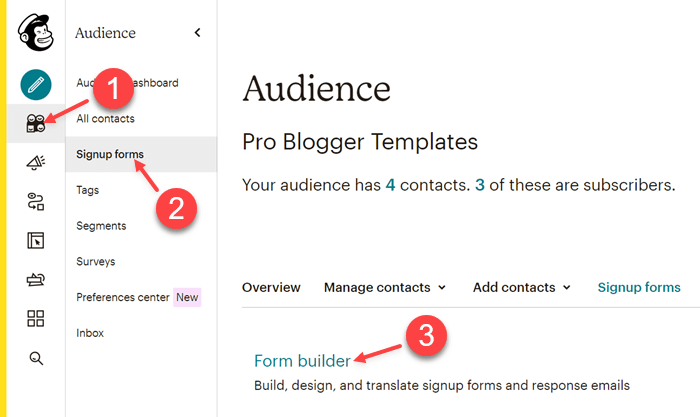
After creating your account go to **Audience** > **Signup forms** > **Form builder**.
{% endstep %}
{% step %}
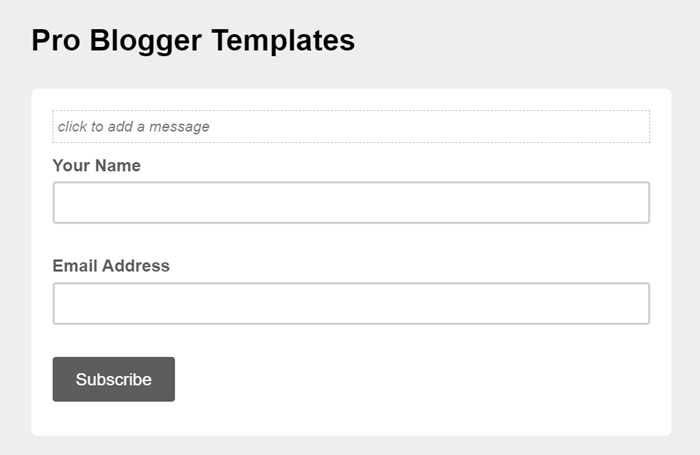
Create and customize your form according to your needs.
{% endstep %}
{% step %}
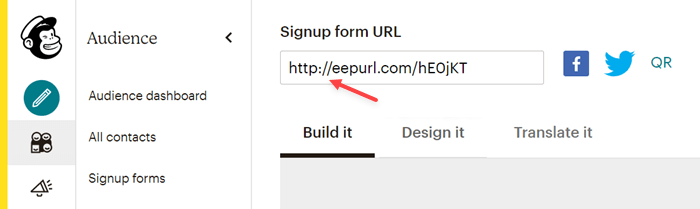
Copy and access the **Signup form URL**.
{% endstep %}
{% step %}
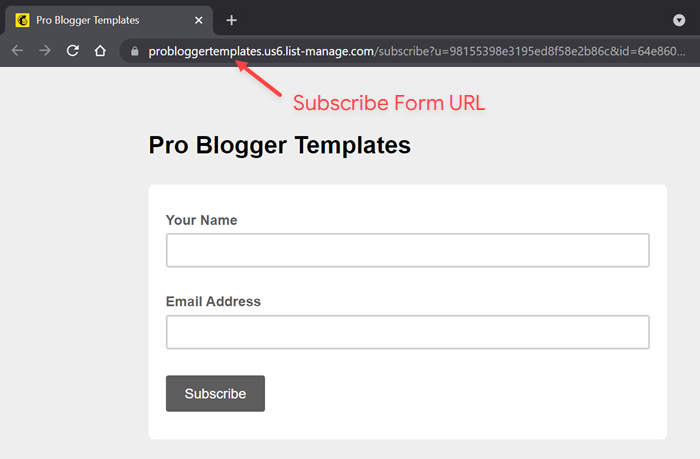
After the page loads, **Copy** the final **Subscribe Form URL** into your browser’s address bar.
{% endstep %}
{% endstepper %}
{% hint style="success" %}
SUCCESS: Now you can correctly setup your subscription gadget.
{% endhint %}

 {% endstep %}
{% step %}
Create and customize your form according to your needs.
{% endstep %}
{% step %}
Create and customize your form according to your needs.
 {% endstep %}
{% step %}
Copy and access the **Signup form URL**.
{% endstep %}
{% step %}
Copy and access the **Signup form URL**.
 {% endstep %}
{% step %}
After the page loads, **Copy** the final **Subscribe Form URL** into your browser’s address bar.
{% endstep %}
{% step %}
After the page loads, **Copy** the final **Subscribe Form URL** into your browser’s address bar.
 {% endstep %}
{% endstepper %}
{% hint style="success" %}
SUCCESS: Now you can correctly setup your subscription gadget.
{% endhint %}
{% endstep %}
{% endstepper %}
{% hint style="success" %}
SUCCESS: Now you can correctly setup your subscription gadget.
{% endhint %}