> For the complete documentation index, see [llms.txt](https://docs.probloggertemplates.com/guides/llms.txt). Markdown versions of documentation pages are available by appending `.md` to page URLs; this page is available as [Markdown](https://docs.probloggertemplates.com/guides/smartmag/getting-started/main-posts.md).
# Main Posts
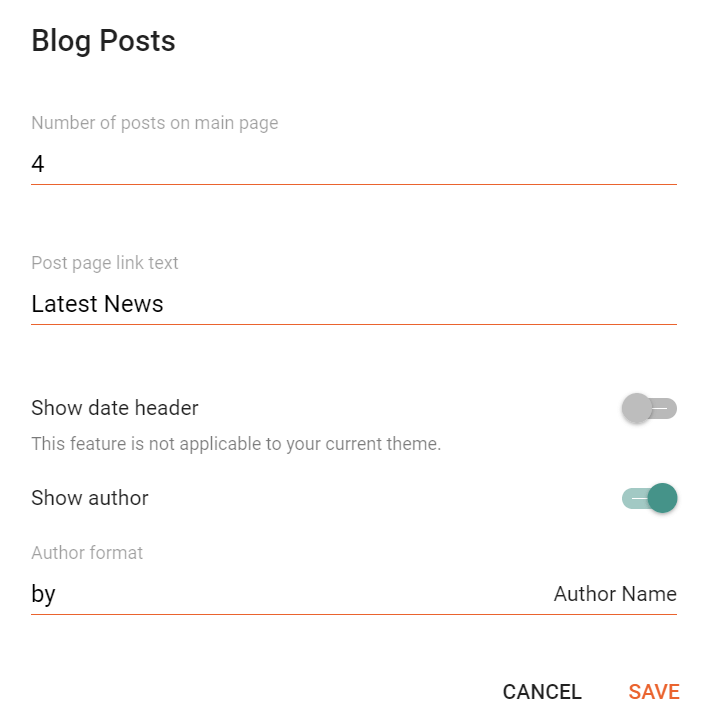
Access your blog **Layout** > and click on the **Edit Icon** > in the **Latest Posts/Blog Posts** gadget.
Homepage Headline: Display a custom title by changing the text in the **Post page link text** field. To hide the title add `{hide}`.
**Example:**
### Show Author Profile (Author Box)
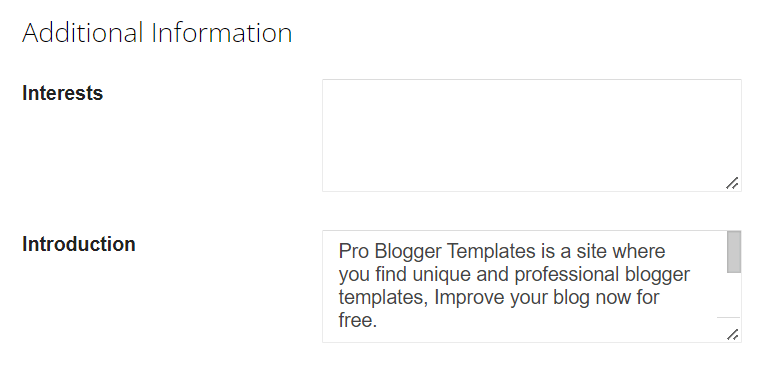
The Author Box receives the blogger profile informations automatically, As long as your profile is marked as public. Icons are displayed if there are html links in the introduction field.
Supported Icons: `google`, `blogger`, `apple`, `amazon`, `microsoft`, `facebook`, `facebook-f`, `twitter`, `twitter-x`, `x`, `rss`, `youtube`, `skype`, `stumbleupon`, `tumblr`, `vk`, `stack-overflow`, `github`, `linkedin`, `dribbble`, `soundcloud`, `behance`, `digg`, `instagram`, `pinterest`, `pinterest-p`, `twitch`, `steam`, `delicious`, `codepen`, `flipboard`, `reddit`, `whatsapp`, `telegram`, `messenger`, `snapchat`, `discord`, `quora`, `tiktok`, `email`, `share`, `threads`, `mastodon`, `external-link`
Blogger Settings: Go to Find for **Additional Information** > **Introduction** > and add your description with HTML links.
HTML Link: `Icon Name`
HTML Link Example: `facebook`
**Example:**
{% hint style="info" %}
INFO: The **“Introduction”** text is required for the author box to be displayed! But the links are not required.
{% endhint %}
### Comments Settings
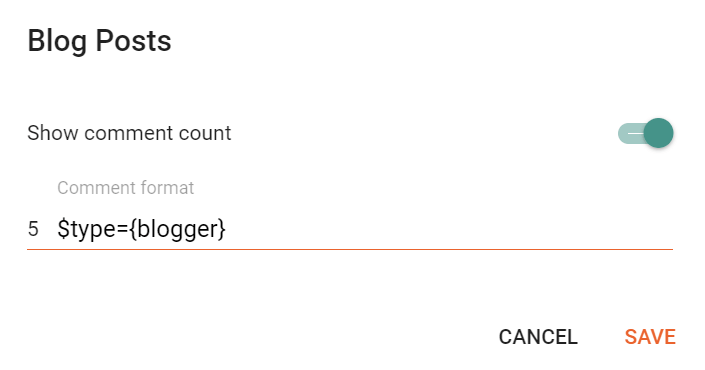
The comment settings are intuitive like never seen before. The shortcodes should be added in > **Layou**t > **Blog Posts** > **Comment Format**.
Blogger Shortcode: `$type={blogger}`
Disqus Shortcode: `$type={disqus}`
Custom Disqus Shortcode: `$type={disqus} $shortname={Your Shortname}`
Facebook Shortcode: `$type={facebook}`
Facebook Custom Language: `$type={facebook} $lang={Language Code}`
Facebook Language Codes: `en_US`, `es_ES`, `ar_AR`, `id_ID`, `th_TH`, `vi_VN`, `pt_BR`, `fr_FR`, `ru_RU`, `de_DE`, `it_IT`
Extra Languages: To use other languages you should check if it is supported by facebook. ([Facebook Languages](https://developers.facebook.com/docs/internationalization)).
**Example:**
### Embed Media in Blogger Comments
The comment settings are intuitive like never seen before. The shortcodes should be added in > **Layout** > **Blog Posts** > **Comment Format**.
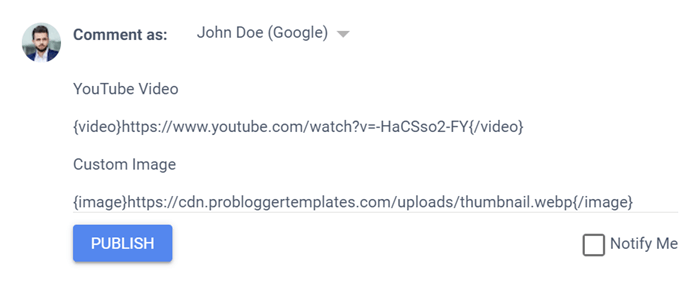
Video Shortcode: `{video}YouTube Video URL{/video}`
Image Shortcode: `{image}Custom Image URL{/image}`
**Example:**